Free Shipping on Domestic Orders $75+

Google Chromebook Pixel 2 Fan Replacement

What you need

  1. Google Chromebook Pixel 2 Fan Replacement, Back Panel: step 1, image 1 of 1
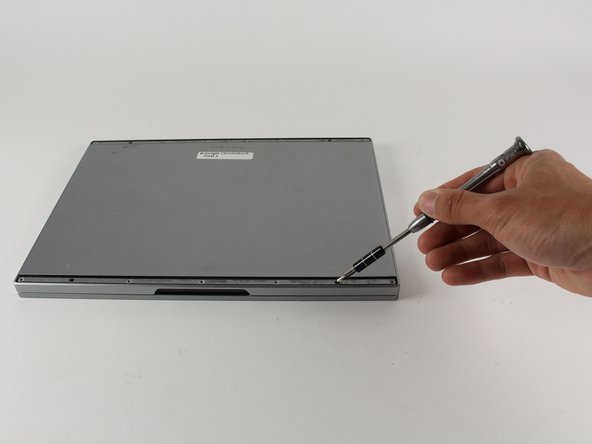
    • Working on your device while it is turned on may result in electric shock. Make sure to shut down and unplug your device before you begin.

    • Flip your device over so the bottom panel is facing up.

    Ask FixBot

    Add Comment

  2. Google Chromebook Pixel 2 Fan Replacement: step 2, image 1 of 1
    • Peel off the black rubber strips from top and bottom of the back panel.

    Ask FixBot

    Add Comment

  3. Google Chromebook Pixel 2 Fan Replacement: step 3, image 1 of 2 Google Chromebook Pixel 2 Fan Replacement: step 3, image 2 of 2
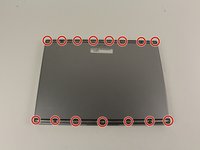
    • Remove the fifteen 3 mm Phillips #00 screws from the back panel.

    Ask FixBot

    Add Comment

  4. Google Chromebook Pixel 2 Fan Replacement: step 4, image 1 of 1
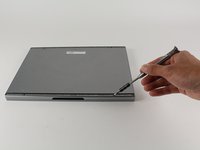
    • Carefully lift the back panel off of the device.

    Ask FixBot

    Add Comment

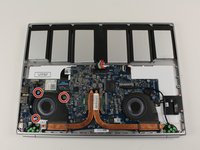
  5. Google Chromebook Pixel 2 Fan Replacement, Fan: step 5, image 1 of 2 Google Chromebook Pixel 2 Fan Replacement, Fan: step 5, image 2 of 2
    • Remove the three blue 4.0 mm Phillips #00 screws from the fan on the right side.

    Ask FixBot

    Add Comment

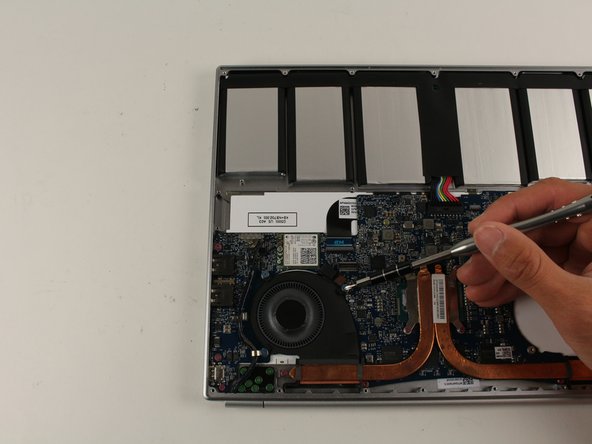
  6. Google Chromebook Pixel 2 Fan Replacement: step 6, image 1 of 1
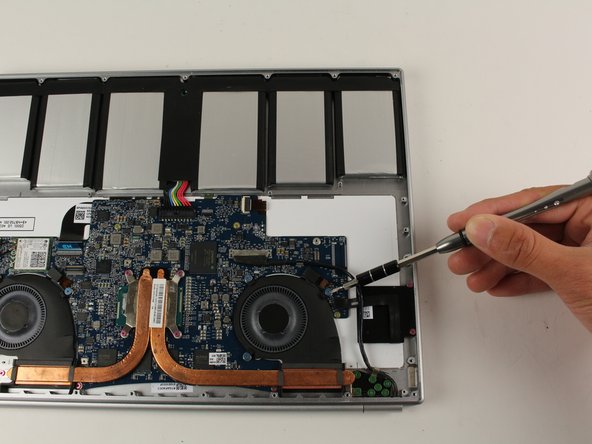
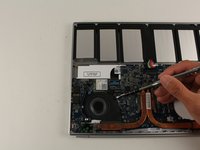
    • Using the plastic opening tool, slide out the right fan’s connector out of the motherboard slot.

    Ask FixBot

    Add Comment

  7. Google Chromebook Pixel 2 Fan Replacement: step 7, image 1 of 1
    • Carefully remove lift the right fan out of its slot.

    Ask FixBot

    Add Comment

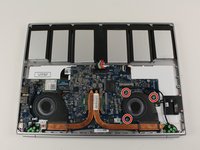
  8. Google Chromebook Pixel 2 Fan Replacement: step 8, image 1 of 2 Google Chromebook Pixel 2 Fan Replacement: step 8, image 2 of 2
    • Remove three blue 4.0 mm Phillips #00 screws from the left fan.

    Ask FixBot

    Add Comment

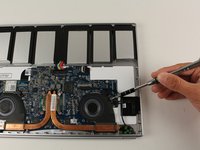
  9. Google Chromebook Pixel 2 Fan Replacement: step 9, image 1 of 1
    • Using the plastic opening tool, slide out the left fan’s connector.

    Ask FixBot

    Add Comment

  10. Google Chromebook Pixel 2 Fan Replacement: step 10, image 1 of 1
    • Gently lift the left fan out of its slot.

    Ask FixBot

    Add Comment

Conclusion

To reassemble your device, follow these instructions in reverse order.

Cancel: I did not complete this guide.

One other person completed this guide.

Garrett Monteiro

Member since: 04/26/17

413 Reputation

3 Guides authored

Team

Cal Poly, Team S22-G6, Livingston Spring 2017 Member of Cal Poly, Team S22-G6, Livingston Spring 2017

CPSU-LIVINGSTON-S17S22G6

4 Members

4 Guides authored

0 Guide Comments

Add Comment

View Statistics:

Past 24 Hours: 2

Past 7 Days: 4

Past 30 Days: 16

All Time: 371