Introduction
This guide will help with replacing or upgrading the random access memory (RAM).
-
-
-
Disconnect the laptop charger. Close the lid and turn the laptop over so that it is resting on its lid on your surface.
 Ask FixBot
-
-
-
Using the iFixit screwdriver with a 000 tip, remove the 12 screws from around the base
-
-
-
There are two sliding switches on the battery that both been to be in the open position to allow the battery to be removed
-
The left hand switch is spring-loaded and will need to be pushed to the right and held
-
The right hand switch is a simple mechanical switch, slide it to the left to unlock
-
Use a finger nail to get in the recess to lift the front edge of the battery up
-
Rotate the battery as though it is hinged until it points straight up, then lift the battery away
-
-
-
-
The first time it comes to removing the base of the laptop is very intimidating - it's well secured and doesn't seem to give easily
-
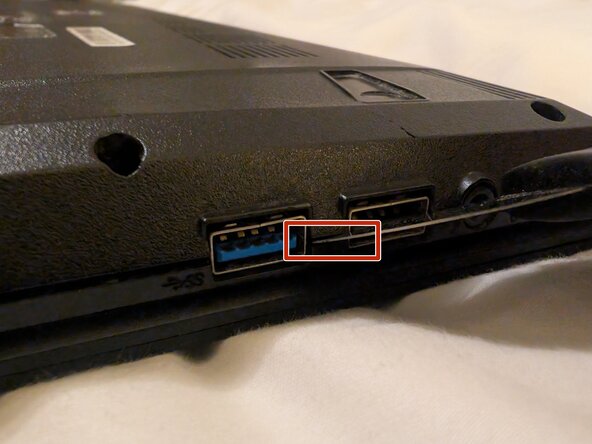
I used a Jimmy tool, however any of the prying tools will work well, you just need something with a reasonably fine tip / head on it.
-
Start between two connectors (the two USB-A ports on the right-hand side as shown in the image), gently insert the Jimmy in the seam where the top- and bottom-lids meet between the two connectors and gently twist to help get the Jimmy deeper.
-
You'll only need to be in a few millimetres before the chassis will split apart.
-
Then work your way around the entire perimeter.
-
-
-
-
-
There are a pair of slots for RAM, these are located in the lower-middle area of the motherboard
-
-
-
Each memory module has a pair of retaining arms that clip in to each side. In order to remove an existing module, or to easily get a module in these arms need to be released.
-
If there is already a memory module in, then gently press the module down slightly and use your thumbnail to gentle pry the arm away by just a millimeter or two
-
Then release the pressure of the memory module - you will see that the arm is now out (and below) the retaining slot.
-
Repeat this for the opposite arm (you'll need to do both arms simultaneously!
-
Once both arms are clear, the memory module will want to naturally pop-up
-
The module can now be removed
-
-


To reassemble your device, follow these instructions in reverse order.

