Free Shipping on Domestic Orders $75+

Gateway P-6831FX RAM Replacement

What you need

  1. Gateway P-6831FX RAM Replacement, RAM: step 1, image 1 of 2 Gateway P-6831FX RAM Replacement, RAM: step 1, image 2 of 2
    • Turn your laptop upside down and remove the five Philips #0 (5mm) screws for the cover of the RAM.

    • Make sure to unplug your laptop charger, as removing the RAM while the device is charging may damage the RAM and or the charger.

    Ask FixBot

    Add Comment

  2. Gateway P-6831FX RAM Replacement: step 2, image 1 of 2 Gateway P-6831FX RAM Replacement: step 2, image 2 of 2
    • Gently pull the cover away from the device.

    • Set the cover aside for now, until reassembly.

    Ask FixBot

    Add Comment

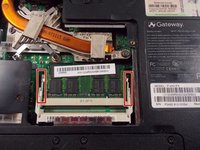
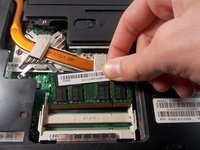
  3. Gateway P-6831FX RAM Replacement: step 3, image 1 of 3 Gateway P-6831FX RAM Replacement: step 3, image 2 of 3 Gateway P-6831FX RAM Replacement: step 3, image 3 of 3
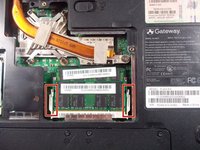
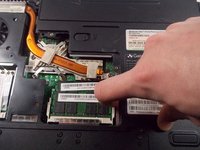
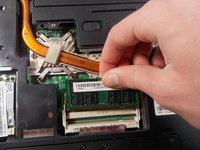
    • Pull the metal tabs and lift the first RAM stick out of the socket.

    Ask FixBot

    Add Comment

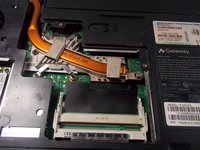
  4. Gateway P-6831FX RAM Replacement: step 4, image 1 of 3 Gateway P-6831FX RAM Replacement: step 4, image 2 of 3 Gateway P-6831FX RAM Replacement: step 4, image 3 of 3
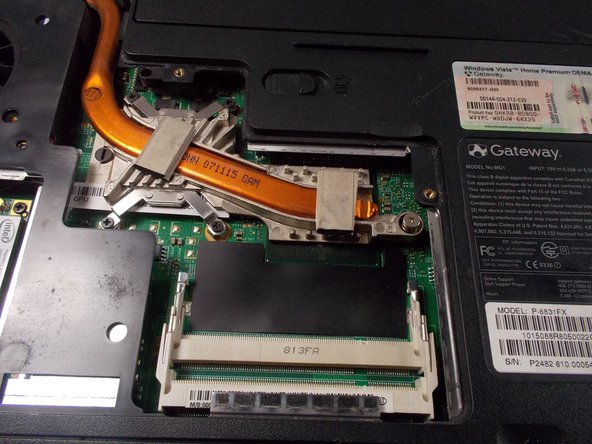
    • Repeat Step 3 to remove the second RAM stick.

    Ask FixBot

    Add Comment

Conclusion

To reassemble your device, follow these instructions in reverse order.

Cancel: I did not complete this guide.

Chandler Jardin

Member since: 03/19/18

507 Reputation

4 Guides authored

Team

0 Guide Comments

Add Comment

View Statistics:

Past 24 Hours: 2

Past 7 Days: 14

Past 30 Days: 41

All Time: 496