Free Shipping on Domestic Orders $75+

Gateway P-6831FX Hard Drive Replacement

What you need

  1. Gateway P-6831FX Hard Drive Replacement, Hard Drive: step 1, image 1 of 2 Gateway P-6831FX Hard Drive Replacement, Hard Drive: step 1, image 2 of 2
    • Turn your laptop upside down and remove the four Philips #0 (5mm) screws for the cover of the hard drive.

    • Make sure to unplug your laptop charger, as removing the hard drive while the device is charging may damage the hard drive and or the charger.

    Ask FixBot

    Add Comment

  2. Gateway P-6831FX Hard Drive Replacement: step 2, image 1 of 2 Gateway P-6831FX Hard Drive Replacement: step 2, image 2 of 2
    • Gently pull the cover away from the device.

    • Set the cover aside for now, until reassembly.

    Ask FixBot

    Add Comment

  3. Gateway P-6831FX Hard Drive Replacement: step 3, image 1 of 2 Gateway P-6831FX Hard Drive Replacement: step 3, image 2 of 2
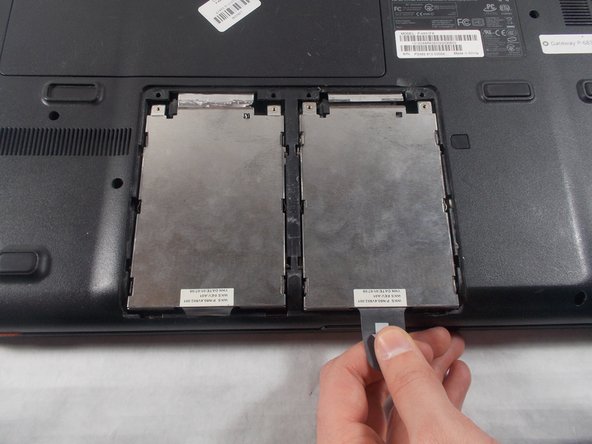
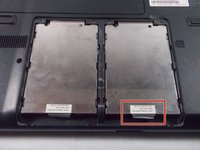
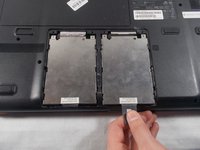
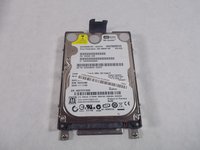
    • Pull the plastic tab as shown to remove the hard drive from the device.

    Ask FixBot

    Add Comment

  4. Gateway P-6831FX Hard Drive Replacement: step 4, image 1 of 2 Gateway P-6831FX Hard Drive Replacement: step 4, image 2 of 2
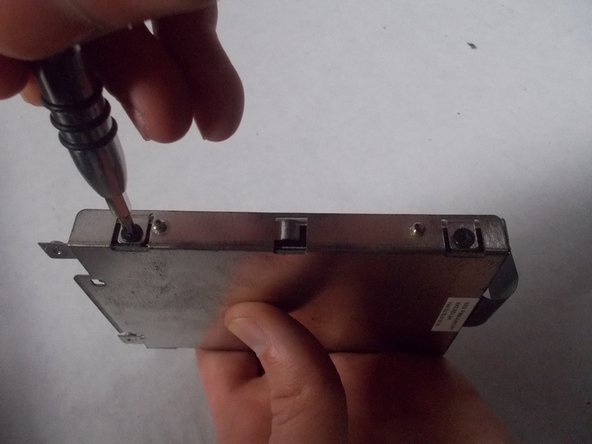
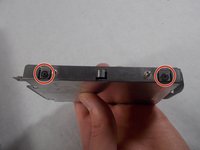
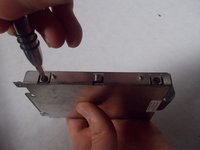
    • Remove the four Philips #0 (3mm) screws around the case for the hard drive. There will be two screws and the left and right side.

    Ask FixBot

    Add Comment

  5. Gateway P-6831FX Hard Drive Replacement: step 5, image 1 of 3 Gateway P-6831FX Hard Drive Replacement: step 5, image 2 of 3 Gateway P-6831FX Hard Drive Replacement: step 5, image 3 of 3
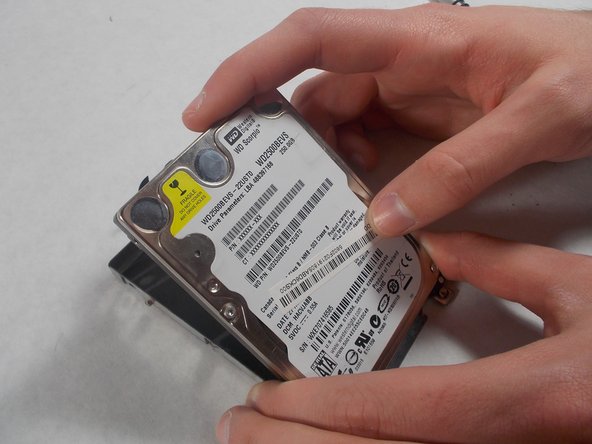
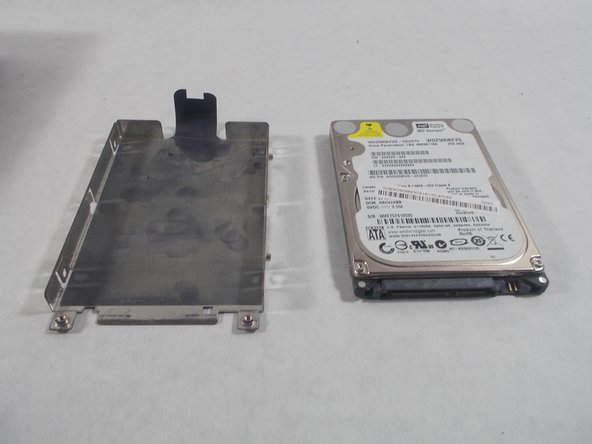
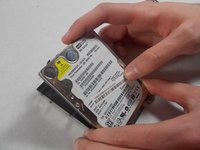
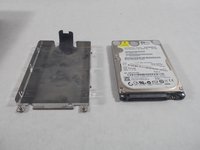
    • Remove the hard drive from the case.

    Ask FixBot

    Add Comment

Conclusion

To reassemble your device, follow these instructions in reverse order.

Cancel: I did not complete this guide.

One other person completed this guide.

Chandler Jardin

Member since: 03/19/18

507 Reputation

4 Guides authored

Team

0 Guide Comments

Add Comment

View Statistics:

Past 24 Hours: 0

Past 7 Days: 14

Past 30 Days: 40

All Time: 642