
Gateway NV59C66u LCD Display Replacement

Brian Walker and 3 other contributors
Last updated on Jul 27, 2020
Views: 573
View statistics:
- Past 24 Hours:
- 1
- Past 7 Days:
- 19
- Past 30 Days:
- 63
- All Time:
- 573
Comments: 0
No one has left comments on this guide. Will you be first?
Go to guide commentsCompleted: 0 1
No one has marked this guide "completed." Will you be the first?
1 person has marked this guide "completed." It's you — great job!
Favorites: 0 1
No one has favorited (and subscribed to) this guide. Will you be the first?
1 person has favorited (and subscribed to) this guide — and that's you!
Introduction
Go to step 1 ↓If your computer screen seems damaged or won’t light up at all, you may need to replace the LCD display. Here is a step by step guide to replacing your LCD display safely and in a timely manner.
What you need


-
-
-
Remove the black covers over the two screen screws on the bottom corners and unscrew them with a Phillips #0 screwdriver.
 Ask FixBot
-
-
-
Now gently remove the screen cover by pulling it apart on all sides with a plastic opening tool.
-
-
-
Use a Phillips #0 screwdriver to remove the screws located in the top corners of the screen
-
make sure to keep all screws nearby and in a safe location so you don't lose them.
-
-
-
Carefully pop the screen out but do not disconnect it from the cables just yet.
-
-
-
-
Be sure to support the screen so the cables are not pulled tight. Setting the computer on it's side can help with this.
-
-
-
Disconnect the LCD cables on the back of the screen and then remove the screen.
-
-
-
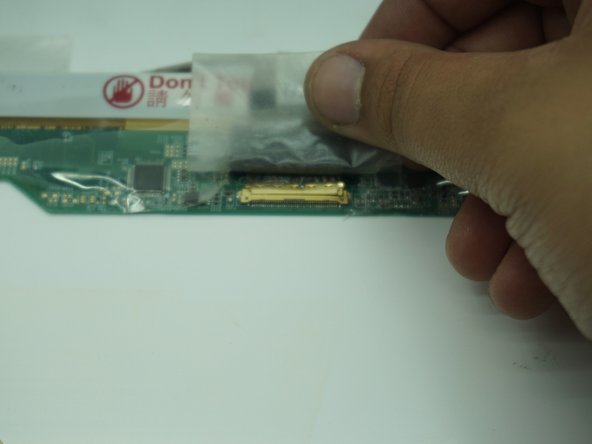
Make sure to support the new LCD screen like you did the damaged one, and slowly reconnect the cables to the new display. Make sure the cables are in the right place.
-
-
-
Put all latches in the lock position and lightly press the plastic border to the screen to make sure it's in place.
-
-




To reassemble your device, follow these instructions in reverse order.

Team

University of Memphis, Team S2-G4, Kim Fall 2019 Member of University of Memphis, Team S2-G4, Kim Fall 2019
UM-KIM-F19S2G4
4 Members
60 Guides authored
