Free Shipping on Domestic Orders $75+

Gateway NE56R27u Keyboard Replacement

What you need

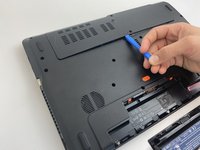
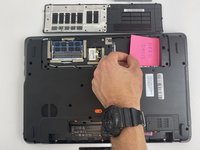
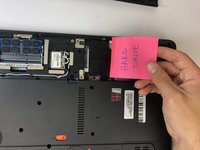
  1. Gateway NE56R27u Keyboard Replacement, Battery: step 1, image 1 of 2 Gateway NE56R27u Keyboard Replacement, Battery: step 1, image 2 of 2
    • Using the spudger, push the orange tab to the unlock position.

    Ask FixBot

    Add Comment

  2. Gateway NE56R27u Keyboard Replacement: step 2, image 1 of 2 Gateway NE56R27u Keyboard Replacement: step 2, image 2 of 2
    • Lift the battery from its compartment.

    • When reinstalling, insert back end of battery first, then clicking into place.

    Ask FixBot

    Add Comment

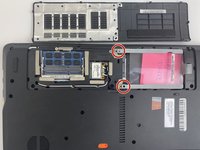
  3. Gateway NE56R27u Keyboard Replacement, Hard Drive: step 3, image 1 of 3 Gateway NE56R27u Keyboard Replacement, Hard Drive: step 3, image 2 of 3 Gateway NE56R27u Keyboard Replacement, Hard Drive: step 3, image 3 of 3
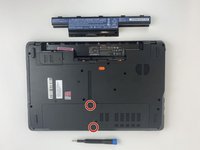
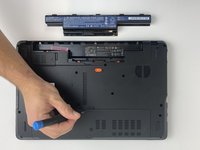
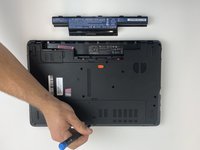
    • Unscrew the two 7.9mm Phillips #0 screws that secure the service cover.

    Ask FixBot
    Add Comment

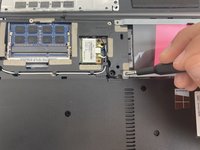
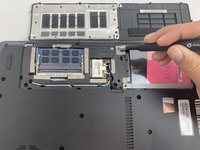
  4. Gateway NE56R27u Keyboard Replacement: step 4, image 1 of 2 Gateway NE56R27u Keyboard Replacement: step 4, image 2 of 2
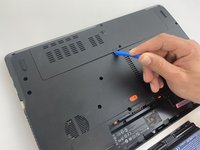
    • Use the opening tool to gently pry open the compartment covering.

    Ask FixBot
    Add Comment

  5. Gateway NE56R27u Keyboard Replacement: step 5, image 1 of 3 Gateway NE56R27u Keyboard Replacement: step 5, image 2 of 3 Gateway NE56R27u Keyboard Replacement: step 5, image 3 of 3
    • Unscrew the two 0.5mm screws from the hard drive brackets using the Phillips #0 screwdriver.

    • Pull the plastic tab attached to the hard drive to the right to remove the hard drive.

    • The hard drive plugs into the port on the left within the compartment. Be sure to gently remove the hard drive without damaging the port.

    Ask FixBot

    Add Comment

  6. Gateway NE56R27u Keyboard Replacement: step 6, image 1 of 2 Gateway NE56R27u Keyboard Replacement: step 6, image 2 of 2
    • Remove the hard drive by lifting up the right side, releasing the hard drive from the compartment clips on the left.

    Ask FixBot

    Add Comment

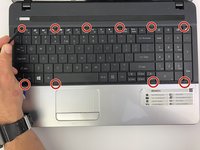
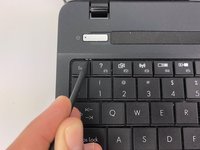
  7. Gateway NE56R27u Keyboard Replacement, Keyboard: step 7, image 1 of 2 Gateway NE56R27u Keyboard Replacement, Keyboard: step 7, image 2 of 2
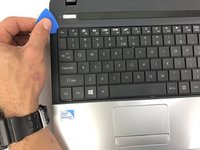
    • Flip your laptop over to view the keyboard.

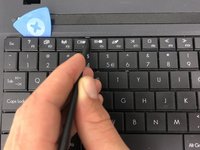
    • Using the spudger, push in the ten tabs at the edges of the keyboard.

    Ask FixBot

    Add Comment

  8. Gateway NE56R27u Keyboard Replacement: step 8, image 1 of 2 Gateway NE56R27u Keyboard Replacement: step 8, image 2 of 2
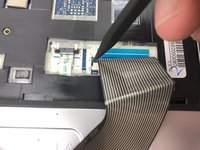
    • Using the opening pick, lift the edges of the keyboard.

    • Repeat around the edges of the device.

    • Lift up the keyboard to expose the cables underneath.

    Ask FixBot
    Add Comment

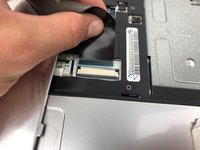
  9. Gateway NE56R27u Keyboard Replacement: step 9, image 1 of 3 Gateway NE56R27u Keyboard Replacement: step 9, image 2 of 3 Gateway NE56R27u Keyboard Replacement: step 9, image 3 of 3
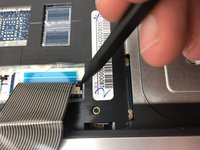
    • Release the clamp holding the mini-DIN cord by lifting the two black tabs on either side.

    • Gently pull the mini-DIN cord out of the clamp.

    • Remove the keyboard.

    Ask FixBot
    Add Comment

Conclusion

To reassemble your device, follow these instructions in reverse order.

Cancel: I did not complete this guide.
One other person completed this guide.

0 Guide Comments

Add Comment

View Statistics:

Past 24 Hours: 0

Past 7 Days: 10

Past 30 Days: 32

All Time: 1,090