Free Shipping on Domestic Orders $75+

Gateway NE52214U Fan Replacement

What you need

    1. Gateway NE52214U Fan Replacement, Battery: step 1, image 1 of 1
      • Make sure to power down and turn off the laptop before proceeding with this guide.

      • Flip over the laptop.

      Ask FixBot

      Add Comment

    2. Gateway NE52214U Fan Replacement: step 2, image 1 of 2 Gateway NE52214U Fan Replacement: step 2, image 2 of 2
      • Slide the tab to the left and hold the tab there.

      • While holding down the sliding tab, remove the battery from the device.

      Ask FixBot

      Add Comment

    1. Gateway NE52214U Fan Replacement, Upper Case: step 3, image 1 of 2 Gateway NE52214U Fan Replacement, Upper Case: step 3, image 2 of 2
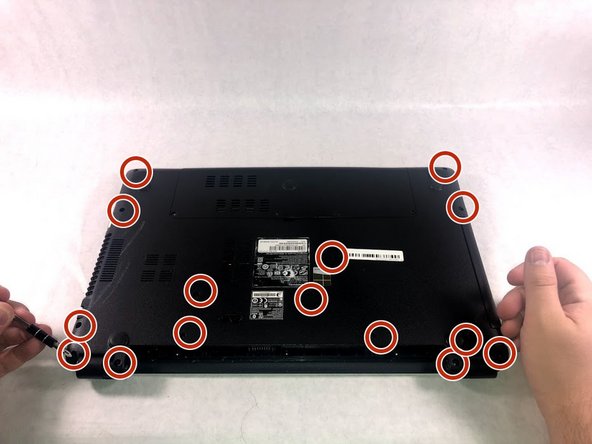
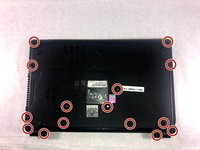
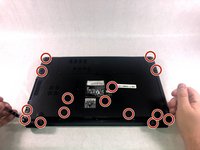
      • After removing the battery, remove 15 7mm screws using the Phillip #1 Screwdriver.

      Ask FixBot

      Add Comment

    2. Gateway NE52214U Fan Replacement: step 4, image 1 of 1
      • Flip over the laptop and open it so the screen is facing you.

      Ask FixBot

      Add Comment

    3. Gateway NE52214U Fan Replacement: step 5, image 1 of 1
      • Lift the upper case cover off of the device. Use a prying tool along the edges if necessary.

      Ask FixBot

      Add Comment

    1. Gateway NE52214U Fan Replacement, Motherboard: step 6, image 1 of 1
      • Remove the twelve 3mm screws using the Phillips #00 screwdriver.

      Ask FixBot

      Add Comment

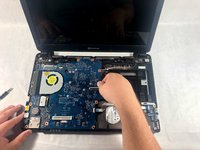
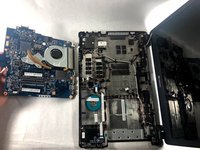
    2. Gateway NE52214U Fan Replacement: step 7, image 1 of 2 Gateway NE52214U Fan Replacement: step 7, image 2 of 2
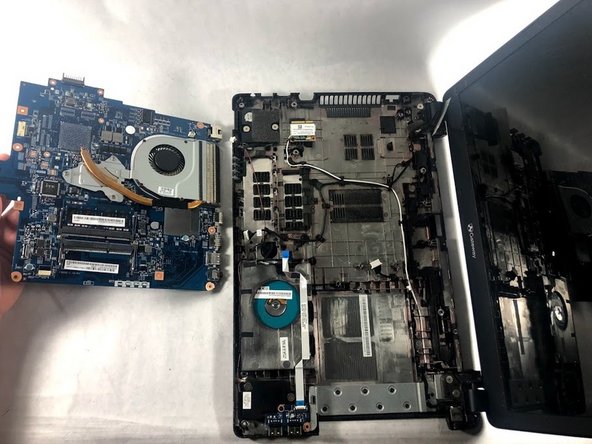
      • Gently lift and remove the motherboard off of device.

      • This will also remove the fan from the device but it will remain attached to the motherboard.

      Ask FixBot

      Add Comment

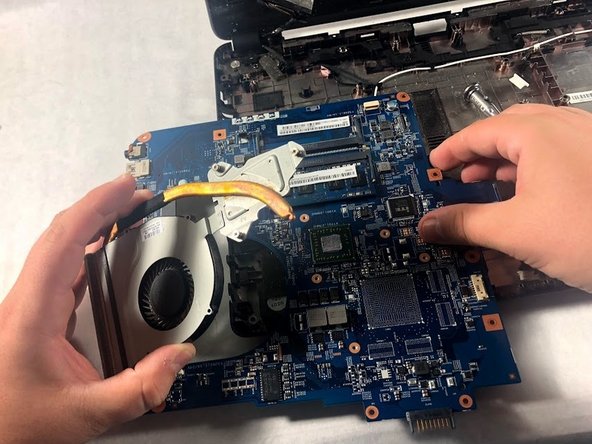
    1. Gateway NE52214U Fan Replacement, Fan: step 8, image 1 of 1
      • Remove the four 3mm screws attaching the fan to motherboard using the Phillips #00 screwdriver.

      Ask FixBot

      Add Comment

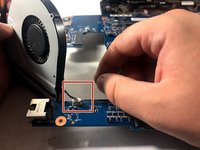
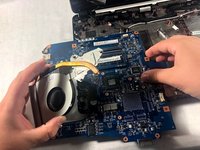
    2. Gateway NE52214U Fan Replacement: step 9, image 1 of 2 Gateway NE52214U Fan Replacement: step 9, image 2 of 2
      • Gently lift the fan and disconnect the fan from the motherboard.

      • Remove the fan from the device.

      Ask FixBot

      Add Comment

Conclusion

To reassemble your device, follow these instructions in reverse order.

Cancel: I did not complete this guide.

Kelsey Rodrigues

Member since: 10/23/18

495 Reputation

5 Guides authored

Team

0 Guide Comments

Add Comment

View Statistics:

Past 24 Hours: 3

Past 7 Days: 14

Past 30 Days: 47

All Time: 525