Free Shipping on Domestic Orders $75+

Gateway NE52203u USB Port Replacement

What you need

  1. Gateway NE52203u USB Port Replacement, Battery: step 1, image 1 of 1
    • Flip the device over onto its backside in order to access the battery.

    Ask FixBot

    Add Comment

  2. Gateway NE52203u USB Port Replacement: step 2, image 1 of 2 Gateway NE52203u USB Port Replacement: step 2, image 2 of 2
    • Locate the battery release latch and slide it over to the other side.

    • A small tool like a pen or screwdriver may be helpful in sliding the latch to release the battery.

    Ask FixBot

    Add Comment

  3. Gateway NE52203u USB Port Replacement: step 3, image 1 of 1
    • Grab the newly ejected battery from the device to completely remove it.

    • When reinserting the new battery, make sure the prongs on the battery are aligned with the corresponding holes on the laptop.

    Ask FixBot

    Add Comment

  4. Gateway NE52203u USB Port Replacement, Touchpad Assembly: step 4, image 1 of 2 Gateway NE52203u USB Port Replacement, Touchpad Assembly: step 4, image 2 of 2
    • Remove 18 6.0 mm Phillips #00 screws from the bottom of the laptop.

    • Remove 5 6.0 mm Phillip #00 screws from under cover.

    Ask FixBot

    Add Comment

  5. Gateway NE52203u USB Port Replacement: step 5, image 1 of 1
    • Remove three 2.9 mm Phillips #00 screws from the battery compartment.

    Ask FixBot

    Add Comment

  6. Gateway NE52203u USB Port Replacement: step 6, image 1 of 2 Gateway NE52203u USB Port Replacement: step 6, image 2 of 2
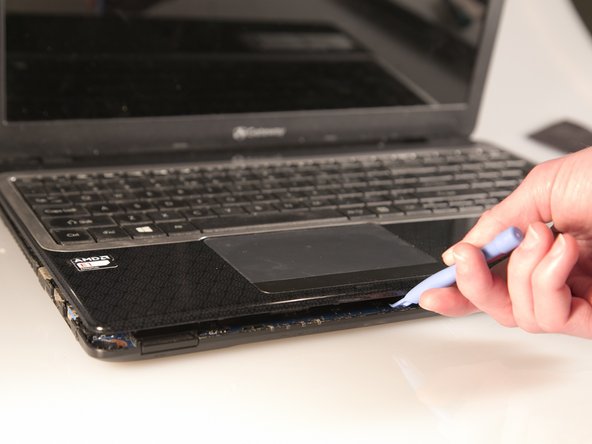
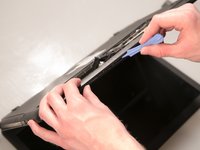
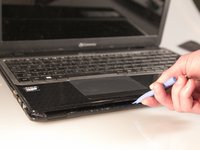
    • Separate the bottom panel from the touchpad assembly by inserting a plastic opening tool between them on all four sides.

    Ask FixBot

    Add Comment

  7. Gateway NE52203u USB Port Replacement: step 7, image 1 of 1
    Tool used on this step:
    Tweezers
    $4.99
    Buy
    • Pull black ribbon wire from port using tweezers in order to completely separate touchpad assembly from bottom assembly.

    Ask FixBot

    Add Comment

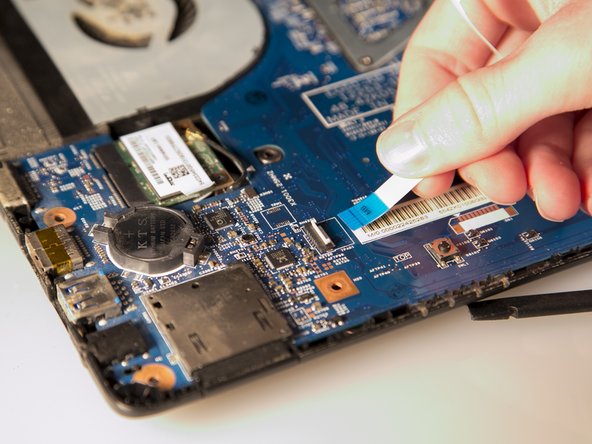
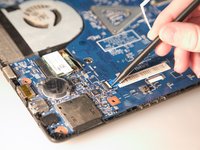
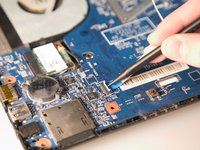
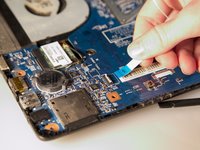
  8. Gateway NE52203u USB Port Replacement: step 8, image 1 of 3 Gateway NE52203u USB Port Replacement: step 8, image 2 of 3 Gateway NE52203u USB Port Replacement: step 8, image 3 of 3
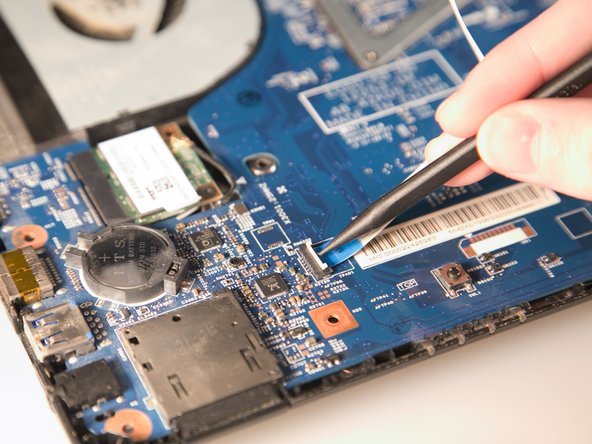
    • Disconnect the two ZIF ports that attach the touchpad assembly to the motherboard.

    • First flip open the flap covering the ribbon using a spudger or fingernail.

    • Second gently pull the ribbon away from the port.

    Ask FixBot

    Add Comment

  9. Gateway NE52203u USB Port Replacement, USB Port: step 9, image 1 of 2 Gateway NE52203u USB Port Replacement, USB Port: step 9, image 2 of 2
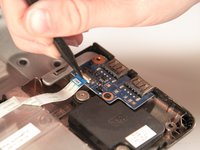
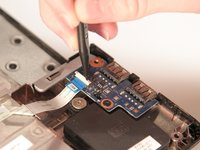
    • Using a spudger, pry the ZIF connector upwards.

    Ask FixBot

    Add Comment

  10. Gateway NE52203u USB Port Replacement: step 10, image 1 of 1
    • Use your fingers to gently disconnect the ribbon wire from the USB circuit board.

    Ask FixBot

    Add Comment

  11. Gateway NE52203u USB Port Replacement: step 11, image 1 of 1
    • Using a #00 Phillips head screwdriver, remove the 2.9 mm screw on the USB circuit board.

    Ask FixBot

    Add Comment

  12. Gateway NE52203u USB Port Replacement: step 12, image 1 of 1
    • Finally, remove the old USB port.

    Ask FixBot

    Add Comment

Conclusion

To reassemble your device, follow these instructions in reverse order.

Cancel: I did not complete this guide.

3 other people completed this guide.

Stephen Spees

Member since: 03/20/15

542 Reputation

4 Guides authored

Team

Baylor, Team 2-1, Grigsby Spring 2015 Member of Baylor, Team 2-1, Grigsby Spring 2015

BU-GRIGSBY-S15S2G1

4 Members

10 Guides authored

0 Guide Comments

Add Comment

View Statistics:

Past 24 Hours: 2

Past 7 Days: 7

Past 30 Days: 26

All Time: 921