Free Shipping on Domestic Orders $75+

Gateway MS2370 Screen Replacement

What you need

  1. Gateway MS2370 Screen Replacement, Battery: step 1, image 1 of 1
    • Make sure the laptop is turned off and flipped over so that the bottom is facing up. Then, locate the battery clip as shown.

    Ask FixBot

    Add Comment

  2. Gateway MS2370 Screen Replacement: step 2, image 1 of 1
    • Either using your fingers or a plastic spudger push the battery clip to the left to release battery.

    Ask FixBot

    Add Comment

  3. Gateway MS2370 Screen Replacement: step 3, image 1 of 1
    • Pull the battery from the laptop to remove it.

    Ask FixBot

    Add Comment

  4. Gateway MS2370 Screen Replacement, Screen: step 4, image 1 of 1
    Tool used on this step:
    Tweezers
    $4.99
    Buy
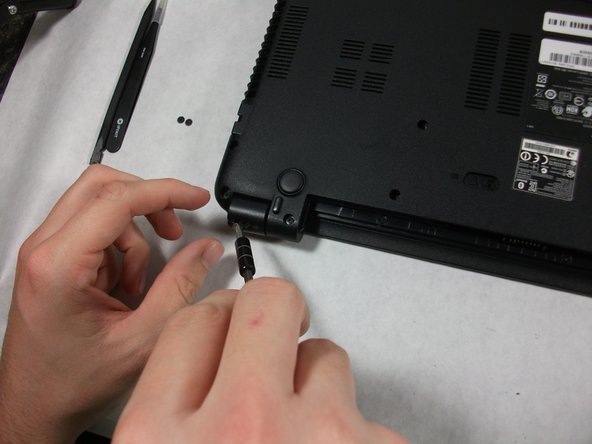
    • Using the pointed tweezers, remove plastic circles that are stuck onto the back of the laptop’s hinges.

    • These plastic circles are stuck inside the hole with adhesive and might require a significant amount of force.

    Ask FixBot

    Add Comment

  5. Gateway MS2370 Screen Replacement: step 5, image 1 of 2 Gateway MS2370 Screen Replacement: step 5, image 2 of 2
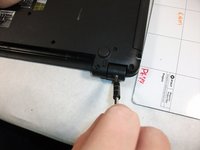
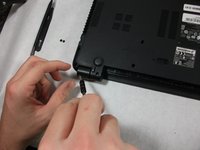
    • Unscrew both of the 3mm Phillips 01 screws on both hinges using the matching screwdriver.

    Ask FixBot

    Add Comment

  6. Gateway MS2370 Screen Replacement: step 6, image 1 of 1
    • Take the plastic spudger and pull up the tabs on all four sides of the screen molding.

    Ask FixBot

    Add Comment

  7. Gateway MS2370 Screen Replacement: step 7, image 1 of 1
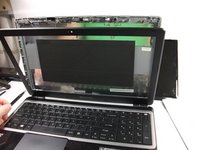
    • Carefully remove the screen molding. Be aware that the screen molding will not come out all the way.

    Ask FixBot

    Add Comment

  8. Gateway MS2370 Screen Replacement: step 8, image 1 of 1
    • Unscrew the four 3mm inch Phillips 01 screws on the screen bracket.

    Ask FixBot

    Add Comment

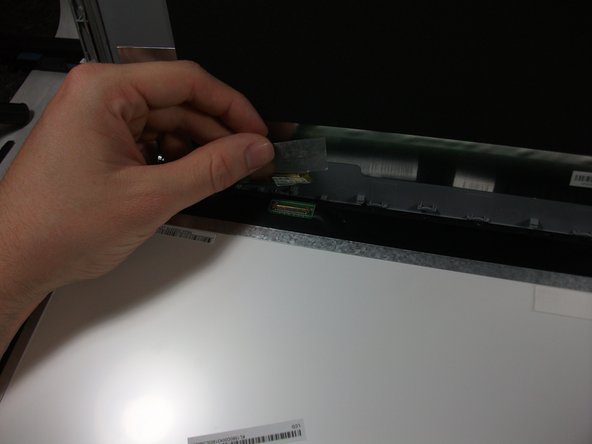
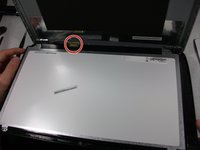
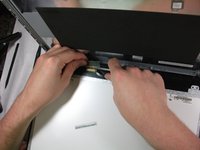
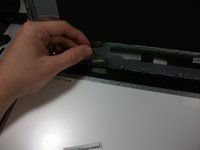
  9. Gateway MS2370 Screen Replacement: step 9, image 1 of 3 Gateway MS2370 Screen Replacement: step 9, image 2 of 3 Gateway MS2370 Screen Replacement: step 9, image 3 of 3
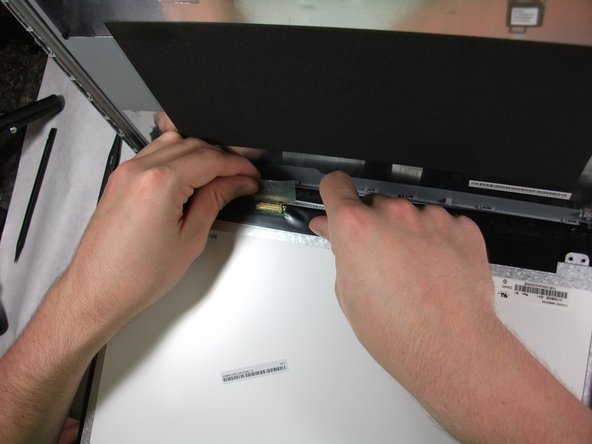
    • Peel up the tape over the connector and unplug the screen from the laptop.

    Ask FixBot

    Add Comment

  10. Gateway MS2370 Screen Replacement: step 10, image 1 of 2 Gateway MS2370 Screen Replacement: step 10, image 2 of 2
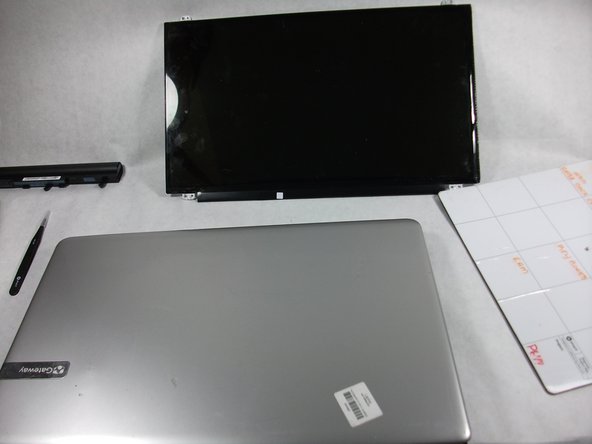
    • Slowly remove the screen from the laptop.

    Ask FixBot

    Add Comment

Conclusion

To reassemble your device, follow these instructions in reverse order.

Cancel: I did not complete this guide.

Mathieu Bolduc-Clayton

Member since: 10/17/17

518 Reputation

4 Guides authored

Team

0 Guide Comments

Add Comment

View Statistics:

Past 24 Hours: 1

Past 7 Days: 9

Past 30 Days: 26

All Time: 975