Free Shipping on Domestic Orders $75+

Gateway MS2285 RAM Replacement

What you need

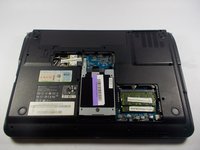
    1. Gateway MS2285 RAM Replacement, Turn Laptop Over: step 1, image 1 of 1
      • Turn the laptop over so that the underside is facing towards you.

      Ask FixBot

      Add Comment

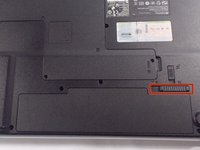
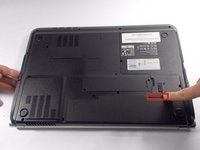
    2. Gateway MS2285 RAM Replacement, Unlock The Battery: step 2, image 1 of 2 Gateway MS2285 RAM Replacement, Unlock The Battery: step 2, image 2 of 2
      • Slide the short slider one towards the unlocked lock symbol.

      Ask FixBot

      Add Comment

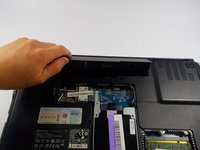
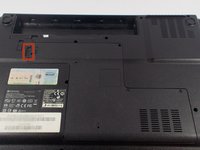
    3. Gateway MS2285 RAM Replacement, Release The Battery: step 3, image 1 of 2 Gateway MS2285 RAM Replacement, Release The Battery: step 3, image 2 of 2
      • Slide the long slider towards the unlocked lock icon.

      • This slider is spring loaded and may require a little force.

      • If done correctly, a click will be heard and the battery will be slightly raised.

      Ask FixBot

      Add Comment

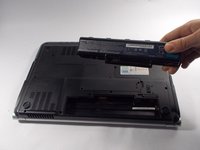
    4. Gateway MS2285 RAM Replacement, Remove The Battery: step 4, image 1 of 2 Gateway MS2285 RAM Replacement, Remove The Battery: step 4, image 2 of 2
      • Grasp the battery's raised end and lift upwards.

      Ask FixBot

      Add Comment

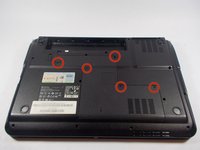
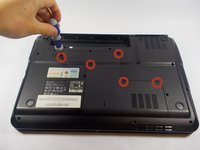
    1. Gateway MS2285 RAM Replacement, Unscrew Backplate: step 5, image 1 of 2 Gateway MS2285 RAM Replacement, Unscrew Backplate: step 5, image 2 of 2
      • Use the phillips head screwdriver to remove the five screws holding the back plate.

      • The screws are counter-clockwise threaded.

      Ask FixBot

      Add Comment

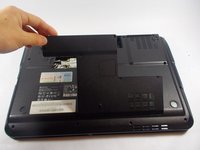
    2. Gateway MS2285 RAM Replacement, Remove Back Plate: step 6, image 1 of 3 Gateway MS2285 RAM Replacement, Remove Back Plate: step 6, image 2 of 3 Gateway MS2285 RAM Replacement, Remove Back Plate: step 6, image 3 of 3
      • Place fingers under back plate via the indentation and lift upwards to remove.

      Ask FixBot

      Add Comment

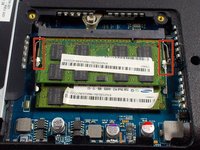
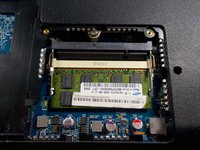
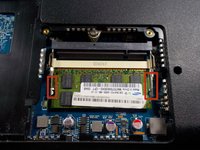
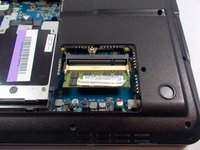
    3. Gateway MS2285 RAM Replacement, Unlock Upper RAM Module: step 7, image 1 of 3 Gateway MS2285 RAM Replacement, Unlock Upper RAM Module: step 7, image 2 of 3 Gateway MS2285 RAM Replacement, Unlock Upper RAM Module: step 7, image 3 of 3
      • Push the upper RAM module's two pins outwards at the same time.

      • If done correctly, the module should have lifted.

      Ask FixBot

      Add Comment

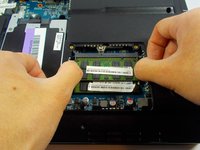
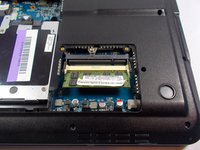
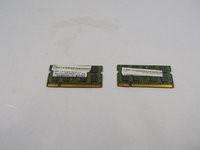
    4. Gateway MS2285 RAM Replacement, Remove Upper RAM Module: step 8, image 1 of 2 Gateway MS2285 RAM Replacement, Remove Upper RAM Module: step 8, image 2 of 2
      • Grab onto the module and pull away in a straight direction.

      • Do not touch the gold connectors.

      Ask FixBot

      Add Comment

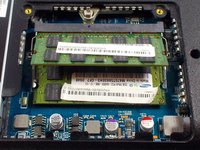
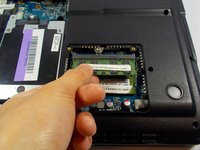
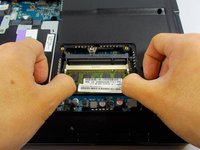
    5. Gateway MS2285 RAM Replacement, Unlock Lower RAM Module: step 9, image 1 of 3 Gateway MS2285 RAM Replacement, Unlock Lower RAM Module: step 9, image 2 of 3 Gateway MS2285 RAM Replacement, Unlock Lower RAM Module: step 9, image 3 of 3
      • Push the lower RAM module's two pins outwards at the same time.

      • If done correctly, the module should have lifted.

      Ask FixBot

      Add Comment

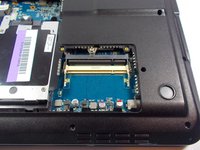
    6. Gateway MS2285 RAM Replacement, Remove Lower RAM Module: step 10, image 1 of 3 Gateway MS2285 RAM Replacement, Remove Lower RAM Module: step 10, image 2 of 3 Gateway MS2285 RAM Replacement, Remove Lower RAM Module: step 10, image 3 of 3
      • Like removing the upper module, grab the module and pull away in a straight direction.

      • Do not touch the gold connectors.

      Ask FixBot

      Add Comment

Conclusion

To reassemble your device, follow these instructions in reverse order.

Cancel: I did not complete this guide.

Chris mello

Member since: 10/22/14

331 Reputation

3 Guides authored

Team

UMass Dartmouth, Team 1-7, Shastany Fall 2014 Member of UMass Dartmouth, Team 1-7, Shastany Fall 2014

UMASSD-SHASTANY-F14S1G7

3 Members

36 Guides authored

0 Guide Comments

Add Comment

View Statistics:

Past 24 Hours: 1

Past 7 Days: 6

Past 30 Days: 22

All Time: 2,941