Free Shipping on Domestic Orders $75+

Gateway MS2285 Hard Drive Replacement

What you need

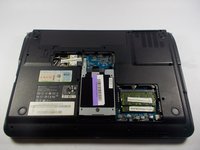
  1. Gateway MS2285 Hard Drive Replacement, Turn Laptop Over: step 1, image 1 of 1
    • Turn the laptop over so that the underside is facing towards you.

    Ask FixBot

    Add Comment

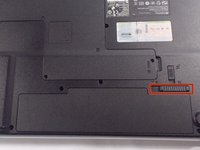
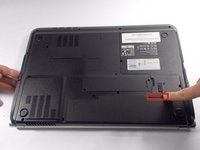
  2. Gateway MS2285 Hard Drive Replacement, Unlock The Battery: step 2, image 1 of 2 Gateway MS2285 Hard Drive Replacement, Unlock The Battery: step 2, image 2 of 2
    • Slide the short slider one towards the unlocked lock symbol.

    Ask FixBot

    Add Comment

  3. Gateway MS2285 Hard Drive Replacement, Release The Battery: step 3, image 1 of 2 Gateway MS2285 Hard Drive Replacement, Release The Battery: step 3, image 2 of 2
    • Slide the long slider towards the unlocked lock icon.

    • This slider is spring loaded and may require a little force.

    • If done correctly, a click will be heard and the battery will be slightly raised.

    Ask FixBot

    Add Comment

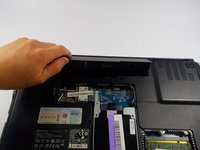
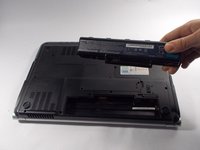
  4. Gateway MS2285 Hard Drive Replacement, Remove The Battery: step 4, image 1 of 2 Gateway MS2285 Hard Drive Replacement, Remove The Battery: step 4, image 2 of 2
    • Grasp the battery's raised end and lift upwards.

    Ask FixBot

    Add Comment

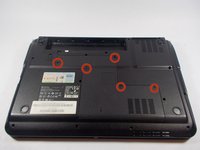
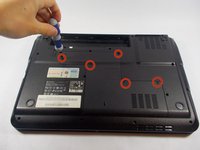
  5. Gateway MS2285 Hard Drive Replacement, Unscrew Backplate: step 5, image 1 of 2 Gateway MS2285 Hard Drive Replacement, Unscrew Backplate: step 5, image 2 of 2
    • Use the Phillips head screwdriver to remove the five screws holding the back plate.

    • The screws are counter-clockwise threaded.

    Ask FixBot

    Add Comment

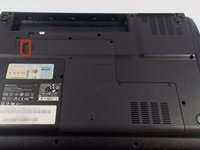
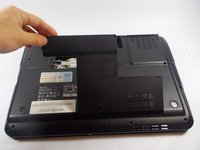
  6. Gateway MS2285 Hard Drive Replacement, Remove Back Plate: step 6, image 1 of 3 Gateway MS2285 Hard Drive Replacement, Remove Back Plate: step 6, image 2 of 3 Gateway MS2285 Hard Drive Replacement, Remove Back Plate: step 6, image 3 of 3
    • Place fingers under back plate via the indentation and lift upwards to remove.

    Ask FixBot

    Add Comment

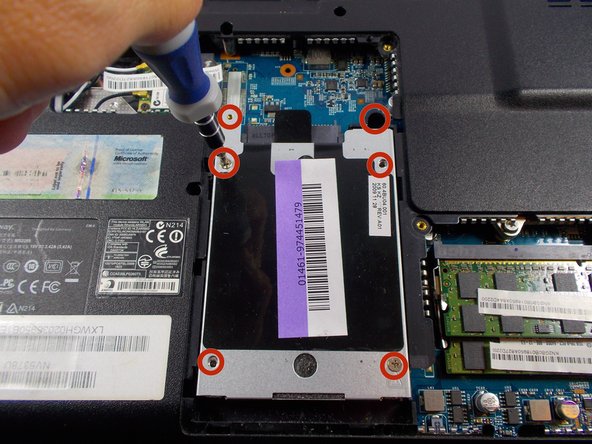
  7. Gateway MS2285 Hard Drive Replacement, Unscrew Hard Drive Cover: step 7, image 1 of 2 Gateway MS2285 Hard Drive Replacement, Unscrew Hard Drive Cover: step 7, image 2 of 2
    • Unscrew the six screws holding the hard drive cover in place

    Ask FixBot

    Add Comment

  8. Gateway MS2285 Hard Drive Replacement, Unlock Hard Drive Cover and Hard Drive: step 8, image 1 of 2 Gateway MS2285 Hard Drive Replacement, Unlock Hard Drive Cover and Hard Drive: step 8, image 2 of 2
    • Grip onto the cover and slide it away from the connector to release the cover and hard drive.

    Ask FixBot

    Add Comment

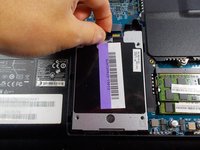
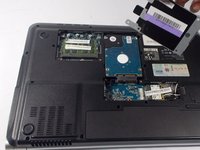
  9. Gateway MS2285 Hard Drive Replacement, Remove Hard Drive Cover: step 9, image 1 of 3 Gateway MS2285 Hard Drive Replacement, Remove Hard Drive Cover: step 9, image 2 of 3 Gateway MS2285 Hard Drive Replacement, Remove Hard Drive Cover: step 9, image 3 of 3
    • Grip onto the black plastic tab to lift the end enough to get your fingers under.

    • Once it is high enough, place another finger or fingers under the cover and lift straight off.

    Ask FixBot

    Add Comment

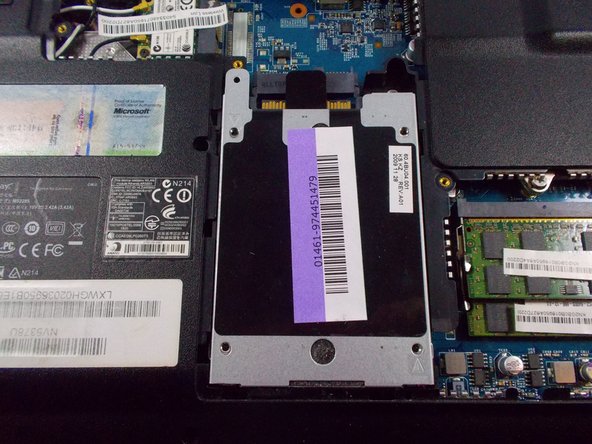
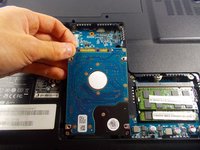
  10. Gateway MS2285 Hard Drive Replacement, Remove Hard Drive: step 10, image 1 of 2 Gateway MS2285 Hard Drive Replacement, Remove Hard Drive: step 10, image 2 of 2
    • Use hand to grab hard drive and remove.

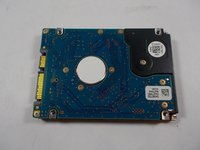
    • Do not touch the gold connectors.

    Ask FixBot

    Add Comment

Conclusion

To reassemble your device, follow these instructions in reverse order.

Cancel: I did not complete this guide.

One other person completed this guide.

Chris mello

Member since: 10/22/14

331 Reputation

3 Guides authored

Team

UMass Dartmouth, Team 1-7, Shastany Fall 2014 Member of UMass Dartmouth, Team 1-7, Shastany Fall 2014

UMASSD-SHASTANY-F14S1G7

3 Members

6 Guides authored

0 Guide Comments

Add Comment

View Statistics:

Past 24 Hours: 2

Past 7 Days: 19

Past 30 Days: 41

All Time: 4,277