Introduction
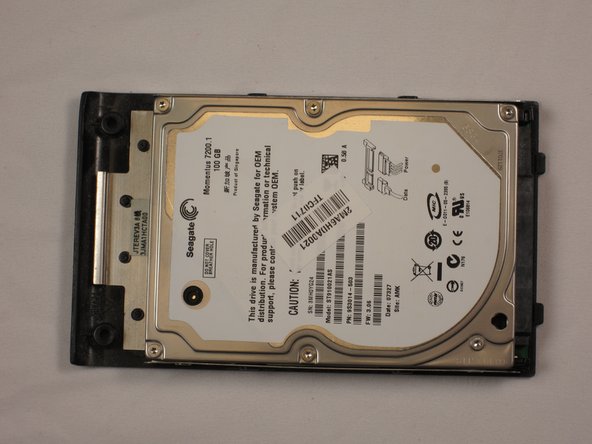
Your laptop hard drive stores all of your files, as well as your computer's operating system. A corrupt hard drive will need to be replaced for your computer to power on and run. It is common to upgrade to a larger hard drive with more storage space.
What you need
-
-
-
Make sure the switch in the upper right corner of the laptop is switched to the "unlock" position (toward the unlocked padlock icon).
 Ask FixBot
-
-
-
Pull the switch on the upper lefthand corner of the laptop towards the unlocked padlock icon.
-
Firmly pull the battery outwards and away from the laptop.
-
-
-
-
-
-
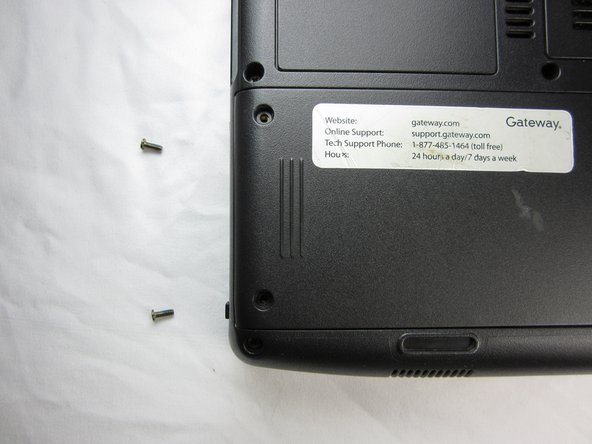
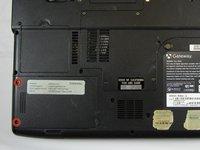
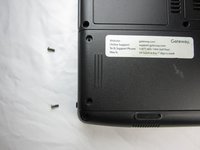
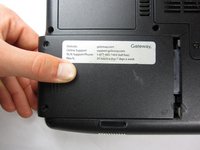
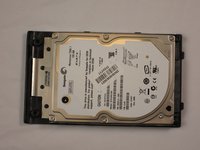
Remove the two 9 mm Phillips #0 screws from the back of the hard drive cover.
-
-



To reassemble your device, follow these instructions in reverse order.
Cancel: I did not complete this guide.
3 other people completed this guide.

Team

Cal Poly, Team 6-2, Forte Spring 2014 Member of Cal Poly, Team 6-2, Forte Spring 2014
CPSU-FORTE-S14S6G2
5 Members
132 Guides authored
1 Guide Comment
It only took 2 minutes once I found te right screwdriver. Great aid!
