
Gateway M-2626u Hard Drive Replacement

Last updated on May 21, 2018
Views: 720
View statistics:
- Past 24 Hours:
- 3
- Past 7 Days:
- 16
- Past 30 Days:
- 62
- All Time:
- 720
Comments: 0
No one has left comments on this guide. Will you be first?
Go to guide commentsCompleted: 0 1
No one has marked this guide "completed." Will you be the first?
1 person has marked this guide "completed." It's you — great job!
Favorites: 0 1
No one has favorited (and subscribed to) this guide. Will you be the first?
1 person has favorited (and subscribed to) this guide — and that's you!
Introduction
Go to step 1 ↓The replacement of the hard drive may be necessary if you experience crashes frequently or if there is data loss and file corruption. You can also upgrade the hard drive if you would like to have access to more storage or faster laptop in general, either way, try out this simple guide!
What you need
Tools


-
-
-
Make the switch in the upper right corner of the turned over laptop is switched to the "unlocked" position. (the unlocked padlock icon)
 Ask FixBot
-
-
-
Push the switch to the right, toward the inside of the computer to dislodge the battery.
-
Finally, pull the battery outwards and away from the laptop as depicted in this image.
-
-
-
-
-
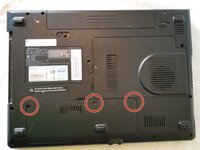
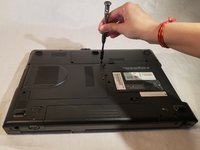
Using the Phillips #1 screwdriver, remove the three 6mm screws holding the hard drive panel in place.
-
-
-
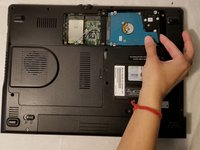
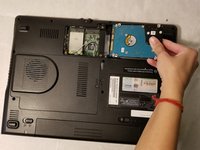
Using the plastic opening tool, pry open the plastic panel covering the hard drive.
-
-
-




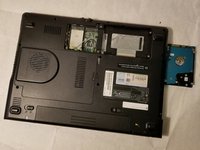
To reassemble your device, follow these instructions in reverse order.

