Free Shipping on Domestic Orders $75+

Gateway ID49C07U Keyboard Replacement

What you need

  1. Gateway ID49C07U Keyboard Replacement, Battery: step 1, image 1 of 1
    • Turn the laptop over so the bottom of the device is facing upwards with the hinge facing away from you.

    Ask FixBot

    Add Comment

  2. Gateway ID49C07U Keyboard Replacement: step 2, image 1 of 2 Gateway ID49C07U Keyboard Replacement: step 2, image 2 of 2
    • Locate the switch on the top left of the laptop labeled with a padlock symbol.

    • Flip the switch in the direction of the unlocked padlock symbol.

    Ask FixBot

    Add Comment

  3. Gateway ID49C07U Keyboard Replacement: step 3, image 1 of 1
    • Locate the switch that releases the battery and slide it to the right.

    Ask FixBot

    Add Comment

  4. Gateway ID49C07U Keyboard Replacement: step 4, image 1 of 1
    • While holding the release switch to the right, pull the battery away from you.

    Ask FixBot

    Add Comment

  5. Gateway ID49C07U Keyboard Replacement, Keyboard: step 5, image 1 of 1
    • Turn the laptop over and open

    Ask FixBot

    Add Comment

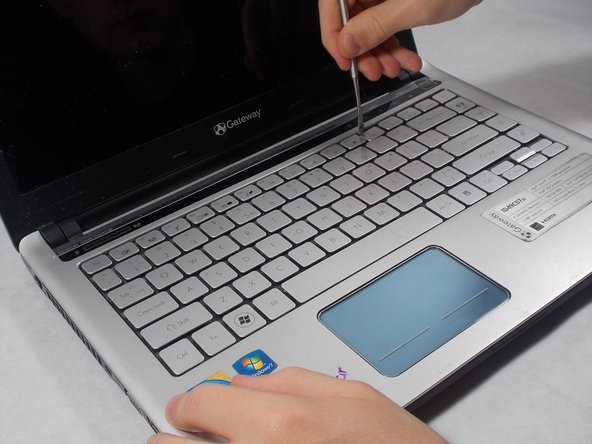
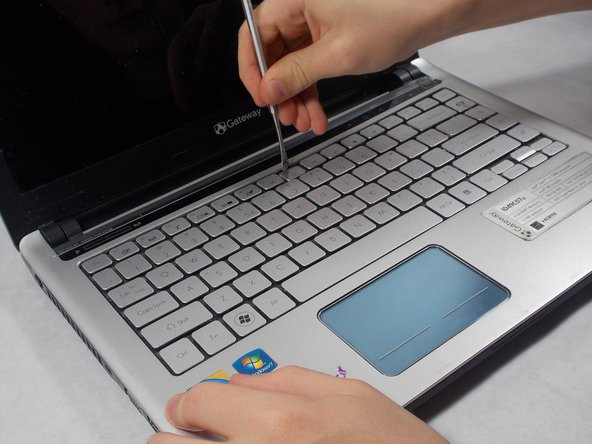
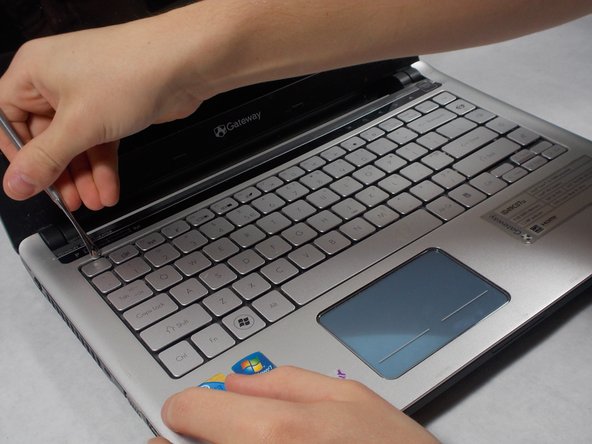
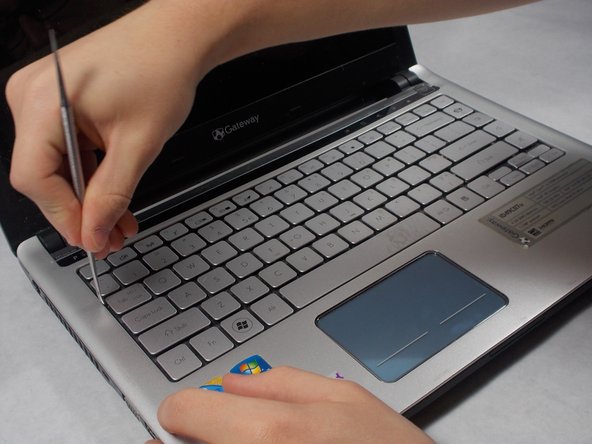
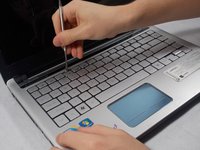
  6. Gateway ID49C07U Keyboard Replacement: step 6, image 1 of 3 Gateway ID49C07U Keyboard Replacement: step 6, image 2 of 3 Gateway ID49C07U Keyboard Replacement: step 6, image 3 of 3
    • Use the small metal spudger to push in each of the clips on the keyboard

    Ask FixBot

    Add Comment

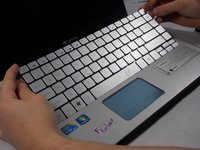
  7. Gateway ID49C07U Keyboard Replacement: step 7, image 1 of 3 Gateway ID49C07U Keyboard Replacement: step 7, image 2 of 3 Gateway ID49C07U Keyboard Replacement: step 7, image 3 of 3
    • Continued

    Ask FixBot

    Add Comment

  8. Gateway ID49C07U Keyboard Replacement: step 8, image 1 of 2 Gateway ID49C07U Keyboard Replacement: step 8, image 2 of 2
    • Use the small spudger to pick up the corner

    Ask FixBot

    Add Comment

  9. Gateway ID49C07U Keyboard Replacement: step 9, image 1 of 1
    • Slide keyboard towards the screen

    Ask FixBot

    Add Comment

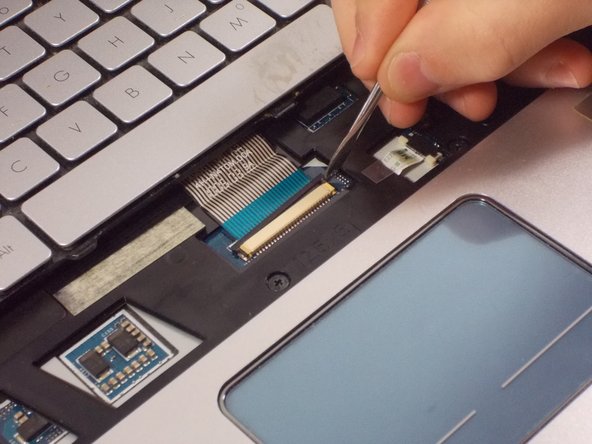
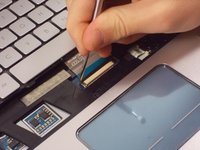
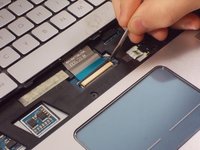
  10. Gateway ID49C07U Keyboard Replacement: step 10, image 1 of 2 Gateway ID49C07U Keyboard Replacement: step 10, image 2 of 2
    • Use the small spudger to slide the cable lock up on both sides of the connector and slide the cable out

    Ask FixBot

    Add Comment

Conclusion

To reassemble your device, follow these instructions in reverse order.

Cancel: I did not complete this guide.

2 other people completed this guide.

Ryan Howlett

Member since: 03/06/17

273 Reputation

2 Guides authored

Team

0 Guide Comments

Add Comment

View Statistics:

Past 24 Hours: 1

Past 7 Days: 3

Past 30 Days: 30

All Time: 816