Introduction
Replacing the display of your Gateway GWTC116-2BL laptop can be a daunting task, but with the right tools and a little bit of patience, it is doable. The first step is ensuring you have the correct replacement screen for your specific laptop model. Then, you must remove the old screen and install the new one. This process may vary slightly depending on the particular model of your laptop, but in general, it involves removing the bezel, disconnecting the old screen, and installing the new one. In this guide, we'll outline the steps you need to take to replace the Gateway GWTC116-2BL laptop screen.
What you need
-
-
-
Remove the ten 3.0 mm Phillips #00 screws from the back panel of the laptop.
 Ask FixBot
-
-
-
-
-
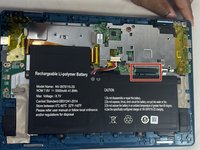
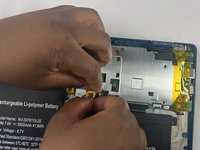
Using your fingers, flick open the battery connector bracket.
-
Remove the connector from bracket.
-
-
-
-
-
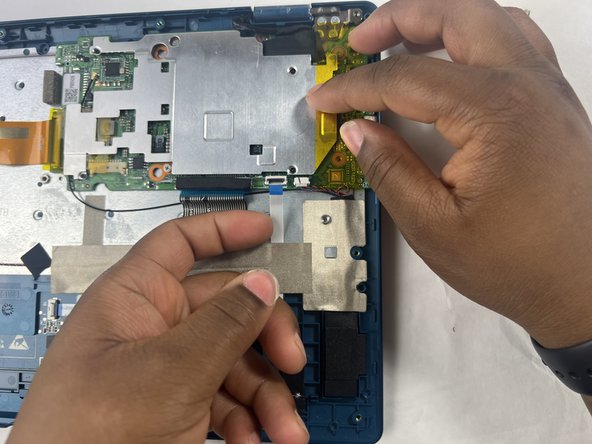
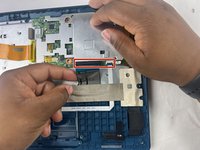
Using your fingers, flick the cable connector bracket open.
-
Remove the cable from the connector.
-
-
-
Using your fingers, disconnect the black and white connector brackets underneath the gray cable.
-
-
-
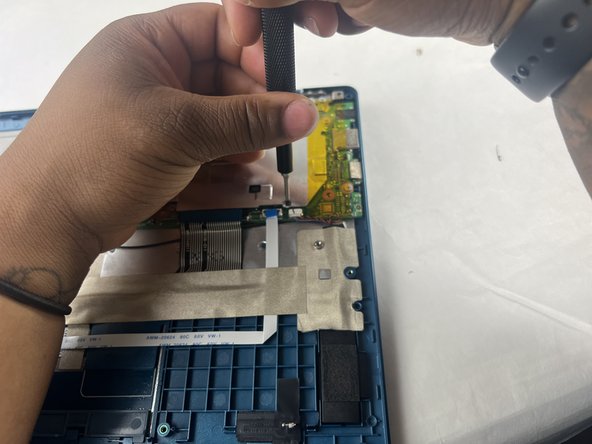
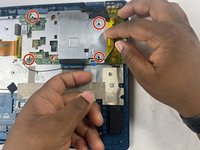
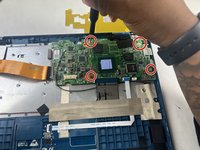
Remove the four 3.0 mm Phillips #00 screws located on the motherboard casing.
-
-
-
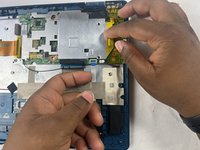
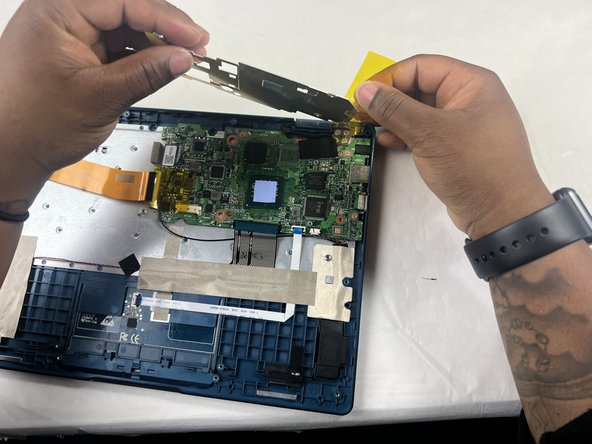
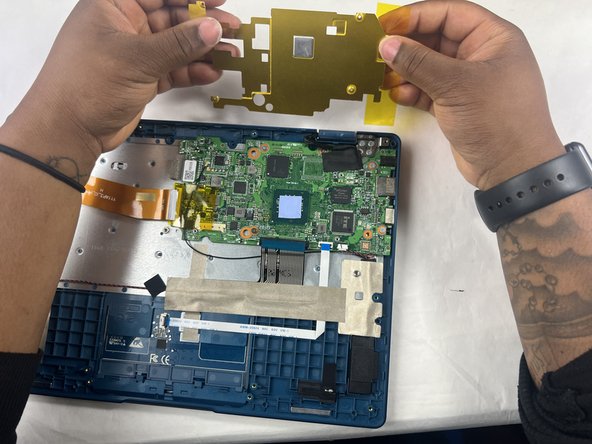
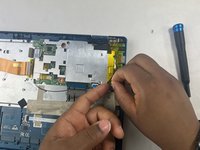
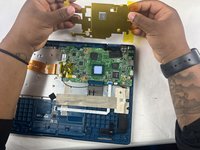
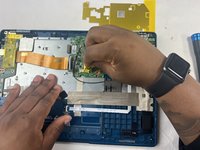
Peel the yellow tape off of the casing.
-
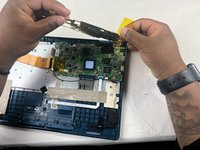
Lift the casing off of the motherboard.
-
-
-
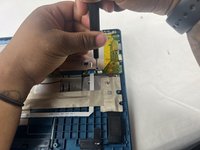
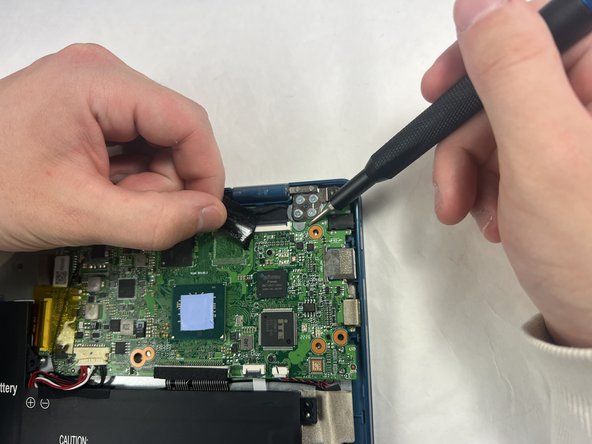
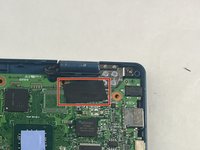
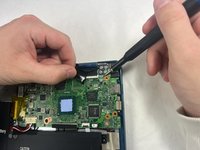
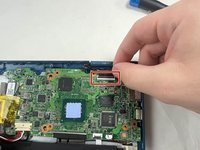
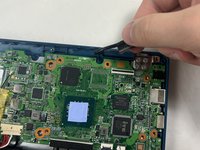
Flick open the bracket securing the display cable and disconnect the cable from the motherboard.
-
-
-
-
-
Applying some force, use your hands to pry the display of the laptop away from the base.
-













To reassemble your device, follow these instructions in reverse order.
Cancel: I did not complete this guide.
One other person completed this guide.

Team

UMass Dartmouth, Team 6-2, Botvin Spring 2024 Member of UMass Dartmouth, Team 6-2, Botvin Spring 2024
UMASSD-BOTVIN-S24S6G2
3 Members
60 Guides authored
