
Garmin inReach Explorer Plus Button Pad Replacement

Sean Kelley and one other contributor
Last updated on Dec 28, 2021
Views: 567
View statistics:
- Past 24 Hours:
- 2
- Past 7 Days:
- 6
- Past 30 Days:
- 42
- All Time:
- 567
Comments: 0
No one has left comments on this guide. Will you be first?
Go to guide commentsCompleted: 0 1
No one has marked this guide "completed." Will you be the first?
1 person has marked this guide "completed." It's you — great job!
Favorites: 0 1
No one has favorited (and subscribed to) this guide. Will you be the first?
1 person has favorited (and subscribed to) this guide — and that's you!
Needs Better Images
Better photos will improve this guide. Help out by taking, editing, or uploading new ones!
Needs More Images
A few more images would make this guide's procedures crystal clear.
Introduction
Go to step 1 ↓The Garmin inReach Explorer Plus is a backcountry GPS device. This guide shows how to remove and replace the button pad of the Garmin inReach Explorer Plus. The button pad allows the user to input commands for the device to send messages or access settings. See our troubleshooting page here for possible symptoms. WARNING: Before disassembling device, make sure that the device is turned off and there are no signs of a swollen battery or shattered glass in the device.
What you need
Tools
-
Spudger4.9
-


-
-
-
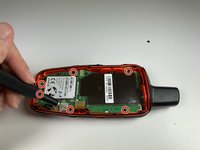
Using the TR6 Torx Security screwdriver, remove six 10 mm screws from the back cover of the device.
 Ask FixBot
-
-
-
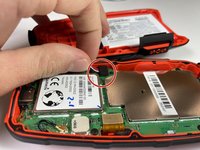
Gently grasp the battery wire and disconnect it from the device.
-
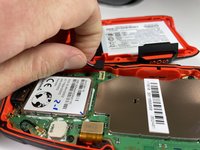
Remove the battery from the device.
-
-
-
-
-
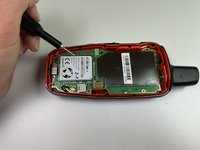
Using the T5 Torx screwdriver, remove the six 6 mm screws from the motherboard.
-
-
-
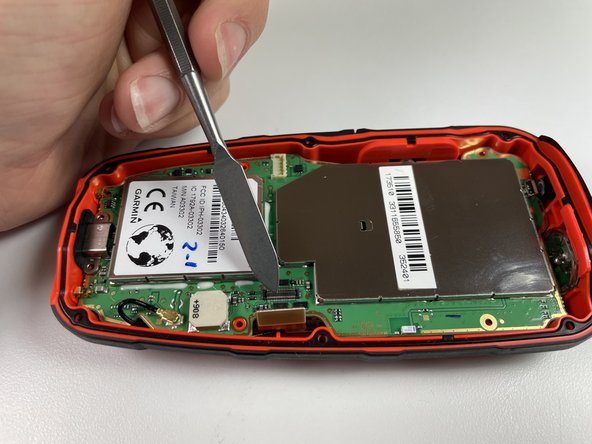
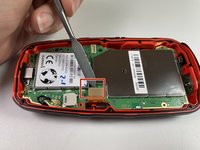
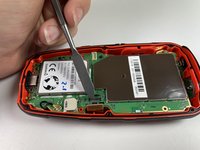
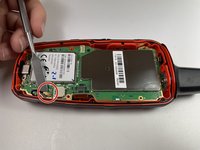
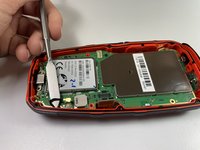
Disconnect the LCD screen from the motherboard by lifting on the flap with the nylon spudger.
-
-
-
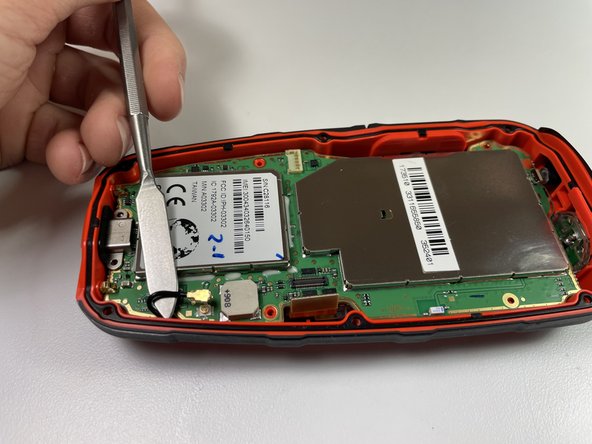
Disconnect the antenna from the motherboard by lifting the wire with a nylon spudger.
-
-
-
-
-
-
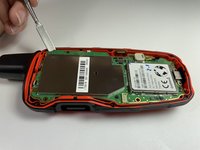
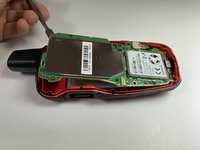
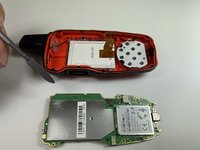
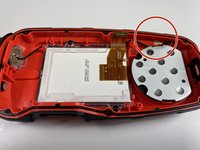
After the motherboard is removed, make sure the wire is out of the way of the button pad.
-
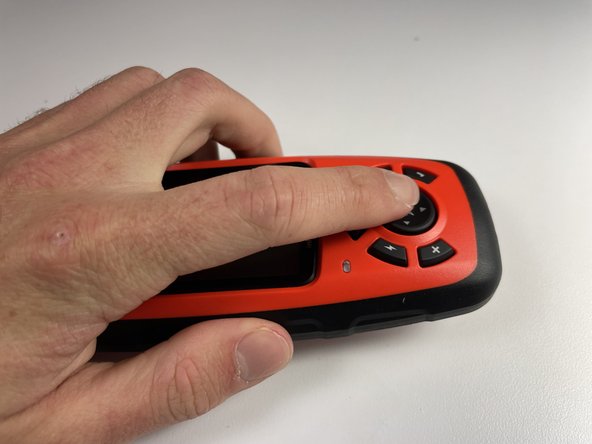
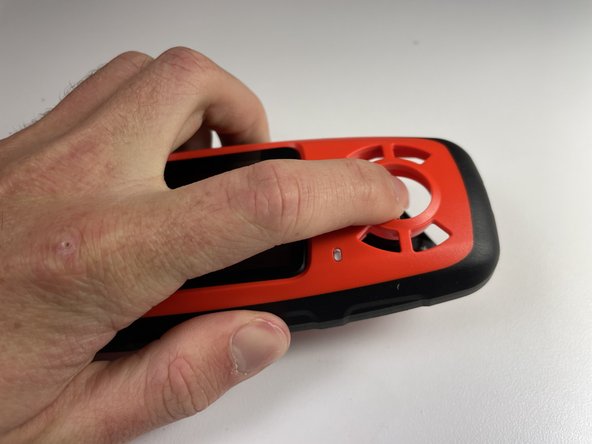
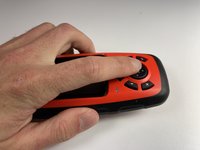
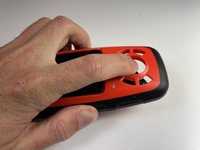
Flip the device over and push down on the button pad to remove it from the device.
-
-









To reassemble your device, follow these instructions in reverse order.

Team

Clemson, Team 5-4, Hunter Fall 2021 Member of Clemson, Team 5-4, Hunter Fall 2021
CLEM-HUNTER-F21S5G4
4 Members
60 Guides authored
