Introduction
Replacing the screen of the Garmin Vívoactive 4 (M/N: 03618) is an involved process and requires a few tools.
There are many reasons why you may require to replace your screen. For example, it may be damaged, it may not be functioning, or perhaps it is not performing as expected. Your screen also may not power on in the case dirt or dust is reducing your devices responsiveness to touch. (see Screen Wont Respond in the Vívoactive 4 Troubleshooting Guide).
Please note:
- Handle your device and tools with care as to ensure you do not hurt yourself or damage the watch.
- This repair requires the use of a heat gun. For information on using a heat gun safely, take a look at How to Use a Heat Gun to Soften Adhesive guide.
What you need
-
-
-
Flip the watch on its back to reveal the watch band connection pins.
 Ask FixBot
-
-
-
Wedge your fingernail or the tip of a spudger underneath the watch band's small metal pin.
-
Push on the pin to release the strap from it's hinge.
-
Pull the strap away from the watch to disconnect it.
-
-
-
-
-
-
Use a heatgun to loosen the adhesive beneath the screen, it should take a 5-10 minutes for adhesive to loosen.
-
-
-
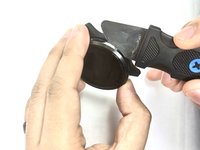
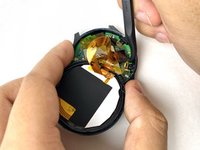
Wedge a thin opening tool or your iFixit Jimmy in between the seam where the screen and the watch’s housing connect.
-
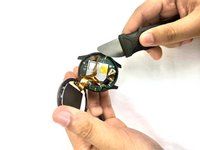
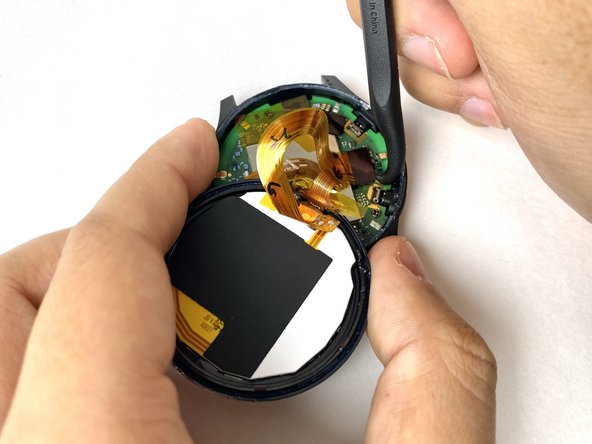
Pry the screen off the device.
-
-
-
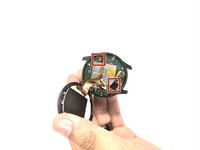
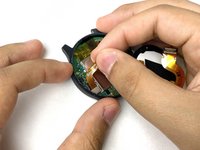
Carefully disconnect both cables from the motherboard by placing the tip of your spudger under the edge of the connector, and prying the connector straight up from its socket.
-
-





To reassemble your device, follow these instructions in reverse order.
Cancel: I did not complete this guide.
One other person completed this guide.

Team

UMass Dartmouth, Team 1-3, Petersen Fall 2023 Member of UMass Dartmouth, Team 1-3, Petersen Fall 2023
UMASSD-PETERSEN-F23S1G3
4 Members
72 Guides authored
3 Guide Comments
Will this affect the waterproofing of the device?
I originally had this watch not responding to touch (it was gradual, parts of the screen started not working bit by bit). Finally the whole screen did not respond to touch inputs. Suspected the entire screen assembly had to be replaced but this shockingly proved unsuccessful. What else would kill this capability of the watch? I don't understand!
wait, I got the screen to work after a hard restart. Quite interesting, it must be learning/recalibrating the inputs each time it starts, like a scale.
My watch now crashes and turns off whenever I try to start an activity (I tried the run activity) and when trying to do NFC payments. The screen was the only thing I played with. What could cause this? I remember hearing from someone that the bezel acts as an antenna of sorts.
