
GameStop Universal System Selector Button Replacement

Jared and 9 other contributors
Last updated on Jul 7, 2025
Views: 899
View statistics:
- Past 24 Hours:
- 3
- Past 7 Days:
- 18
- Past 30 Days:
- 87
- All Time:
- 899
Comments: 0
No one has left comments on this guide. Will you be first?
Go to guide commentsCompleted: 1 2
1 person has marked this guide "completed." Will you be next?
2 people have marked this guide "completed." Including you — great job!
Favorites: 0 1
No one has favorited (and subscribed to) this guide. Will you be the first?
1 person has favorited (and subscribed to) this guide — and that's you!
Introduction
Go to step 1 ↓The GamStop Universal System is a device that allows you to connect multiple systems to your television while easily switching between the systems. The selector button allows the user to choose which system to switch between when different gaming platforms are simultaneously running.
If your selector button is malfunctioning and not allowing you to properly choose which platform to use, follow this guide. It will demonstrate how to replace the selector button. Before starting this repair be sure to power off your device to avoid further damage. This simple guide requires minimal time and some patience to replace the selector button.
What you need
Tools

-
-
-
Remove the three front panel screws on the bottom of the device using the Phillips #00 Screwdriver.
 Ask FixBot
-
-
-
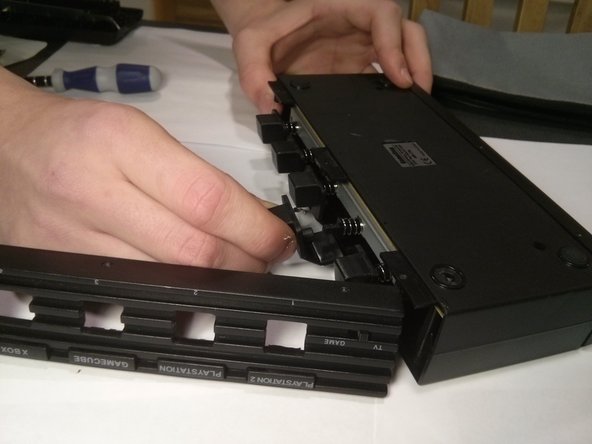
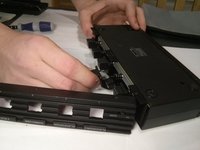
Carefully pry off the front panel of the device to reveal the button in need of replacement.
-
-
-
Pull firmly on the button in need of replacement to free it from its housing.
-
-
-




The system selector button should now be working properly. Take your e-waste to an R2 or e-Stewards certified recycler.
Cancel: I did not complete this guide.
One other person completed this guide.

Team

UMass Dartmouth, Team 4-6, Vijaybhaskar Fall 2013 Member of UMass Dartmouth, Team 4-6, Vijaybhaskar Fall 2013
UMASSD-VIJAYBHASKAR-F13S4G6
4 Members
24 Guides authored
