Free Shipping on Domestic Orders $75+

GameSir G4 Pro Buttons Replacement

Views: 281

View statistics:

Past 24 Hours:
1
Past 7 Days:
18
Past 30 Days:
111
All Time:
281
Comments: 0

No one has left comments on this guide. Will you be first?

Go to guide comments
Completed: 0

No one has marked this guide "completed." Will you be the first?

Favorites: 0

No one has favorited (and subscribed to) this guide. Will you be the first?

Time Required: 25 minutes
Difficulty: Moderate
GameSir G4 Pro Buttons Replacement

Introduction

Go to step 1 ↓

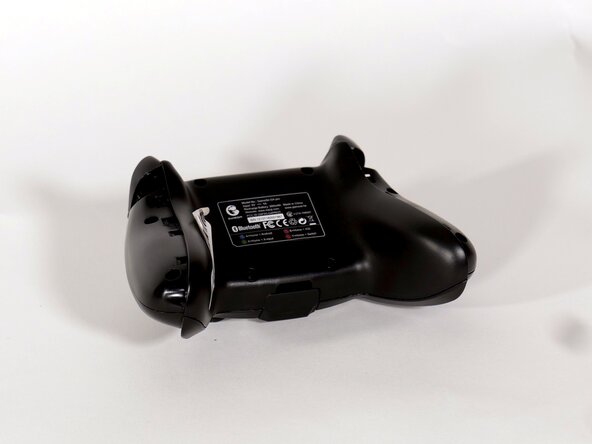
The extraneous buttons on the GameSir G4 Pro include the select, start, home, screenshot, and turbo buttons. All are essential for functionality of the control, performing various fundamental tasks. Faulty buttons may be stuck or lose functionality over time. This guide will help you remove and replace faulty buttons that hinder performance.

The extraneous buttons are external components and can be replaced by taking apart the entire controller. Handle the controller carefully during disassembly and installation to avoid damaging the controller.

What you need

Tools

    1. GameSir G4 Pro Buttons Replacement, Battery: step 1, image 1 of 2 GameSir G4 Pro Buttons Replacement, Battery: step 1, image 2 of 2
      • Remove the dongle from the controller.

      Ask FixBot

      Add Comment

    2. GameSir G4 Pro Buttons Replacement: step 2, image 1 of 2 GameSir G4 Pro Buttons Replacement: step 2, image 2 of 2
      • Use a metal spudger to remove the rubber screw caps on the rear case.

      Ask FixBot

      Add Comment

    3. GameSir G4 Pro Buttons Replacement: step 3, image 1 of 3 GameSir G4 Pro Buttons Replacement: step 3, image 2 of 3 GameSir G4 Pro Buttons Replacement: step 3, image 3 of 3
      • Use a Phillips #1 screwdriver to remove the four 9.5 mm screws on the rear case.

      Ask FixBot

      Add Comment

    4. GameSir G4 Pro Buttons Replacement: step 4, image 1 of 3 GameSir G4 Pro Buttons Replacement: step 4, image 2 of 3 GameSir G4 Pro Buttons Replacement: step 4, image 3 of 3
      • Use a metal spudger to pry off the two controller grips.

      Ask FixBot

      Add Comment

    5. GameSir G4 Pro Buttons Replacement: step 5, image 1 of 3 GameSir G4 Pro Buttons Replacement: step 5, image 2 of 3 GameSir G4 Pro Buttons Replacement: step 5, image 3 of 3
      • Use a Phillips #1 screwdriver to remove the 9.5 mm screws on the top of each handle.

      • Use a Phillips #0 screwdriver to remove the 9.5 mm screws on the bottom of each handle.

      Ask FixBot

      Add Comment

    6. GameSir G4 Pro Buttons Replacement: step 6, image 1 of 1
      • Optional: Wrap an antistatic wrist strap around your wrist and attach the clamp to a grounded metal surface.

      Ask FixBot

      Add Comment

    7. GameSir G4 Pro Buttons Replacement: step 7, image 1 of 2 GameSir G4 Pro Buttons Replacement: step 7, image 2 of 2
      • Remove the back panel.

      Ask FixBot

      Add Comment

    8. GameSir G4 Pro Buttons Replacement: step 8, image 1 of 2 GameSir G4 Pro Buttons Replacement: step 8, image 2 of 2
      • Use tweezers or your fingernails to walk the white battery connector out of its motherboard socket.

      Ask FixBot

      Add Comment

    9. GameSir G4 Pro Buttons Replacement: step 9, image 1 of 2 GameSir G4 Pro Buttons Replacement: step 9, image 2 of 2
      • Lift and remove the battery.

      Ask FixBot

      Add Comment

    1. GameSir G4 Pro Buttons Replacement, Buttons: step 10, image 1 of 2 GameSir G4 Pro Buttons Replacement, Buttons: step 10, image 2 of 2
      • Gently pry the motherboard from the faceplate.

      Ask FixBot

      Add Comment

    2. GameSir G4 Pro Buttons Replacement: step 11, image 1 of 2 GameSir G4 Pro Buttons Replacement: step 11, image 2 of 2
      • Gently remove the printed circuit board from the shell. The select, start, turbo, screenshot, and home buttons should naturally fall out and allow for easy replacement.

      Ask FixBot

      Add Comment

Conclusion

To reassemble your device, follow these instructions in reverse order.

Cancel: I did not complete this guide.

0 Guide Comments

Add Comment

View Statistics:

Past 24 Hours: 1

Past 7 Days: 18

Past 30 Days: 111

All Time: 281