
Game Boy Color Motherboard Replacement

Alex Wu and 8 other contributors
Last updated on Aug 13, 2020
Views: 23K
View statistics:
- Past 24 Hours:
- 9
- Past 7 Days:
- 63
- Past 30 Days:
- 246
- All Time:
- 23,466
Comments: 6
6 comments on steps.
Completed: 25 26
25 people have marked this guide "completed." Will you be next?
26 people have marked this guide "completed." Including you — great job!
Favorites: 12 13
12 people have favorited (and subscribed to) this guide. Will you be next?
13 people have favorited (and subscribed to) this guide — including you!
Featured Guide
This guide has been found to be exceptionally cool by the iFixit staff.
Featured Student Guide
This guide has been the hard work of our awesome students and is found to be exceptionally cool by the iFixit staff.
Introduction
Go to step 1 ↓The Game Boy Color's motherboard contains all the electronics that make it operate. This guide will show you how to remove the circuit board from the Game Boy Color.
What you need
Tools
-
Spudger4.9
-


-
-
-
Locate the battery compartment on the back of the Game Boy Color.
-
Push down on the tab and hinge the cover downwards and outwards to remove the battery cover.
 Ask FixBot
-
-
-
-
-
Using a Y1 screwdriver, remove the six screws on the back of the device as pictured. The bottom two screws are located inside of the battery compartment.
-
-
-
Gently lift and separate the back housing from the rest of the device. Now you've got the back housing out!
-
-
-
-
-
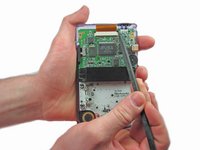
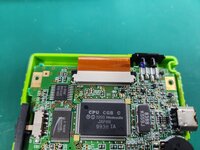
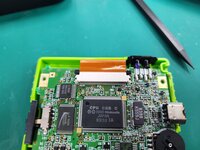
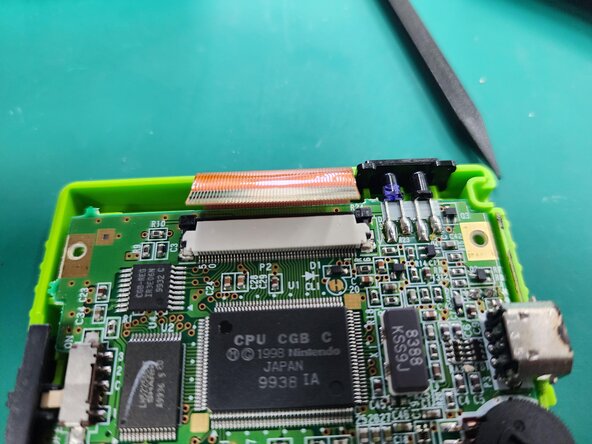
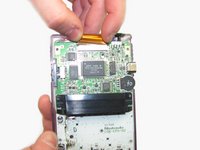
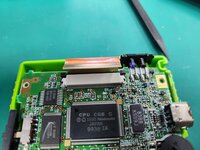
Push up on the tabs on either side of the ribbon with a spudger.
-
-
-
-
-
-
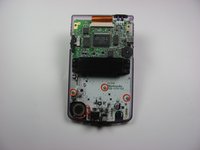
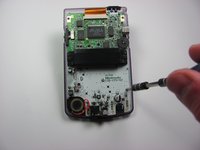
Using the Phillips #1 screwdriver, remove the 3 screws shown in the picture.
-
-


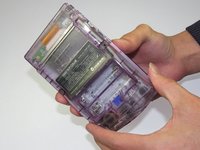
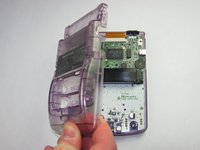

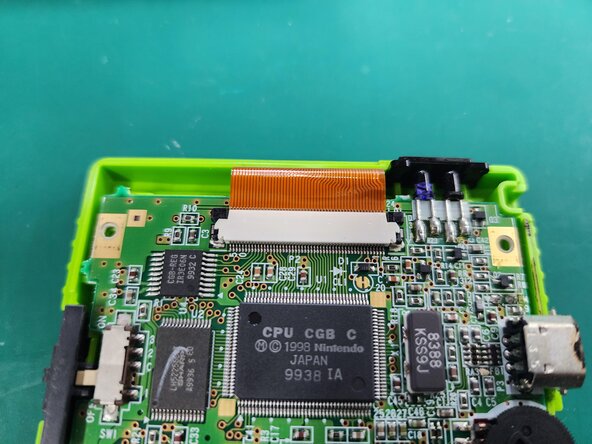
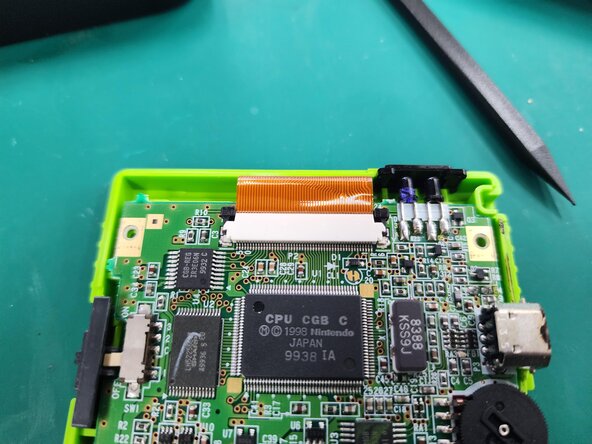




To reassemble your device, follow these instructions in reverse order.
Cancel: I did not complete this guide.
25 other people completed this guide.

Team

Cal Poly, Team 19-47, Regan Winter 2013 Member of Cal Poly, Team 19-47, Regan Winter 2013
CPSU-REGAN-W13S19G47
4 Members
108 Guides authored
