Free Shipping on Domestic Orders $75+

GATEWAY ML6720 Hard Drive Replacement

What you need

  1. GATEWAY ML6720 Hard Drive Replacement, Hard Drive: step 1, image 1 of 1
    • Flip the laptop on to its backside.

    Ask FixBot

    Add Comment

  2. GATEWAY ML6720 Hard Drive Replacement: step 2, image 1 of 1
    • Locate the hard drive at the bottom left corner of the laptop's backside.

    Ask FixBot

    Add Comment

  3. GATEWAY ML6720 Hard Drive Replacement: step 3, image 1 of 2 GATEWAY ML6720 Hard Drive Replacement: step 3, image 2 of 2
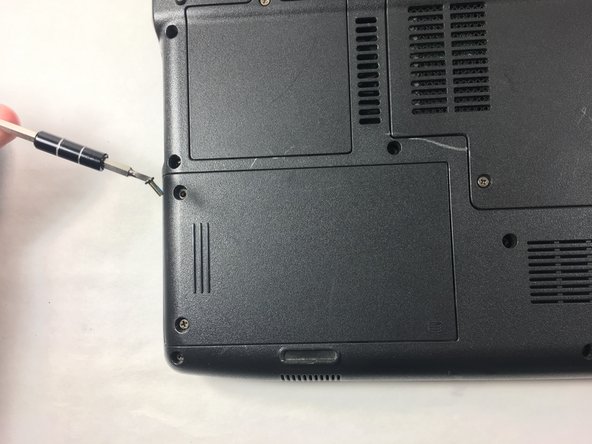
    • Insert the correct screwdriver mentioned in this guide.

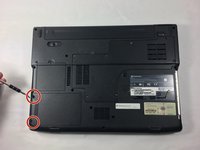
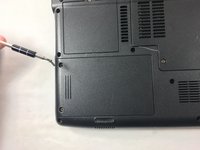
    • Fully loosen and remove each of the two screws located at the top left and bottom left corners of the hard drive's cover plate.

    Ask FixBot

    Add Comment

  4. GATEWAY ML6720 Hard Drive Replacement: step 4, image 1 of 1
    • Slide the hard drive's cover plate out to the left and take it off.

    Ask FixBot

    Add Comment

  5. GATEWAY ML6720 Hard Drive Replacement: step 5, image 1 of 1
    • Pop the hard drive out of the compartment.

    Ask FixBot

    Add Comment

Conclusion

To reassemble your device, follow these instructions in reverse order.

Cancel: I did not complete this guide.

Nathan Da Silva

Member since: 10/19/16

431 Reputation

4 Guides authored

Team

UMass Dartmouth, Team 2-3, Isaacson Fall 2016 Member of UMass Dartmouth, Team 2-3, Isaacson Fall 2016

UMASSD-ISAACSON-F16S2G3

2 Members

10 Guides authored

0 Guide Comments

Add Comment

View Statistics:

Past 24 Hours: 0

Past 7 Days: 3

Past 30 Days: 24

All Time: 612