Repair Guides
Learn how to fix just about anything with our step-by-step guides.
App
Your pocket repair helper.
FixBot
The friendly AI repair assistant.
Repairability
Learn why fixable products make sense.
Teardowns
Get a sneak peek inside the latest gadgets.
Answers Forum
Share solutions and get help from a friend.
Find Your Community
Find teams, events, and fellow fixers.
Help Out
Help make repair knowledge free and accessible for everyone.
Right to Repair
Learn about the Right to Repair movement and how to be an advocate.
Featured
Quality parts and tools backed by our lifetime guarantee.
Tools
Shop our wide selection of precision tools.
Parts
Shop parts backed by our quality guarantee.
iPhone Batteries
Batteries tested and guaranteed plus a kit with everything you need.
Free Shipping on Domestic Orders $75+
Flip the laptop on to the backside.
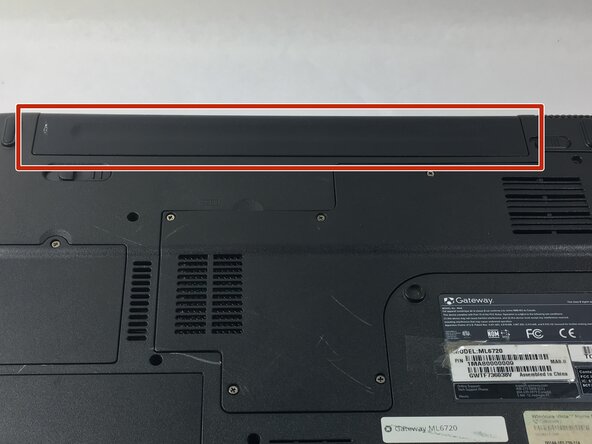
Locate the battery at the very top on the backside of the laptop.
Slide the latch in the top right corner to the right, to set it to unlocked.
Hold the other latch in the top left corner to the left.
Hold it in that place with your thumb until the completion of the next step. (This step unlocks the second latch.)
With both latches unlocked you can now slide out the battery, by pushing it off the top.
To reassemble your device, follow these instructions in reverse order.

Cancel: I did not complete this guide.
with 5 other contributors
Member since: 10/19/16
431 Reputation
4 Guides authored
Badges: 8
+5 more badges
UMASSD-ISAACSON-F16S2G3
2 Members
10 Guides authored
Choose a size and copy the code below to embed this guide as a small widget on your site / forum.
Past 24 Hours: 1
Past 7 Days: 4
Past 30 Days: 20
All Time: 526