Free Shipping on Domestic Orders $75+

Fujitsu Lifebook S6120 Motherboard Replacement

What you need

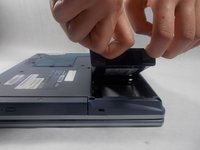
  1. Fujitsu Lifebook S6120 Motherboard Replacement, Battery: step 1, image 1 of 3 Fujitsu Lifebook S6120 Motherboard Replacement, Battery: step 1, image 2 of 3 Fujitsu Lifebook S6120 Motherboard Replacement, Battery: step 1, image 3 of 3
    • To prevent injury, make sure the laptop is unplugged and turned off before removing the battery.

    • Push the two tabs in towards the laptop.

    • Lift the battery up and out from the frame of the laptop.

    Ask FixBot
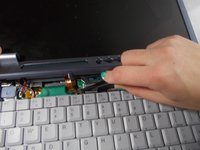
  2. Fujitsu Lifebook S6120 Motherboard Replacement, Hinge Cover: step 2, image 1 of 2 Fujitsu Lifebook S6120 Motherboard Replacement, Hinge Cover: step 2, image 2 of 2
    • Use a plastic opening tool to lift the back of the hinge cover on the left and right sides of the computer.

    Ask FixBot
  3. Fujitsu Lifebook S6120 Motherboard Replacement: step 3, image 1 of 1
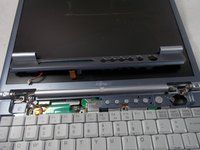
    • Lift the hinge cover.

    • The hinge cover is connected to the motherboard by a ribbon cable. To prevent damage, lift hinge cover slowly.

    Ask FixBot
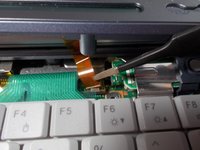
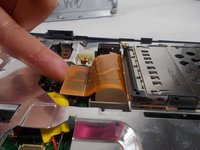
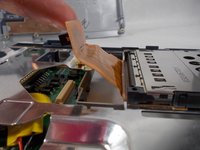
  4. Fujitsu Lifebook S6120 Motherboard Replacement: step 4, image 1 of 3 Fujitsu Lifebook S6120 Motherboard Replacement: step 4, image 2 of 3 Fujitsu Lifebook S6120 Motherboard Replacement: step 4, image 3 of 3
    Tool used on this step:
    Tweezers
    $4.99
    Buy
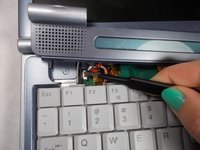
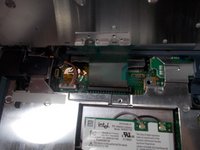
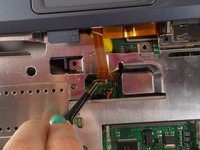
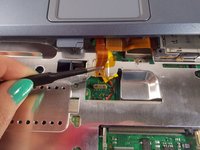
    • Use the tweezers to disconnect the ribbon cable from the motherboard.

    Ask FixBot
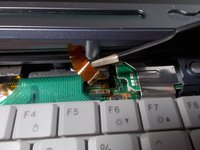
  5. Fujitsu Lifebook S6120 Motherboard Replacement: step 5, image 1 of 3 Fujitsu Lifebook S6120 Motherboard Replacement: step 5, image 2 of 3 Fujitsu Lifebook S6120 Motherboard Replacement: step 5, image 3 of 3
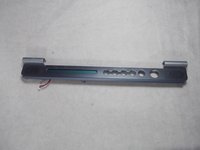
    • With the tweezers detach hinge cover cables from the motherboard.

    • Remove hinge cover.

    Ask FixBot
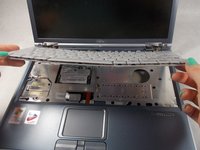
  6. Fujitsu Lifebook S6120 Motherboard Replacement, Keyboard: step 6, image 1 of 3 Fujitsu Lifebook S6120 Motherboard Replacement, Keyboard: step 6, image 2 of 3 Fujitsu Lifebook S6120 Motherboard Replacement, Keyboard: step 6, image 3 of 3
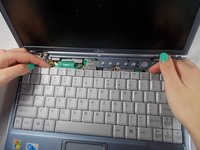
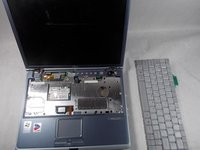
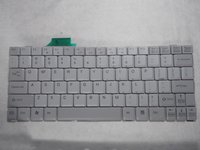
    • Lift keyboard enough to show the ribbon cable.

    • The keyboard has a ribbon cable attached to the motherboard. Lift keyboard carefully to prevent damage.

    Ask FixBot
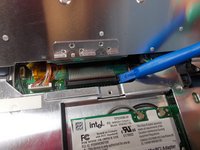
  7. Fujitsu Lifebook S6120 Motherboard Replacement: step 7, image 1 of 3 Fujitsu Lifebook S6120 Motherboard Replacement: step 7, image 2 of 3 Fujitsu Lifebook S6120 Motherboard Replacement: step 7, image 3 of 3
    • Use a plastic opening tool to release the ribbon cable from the motherboard.

    Ask FixBot
  8. Fujitsu Lifebook S6120 Motherboard Replacement, Motherboard: step 8, image 1 of 2 Fujitsu Lifebook S6120 Motherboard Replacement, Motherboard: step 8, image 2 of 2
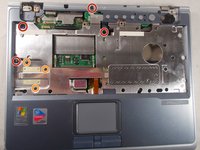
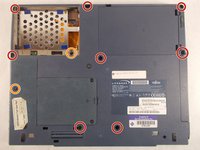
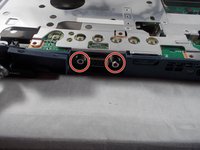
    • Use a Philips head #0 to remove the 5mm screws.

    • Use a Philips head #00 to remove the 4mm screws.

    Ask FixBot
  9. Fujitsu Lifebook S6120 Motherboard Replacement: step 9, image 1 of 1
    • Lift up the plastic frame from the base to expose the ribbon attached to the motherboard.

    Ask FixBot
  10. Fujitsu Lifebook S6120 Motherboard Replacement: step 10, image 1 of 2 Fujitsu Lifebook S6120 Motherboard Replacement: step 10, image 2 of 2
    Tool used on this step:
    Tweezers
    $4.99
    Buy
    • Remove the ribbon from the motherboard with a pair of tweezers.

    Ask FixBot
  11. Fujitsu Lifebook S6120 Motherboard Replacement: step 11, image 1 of 3 Fujitsu Lifebook S6120 Motherboard Replacement: step 11, image 2 of 3 Fujitsu Lifebook S6120 Motherboard Replacement: step 11, image 3 of 3
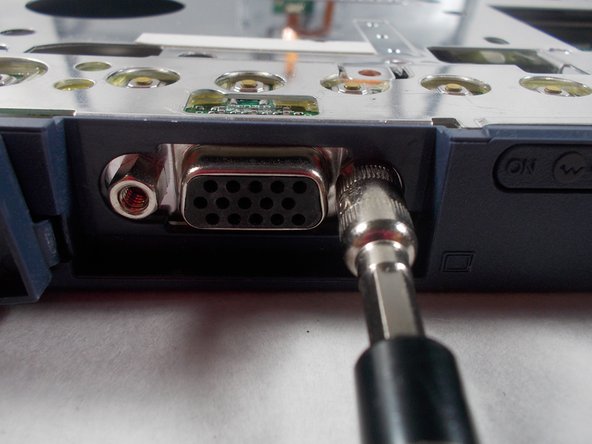
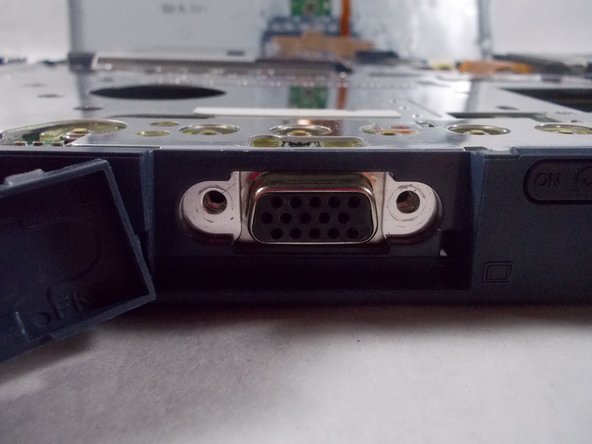
    • Use a 5mm nut driver to unscrew the nuts.

    Ask FixBot
  12. Fujitsu Lifebook S6120 Motherboard Replacement: step 12, image 1 of 2 Fujitsu Lifebook S6120 Motherboard Replacement: step 12, image 2 of 2
    • Pull the ribbon tab up and off the motherboard.

    Ask FixBot
  13. Fujitsu Lifebook S6120 Motherboard Replacement: step 13, image 1 of 1
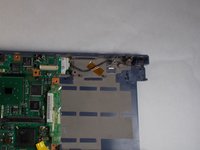
    • Remove the metal plate covering the motherboard.

    Ask FixBot
  14. Fujitsu Lifebook S6120 Motherboard Replacement: step 14, image 1 of 2 Fujitsu Lifebook S6120 Motherboard Replacement: step 14, image 2 of 2
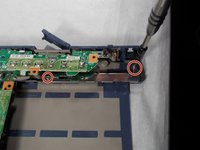
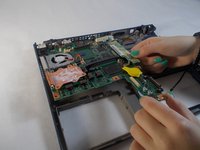
    • Remove the 3.5mm screws with a Philips head #0.

    • Remove the metal bracket and other pieces that rely on it for structure.

    Ask FixBot
  15. Fujitsu Lifebook S6120 Motherboard Replacement: step 15, image 1 of 2 Fujitsu Lifebook S6120 Motherboard Replacement: step 15, image 2 of 2
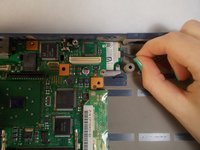
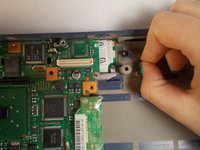
    • Pinch your fingers around the base of the connector and pull it out.

    Ask FixBot
  16. Fujitsu Lifebook S6120 Motherboard Replacement: step 16, image 1 of 2 Fujitsu Lifebook S6120 Motherboard Replacement: step 16, image 2 of 2
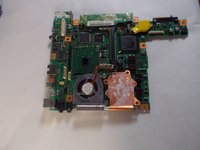
    • Lift the motherboard off the plastic base.

    Ask FixBot
Conclusion

To reassemble your device, follow these instructions in reverse order.

One other person completed this guide.

Jessi Gallant

Member since: 03/19/18

920 Reputation

7 Guides authored

Team

0 Guide Comments

Add Comment

View Statistics:

Past 24 Hours: 1

Past 7 Days: 5

Past 30 Days: 52

All Time: 1,562