
Fujitsu Lifebook S6120 Keyboard Replacement

Jessi Gallant and 2 other contributors
Last updated on May 11, 2018
Views: 1.8K
View statistics:
- Past 24 Hours:
- 4
- Past 7 Days:
- 25
- Past 30 Days:
- 84
- All Time:
- 1,819
Comments: 0
No one has left comments on this guide. Will you be first?
Go to guide commentsCompleted: 1 2
1 person has marked this guide "completed." Will you be next?
2 people have marked this guide "completed." Including you — great job!
Favorites: 0 1
No one has favorited (and subscribed to) this guide. Will you be the first?
1 person has favorited (and subscribed to) this guide — and that's you!
Introduction
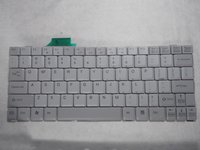
Go to step 1 ↓If the keyboard is not responding or inputs incorrectly then your keyboard may need to be replaced, this guide will show you how to remove the keyboard from the Fujitsu Lifebook S6120.
What you need
Tools


-
-
-
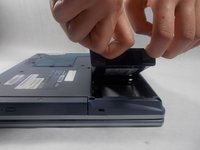
Push the two tabs in towards the laptop.
-
Lift the battery up and out from the frame of the laptop.
 Ask FixBot
-
-
-
-
-
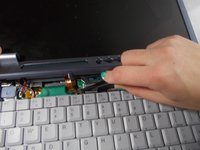
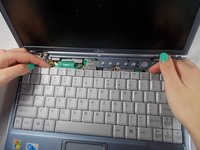
Use a plastic opening tool to lift the back of the hinge cover on the left and right sides of the computer.
-
-
Tool used on this step:Tweezers$4.99
-
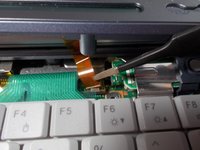
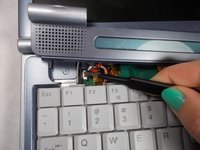
Use the tweezers to disconnect the ribbon cable from the motherboard.
-
-
-
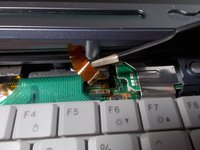
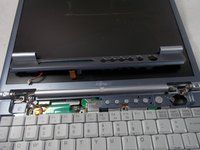
With the tweezers detach hinge cover cables from the motherboard.
-
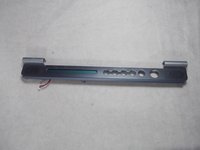
Remove hinge cover.
-
-
-
-








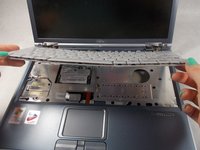
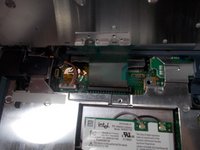


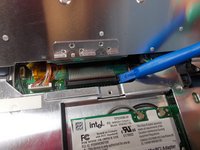
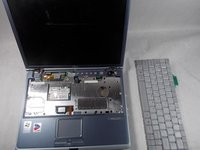
To reassemble your device, follow these instructions in reverse order.
Cancel: I did not complete this guide.
One other person completed this guide.

Team

UMass Dartmouth, Team S5-G5, Peak Spring 2018 Member of UMass Dartmouth, Team S5-G5, Peak Spring 2018
UMASSD-PEAK-S18S5G5
3 Members
108 Guides authored
