Free Shipping on Domestic Orders $75+

Fujitsu LifeBook N3510 Keyboard Replacement

What you need

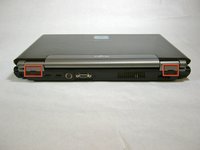
    1. Fujitsu LifeBook N3510 Keyboard Replacement, Battery: step 1, image 1 of 1
      • Locate the two clips on the bottom of the computer that support the battery.

      Ask FixBot

      Add Comment

    2. Fujitsu LifeBook N3510 Keyboard Replacement: step 2, image 1 of 1
      • Using your fingers, push the clips inward and then upward.

      • Lift the battery out of the computer.

      Ask FixBot

      Add Comment

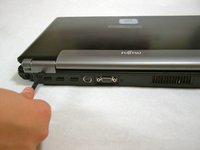
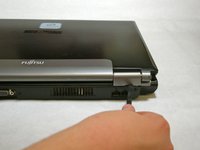
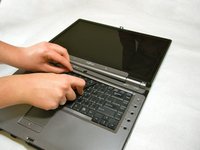
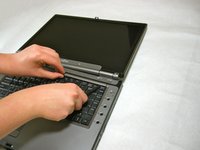
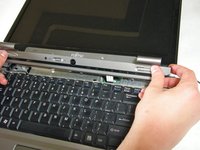
    1. Fujitsu LifeBook N3510 Keyboard Replacement, Hinge Cover: step 3, image 1 of 3 Fujitsu LifeBook N3510 Keyboard Replacement, Hinge Cover: step 3, image 2 of 3 Fujitsu LifeBook N3510 Keyboard Replacement, Hinge Cover: step 3, image 3 of 3
      • Use a spudger to lift the back of the hinge cover on the left and right sides of the computer.

      Ask FixBot

      Add Comment

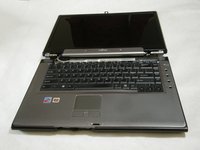
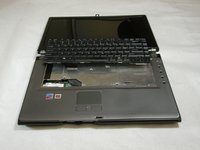
    2. Fujitsu LifeBook N3510 Keyboard Replacement: step 4, image 1 of 1
      • Lay the computer flat on a stable surface with the monitor pointing away from you.

      Ask FixBot

      Add Comment

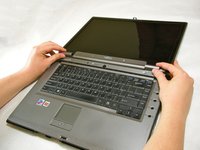
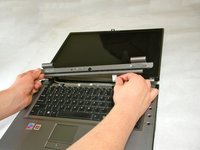
    3. Fujitsu LifeBook N3510 Keyboard Replacement: step 5, image 1 of 3 Fujitsu LifeBook N3510 Keyboard Replacement: step 5, image 2 of 3 Fujitsu LifeBook N3510 Keyboard Replacement: step 5, image 3 of 3
      • Use a spudger to partially lift the hinge cover.

      Ask FixBot

      Add Comment

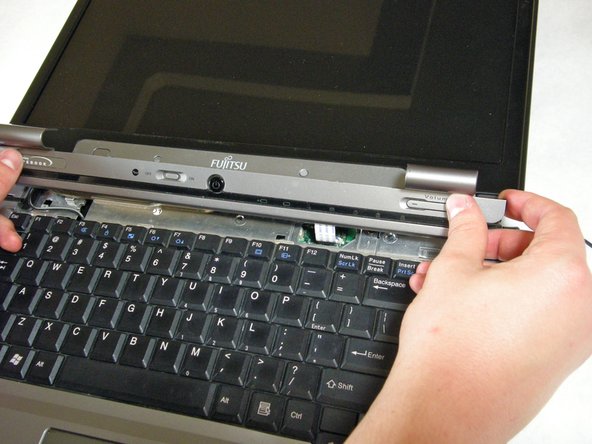
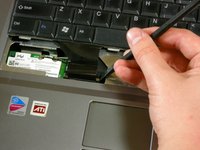
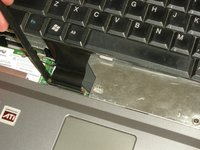
    4. Fujitsu LifeBook N3510 Keyboard Replacement: step 6, image 1 of 2 Fujitsu LifeBook N3510 Keyboard Replacement: step 6, image 2 of 2
      • The hinge cover has a ribbon cable that is attached to the motherboard. To prevent damage, lift the hinge cover slowly.

      • Lift the hinge cover enough to expose the ribbon cable.

      Ask FixBot

      Add Comment

    5. Fujitsu LifeBook N3510 Keyboard Replacement: step 7, image 1 of 2 Fujitsu LifeBook N3510 Keyboard Replacement: step 7, image 2 of 2
      • Disconnect the ribbon cable from the motherboard and remove the hinge cover from the computer.

      Ask FixBot

      Add Comment

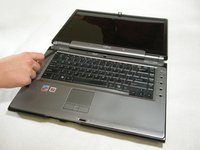
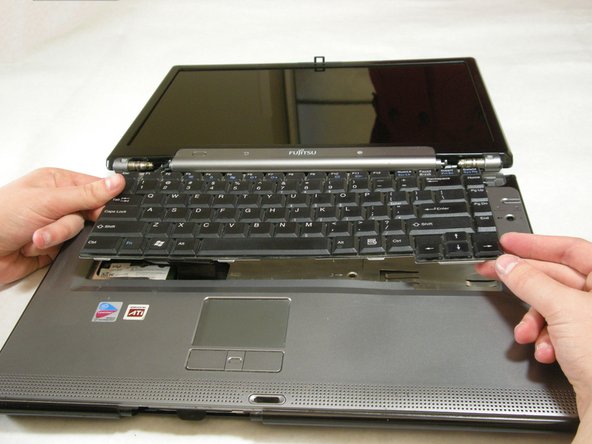
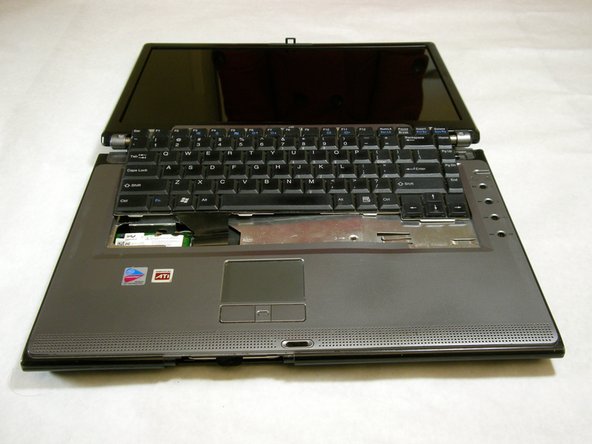
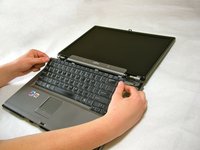
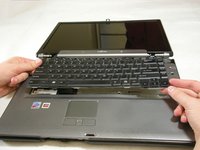
    1. Fujitsu LifeBook N3510 Keyboard Replacement, Keyboard: step 8, image 1 of 3 Fujitsu LifeBook N3510 Keyboard Replacement, Keyboard: step 8, image 2 of 3 Fujitsu LifeBook N3510 Keyboard Replacement, Keyboard: step 8, image 3 of 3
      • The keyboard has a ribbon cable that is attached to the motherboard. To prevent damage, lift keyboard slowly.

      • Lift the keyboard enough to expose the ribbon cable.

      Ask FixBot

      Add Comment

    2. Fujitsu LifeBook N3510 Keyboard Replacement: step 9, image 1 of 2 Fujitsu LifeBook N3510 Keyboard Replacement: step 9, image 2 of 2
      • Use a spudger to release the ribbon cable from the motherboard.

      Ask FixBot

      Add Comment

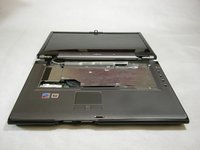
    3. Fujitsu LifeBook N3510 Keyboard Replacement: step 10, image 1 of 2 Fujitsu LifeBook N3510 Keyboard Replacement: step 10, image 2 of 2
      • After the ribbon has been detached, carefully remove the keyboard.

      Ask FixBot

      Add Comment

Conclusion

To reassemble your device, follow these instructions in reverse order.

Cancel: I did not complete this guide.

Neil Daniels

Member since: 01/17/11

1,411 Reputation

11 Guides authored

Team

Cal Poly, Team 5-18, Amido Winter 2011 Member of Cal Poly, Team 5-18, Amido Winter 2011

CPSU-AMIDO-W11S5G18

3 Members

132 Guides authored

0 Guide Comments

Add Comment

View Statistics:

Past 24 Hours: 0

Past 7 Days: 4

Past 30 Days: 35

All Time: 6,530