Introduction
In this guide, you will learn how to safely replace the hard drive of a Fujitsu LIFEBOOK P7010D laptop.
Typically, laptop hard drives should be replaced every 3-5 years. If you keep track of your hard drive’s age, you can preemptively replace it before it fails. Hard drive failure can lead to slow functioning, data corruption, and overheating.
What you need
-
-
Locate the battery (the grey block). Find the two tabs on one end of the battery, as pictured.
-
Using two fingers, press both tabs down at once until they are fully depressed.
-
-
-
While holding the tabs down, slowly pivot the battery up.
-
The battery is now free and safe to pull out.
-
-
-
-
Push the tab down as far as possible using your finger or opening tool to unlock the disc drive.
-
While still holding the tab down, use your other hand to pull out the disc drive straight out of its place.
-
-
-
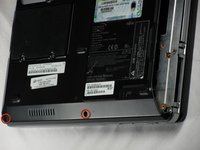
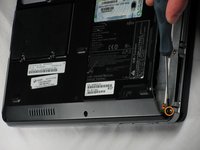
On the bottom of the laptop, find the two bottom-plate screw holes near the disc drive. Parallel to them is a 2.4mm screw (second photo).
-
After locating the 2.4mm screw, use a Phillips #0 screwdriver to unscrew it.
-
-
Tool used on this step:Anti-Static Wrist Strap$7.95
-
Flip the laptop over and open it facing you.
-
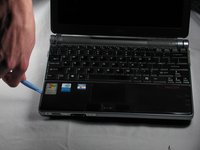
Use a plastic opening tool to lift the bottom black cover on both sides.
-
-
-
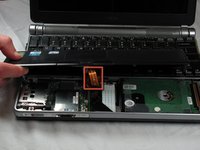
Once the black cover is lifted, gently flip it and set it on the keyboard.
-
Locate the disc drive on the right side, as pictured.
-
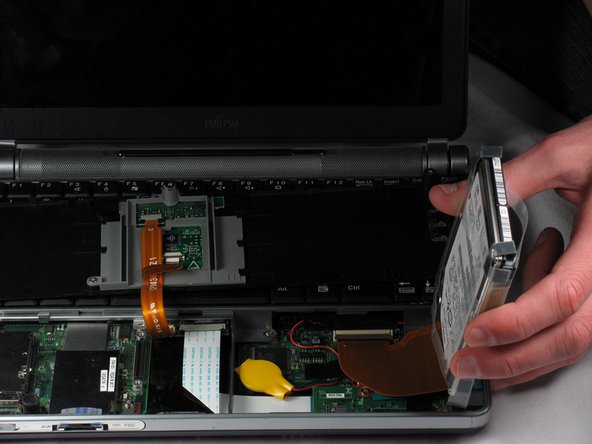
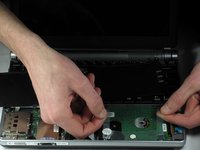
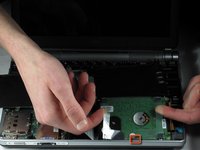
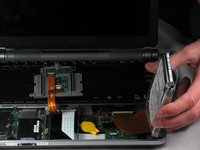
Using two fingers and the clear plastic handles on the top, gently lift it out. Place it on the side of the laptop.
-
-
-
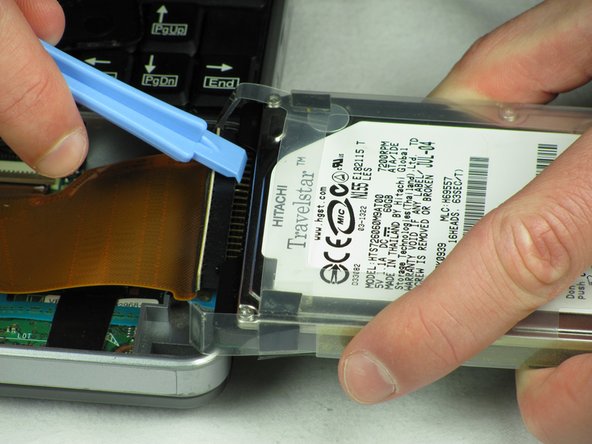
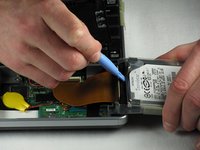
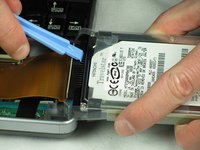
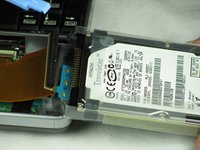
Flip the hard drive on its side.
-
Hold the hard drive and insert a plastic opening tool, preferably a wider one, in between the black pin holder and the hard drive.
-
Gently wiggle the black pin holder back and forth, on each side, until it comes off.
-

 Ask FixBot








To reassemble your device, follow these instructions in reverse order.
Cancel: I did not complete this guide.
3 other people completed this guide.

Team

Cal Poly, Team 10-31, Amido Winter 2012 Member of Cal Poly, Team 10-31, Amido Winter 2012
CPSU-AMIDO-W12S10G31
5 Members
21 Guides authored
1 Guide Comment
hai sir..please help me..how to replacement hdd lifebook PH770/5AN ? can you answer to my email antogantengnian@gmail.com..thanks a lot
