
Fujifilm FinePix Z5 Optical Lens Replacement

Inga Direktorchuk and 5 other contributors
Last updated on Jan 28, 2014
Views: 1.6K
View statistics:
- Past 24 Hours:
- 2
- Past 7 Days:
- 18
- Past 30 Days:
- 85
- All Time:
- 1,556
Comments: 0
No one has left comments on this guide. Will you be first?
Go to guide commentsCompleted: 0 1
No one has marked this guide "completed." Will you be the first?
1 person has marked this guide "completed." It's you — great job!
Favorites: 0 1
No one has favorited (and subscribed to) this guide. Will you be the first?
1 person has favorited (and subscribed to) this guide — and that's you!
Introduction
Go to step 1 ↓The optical lens is frequently reported as 'not working' or broken. This guide will take you through the steps of removing the malfunctioning lens and installing a new one.
What you need
Tools


-
-
-
Remove the two screws from the right side of the camera and the two screws from the left side.
 Ask FixBot
-
-
-
Remove the three screws from the bottom of the camera.
-
Use a three-prong screwdriver for two of the three screws; keep these screws separate.
-
-
-
-
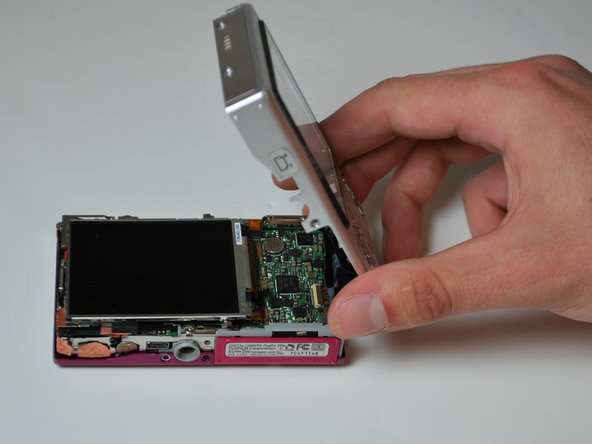
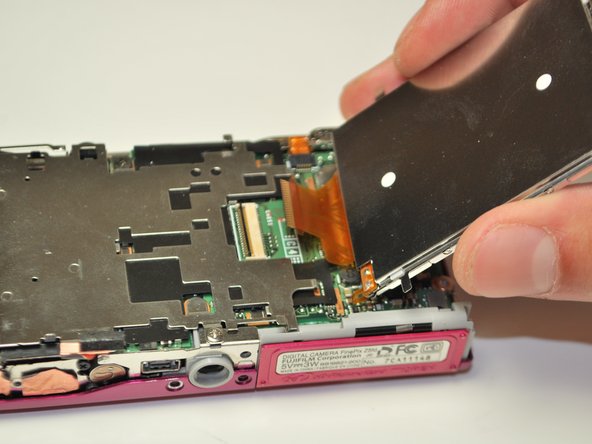
Pull the LCD screen to the left slightly, then lift and flip it open to the right.
-
-
-
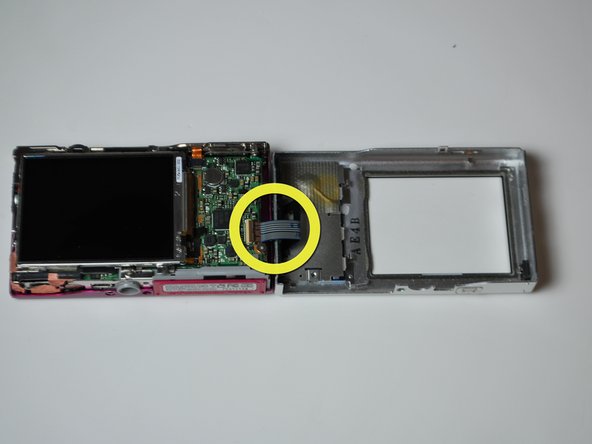
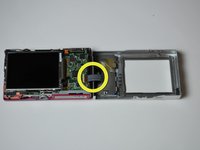
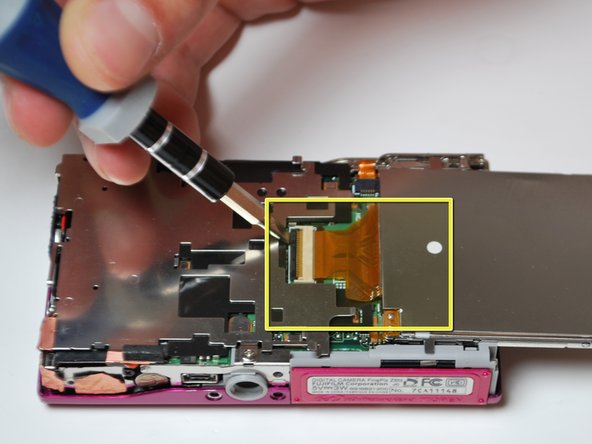
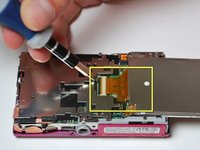
Using a plastic opening tool to flip open the black lever to release the ribbon cable.
-
Gently slide the cable out of the lock; the LCD screen is now free to be removed.
-
-
-
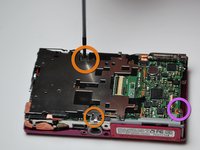
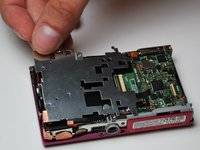
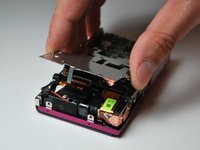
Remove the two screws that are holding the silver paneling on.
-
There is a gold foil which will tear upon removal of the silver paneling, this is normal.
-
Remove the screw anchoring the motherboard on the right.
-
-
-
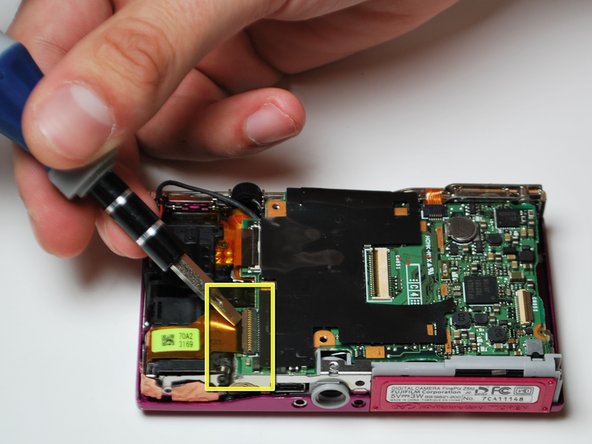
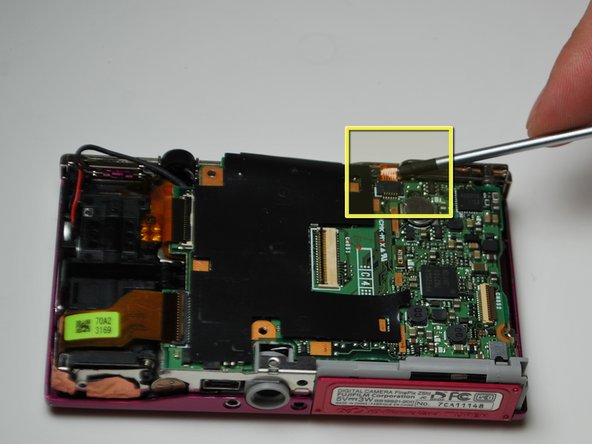
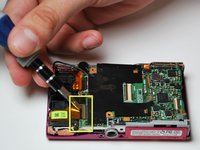
Detach the two ribbon cables on the left side of the camera the same way the LCD cable was detached.
-
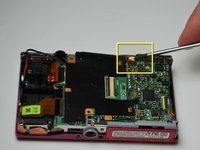
Detach the gold ribbon cable on the top middle of the camera as well.
-
-
-
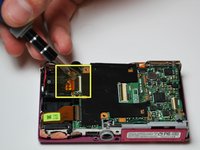
Hold wires on the left with an index finger, to keep them out of the way.
-
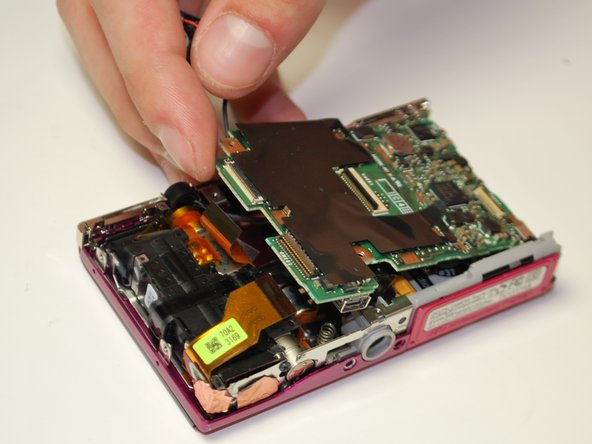
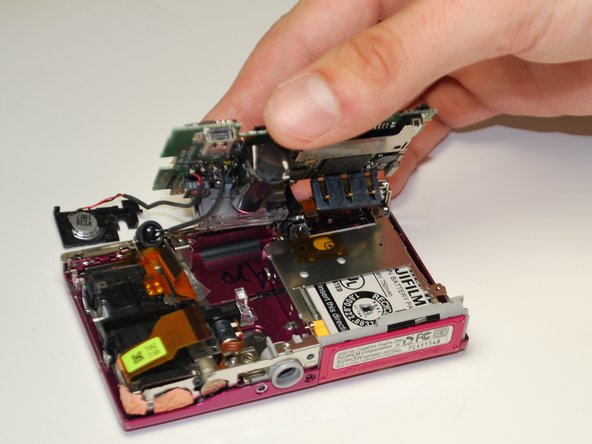
Carefully wiggle out the motherboard. The flash and the speaker will come with it.
-
-





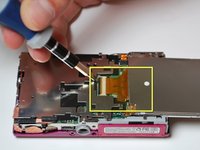
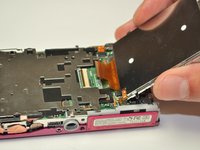

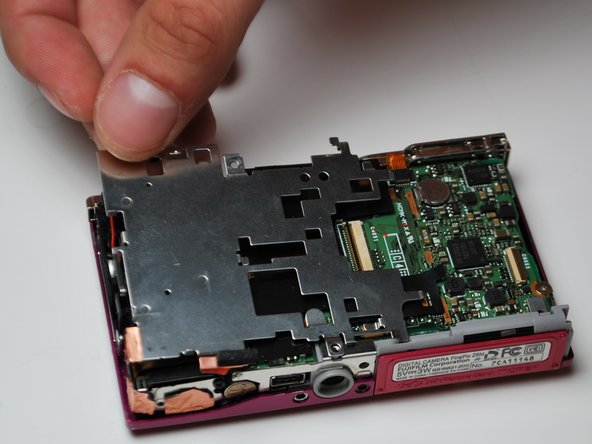
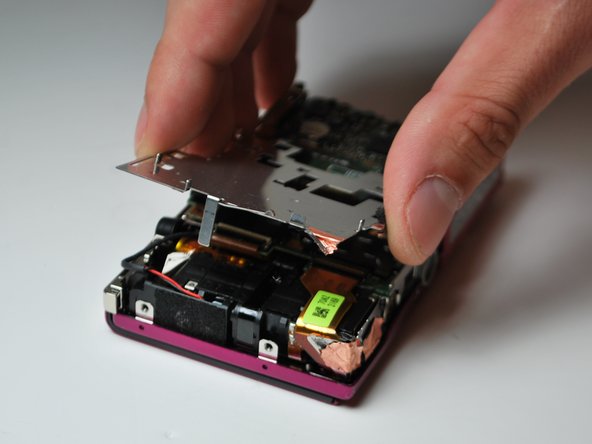


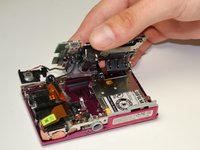

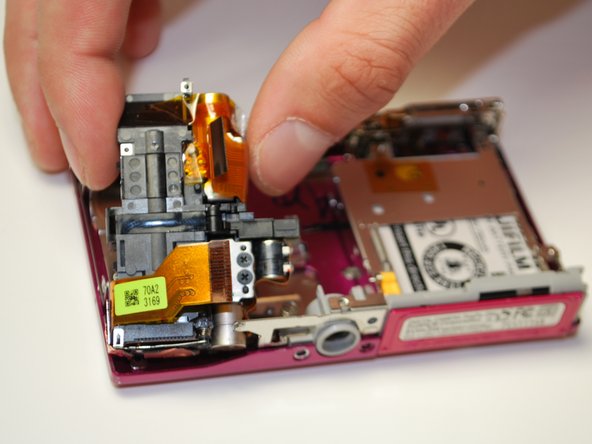
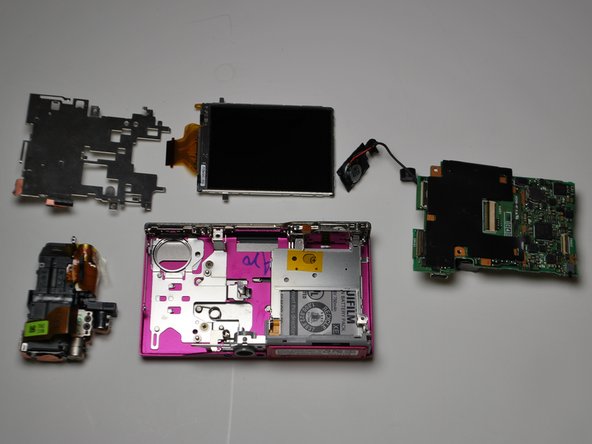
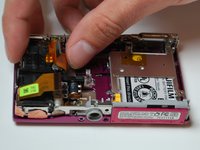
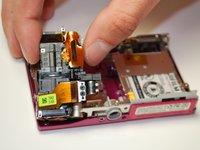
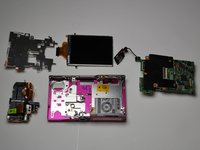
To reassemble your device, follow these instructions in reverse order.

Team

James Madison, Team 3-4, Klein Spring 2012 Member of James Madison, Team 3-4, Klein Spring 2012
JMU-KLEIN-S12S3G4
3 Members
48 Guides authored
