Free Shipping on Domestic Orders $75+

Framework Laptop 13 Pro Pre-Built Edition Quick Start Guide

Views: 238

View statistics:

Past 24 Hours:
6
Past 7 Days:
23
Past 30 Days:
74
All Time:
238
Comments: 0

No one has left comments on this guide. Will you be first?

Go to guide comments
Completed: 0

No one has marked this guide "completed." Will you be the first?

Favorites: 0

No one has favorited (and subscribed to) this guide. Will you be the first?

Time Required: 5 - 10 minutes
Difficulty: Very easy
OEM Guide

iFixit collaborated with the manufacturer to make this guide.

Framework Laptop 13 Pro Pre-Built Edition Quick Start Guide

Introduction

Go to step 1 ↓

Congratulations on getting your capable hands on a Framework Laptop 13 Pro Pre-Built Edition! Follow this quick start guide to assemble your laptop and get it running.

    1. Framework Laptop 13 Pro Pre-Built Edition Quick Start Guide, Unbox your laptop: step 1, image 1 of 2 Framework Laptop 13 Pro Pre-Built Edition Quick Start Guide, Unbox your laptop: step 1, image 2 of 2
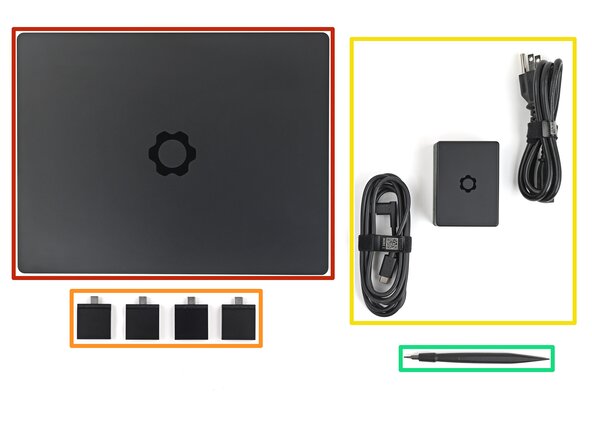
      • Unbox your Framework Laptop and make sure you've received the following items:

      • Framework Laptop Chassis with pre-installed Bezel, Memory, Storage, and Input Cover.

      • Expansion Cards

      • Power Adapter

      • Framework Screwdriver

      Ask FixBot

      Add Comment

    2. Framework Laptop 13 Pro Pre-Built Edition Quick Start Guide, Install the Expansion Cards: step 2, image 1 of 3 Framework Laptop 13 Pro Pre-Built Edition Quick Start Guide, Install the Expansion Cards: step 2, image 2 of 3 Framework Laptop 13 Pro Pre-Built Edition Quick Start Guide, Install the Expansion Cards: step 2, image 3 of 3
      • For Expansion Card compatibility, check here.

      • Slide an Expansion Card into an Expansion Card slot.

      • You don't need to unlock the latch to install the Expansion Cards—only when you want to remove them.

      • The Expansion Cards should click into place, and the front edge should be flush with the laptop.

      • Repeat for the remaining Expansion Cards along that edge.

      Ask FixBot

      Add Comment

    3. Framework Laptop 13 Pro Pre-Built Edition Quick Start Guide: step 3, image 1 of 2 Framework Laptop 13 Pro Pre-Built Edition Quick Start Guide: step 3, image 2 of 2
      • If there's a red bar showing under the Expansion Card latch, use your finger to flip the latch and lock the row of Expansion Cards above it.

      • Locking an Expansion Card helps keep it in place when you unplug cables from it.

      Ask FixBot

      Add Comment

    4. Framework Laptop 13 Pro Pre-Built Edition Quick Start Guide: step 4, image 1 of 3 Framework Laptop 13 Pro Pre-Built Edition Quick Start Guide: step 4, image 2 of 3 Framework Laptop 13 Pro Pre-Built Edition Quick Start Guide: step 4, image 3 of 3
      • Repeat the previous two steps for the other row of Expansion Cards.

      Ask FixBot

      Add Comment

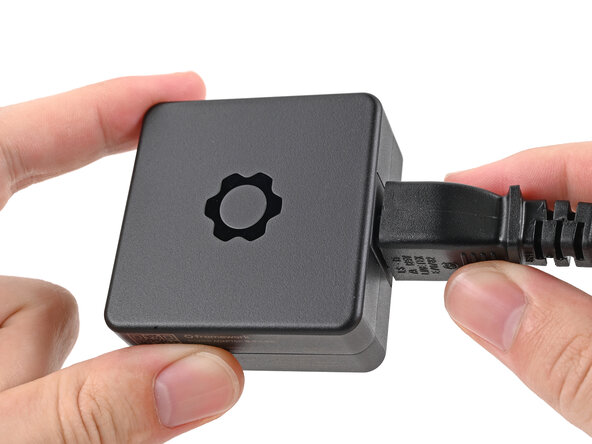
    5. Framework Laptop 13 Pro Pre-Built Edition Quick Start Guide, Assemble the Framework Power Adapter: step 5, image 1 of 3 Framework Laptop 13 Pro Pre-Built Edition Quick Start Guide, Assemble the Framework Power Adapter: step 5, image 2 of 3 Framework Laptop 13 Pro Pre-Built Edition Quick Start Guide, Assemble the Framework Power Adapter: step 5, image 3 of 3
      • Plug the AC Cable into the Power Adapter.

      • Plug the USB-C Cable into the Power Adapter.

      • You can plug either end of the USB-C cable into the adapter.

      • Plug the AC Cable into a power outlet.

      Ask FixBot

      Add Comment

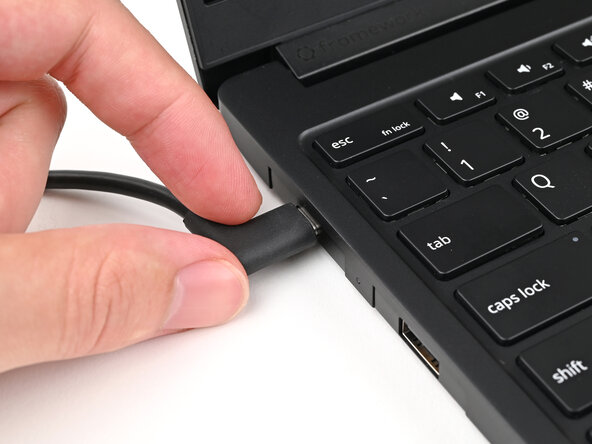
    6. Framework Laptop 13 Pro Pre-Built Edition Quick Start Guide, Plug in the laptop: step 6, image 1 of 1
      • Your Framework Laptop ships in shipping mode, where the Battery is disabled until you plug the laptop in for the first time.

      • Plug the USB-C Cable into any USB-C port on your laptop.

      Ask FixBot

      Add Comment

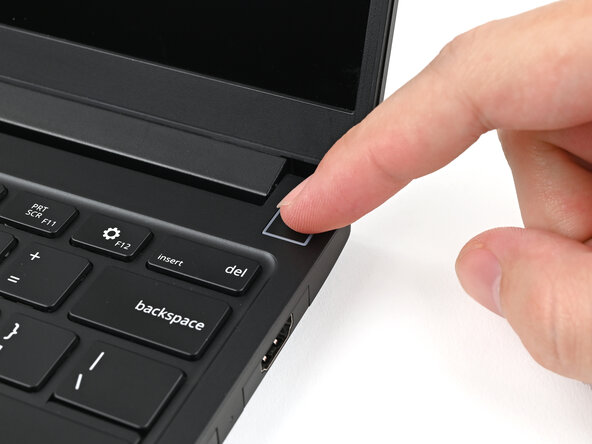
    7. Framework Laptop 13 Pro Pre-Built Edition Quick Start Guide, Turn on the laptop: step 7, image 1 of 1
      • Your Framework Laptop is ready for use! Open the lid and press the power button at the top right corner of the laptop.

      • The first boot will take longer and start with a “Memory Training in Progress” screen.

      • For drivers, firmware, and software updates, check out this page.

      Ask FixBot

      Add Comment

Conclusion

For drivers, firmware, and software updates, check out this page.

If you need help, contact Framework support.

Cancel: I did not complete this guide.

Alex Diaz-Kokaisl

Member since: 01/16/22

251,129 Reputation

1,200 Guides authored

0 Guide Comments

Add Comment

View Statistics:

Past 24 Hours: 6

Past 7 Days: 23

Past 30 Days: 74

All Time: 238