Introduction
This guide covers a few different methods of finding your computer's model number if you can't find it easily.
-
-
-
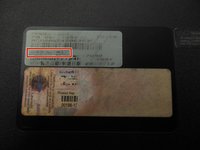
Check the exterior of the laptop for a sticker with the model name on it. This sticker may be underneath the battery, or on the underside of the battery, so you have to remove the battery to see it.
 Ask FixBot
-
-
-
Use the (Win+R) key combination to open the Run... dialog. Type "control panel" (with no quotation marks) into this box to open the control panel. Click "System and Security", then click "System". Look for a model name here.
-
-
-
-
DirectX diagnostic tool: Press (Win+R). The "Run" dialog will appear. Type “dxdiag” (with no quotes) into this box and click OK. The “DirectX Diagnostic Tool” window will appear. Click on the “System” page and look for a “System Model” entry.
-
-
-
Command prompt: Press (Win-R). The "Run" window should appear. Type “cmd” (with no quotes) into this box and click OK. Command Prompt should appear. Type the following into the Command Prompt window, but with no quotation marks: “wmic csproduct get name”. Press the enter key and your model name should appear.
-
-
-
Sometimes the model name is printed or labelled on the computer’s motherboard. It is beyond the scope of this guide to explain how to access the motherboard, but this guide may be helpful.
-
-



Team

Oregon Institute of Technology, Team S1-G4, Lancaster Fall 2018 Member of Oregon Institute of Technology, Team S1-G4, Lancaster Fall 2018
OIT-LANCASTER-F18S1G4
3 Members
108 Guides authored
