
Epson VS240 Motherboard Replacement

Daniel Scarnavack and 5 other contributors
Last updated on Jan 10, 2025
Views: 693
View statistics:
- Past 24 Hours:
- 1
- Past 7 Days:
- 10
- Past 30 Days:
- 55
- All Time:
- 693
Comments: 0
No one has left comments on this guide. Will you be first?
Go to guide commentsCompleted: 0 1
No one has marked this guide "completed." Will you be the first?
1 person has marked this guide "completed." It's you — great job!
Favorites: 0 1
No one has favorited (and subscribed to) this guide. Will you be the first?
1 person has favorited (and subscribed to) this guide — and that's you!
Needs More Images
A few more images would make this guide's procedures crystal clear.
Needs Better Images
Better photos will improve this guide. Help out by taking, editing, or uploading new ones!
Introduction
Go to step 1 ↓The motherboard is an important piece of the projector and many other electronic devices as it gives commands to the device so that it works the way it is intended. If there is any physical damage or the motherboard fails to operate than the guide here will help you replace it. If your device isn’t properly starting or is experiencing errors, it may be time to replace the motherboard. Follow the steps in this guide to remove and replace the motherboard in the Epson VS240.
What you need
Tools
-
-
Spudger4.9


-
-
-
Using the Phillips #2 screwdriver, loosen the single captive screw on the left side of the projector.
-
Slide the panel off and remove it from the device.
 Ask FixBot
-
-
-
Use the Phillips #2 screwdriver to remove the three 5 mm screws.
-
Using the same Phillips #2 screwdriver, remove the single 8 mm silver screw.
-
-
-
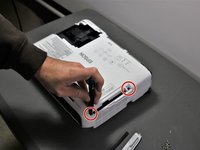
Use a Phillips #1 screwdriver to remove the two 10 mm silver screws from the bottom of the device.
-
-
-
Use a Phillips #1 screwdriver to remove the single 10 mm screw where the panel was removed in Step 1.
-
Remove the white back plate from the device.
-
-
-
-
Flip the projector over so that the underside (side with the feet) is facing you.
-
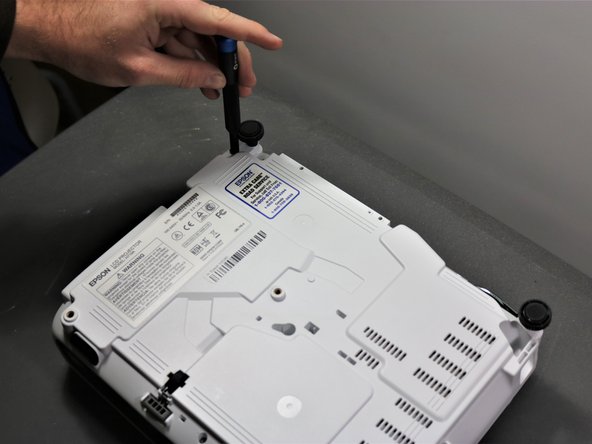
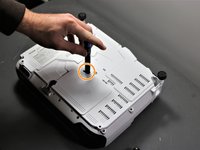
Use a Phillips #1 screwdriver to remove five 10 mm screws on the underside of projector.
-
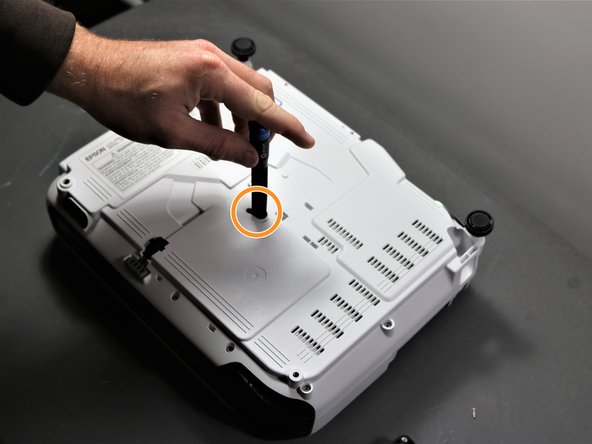
Using the same Phillips #1 screwdriver, remove a single 10 mm screw in the center hole.
-
-
-
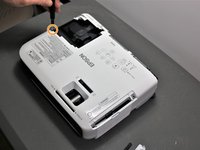
Use a Phillips #1 screwdriver to remove two 10 mm screws from the openings on each side of the air filter, on the topside of the projector.
-
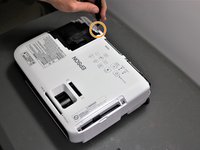
Using the same Phillips #1 screwdriver, remove the two 10 mm screws where the white panel was removed on the topside of the projector in Step 1.
-
-
-
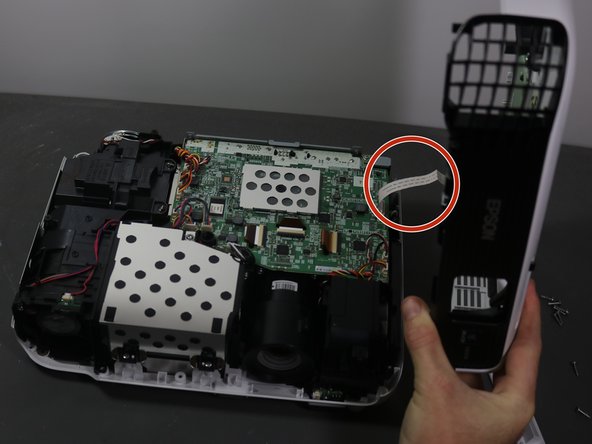
Gently lift top cover and place it on its top next to the projector so that the ribbon has no tension on it.
-
Gently pull the brown tape connecting the cable to the motherboard and then remove the shell from the device.
-
-
-
-
-
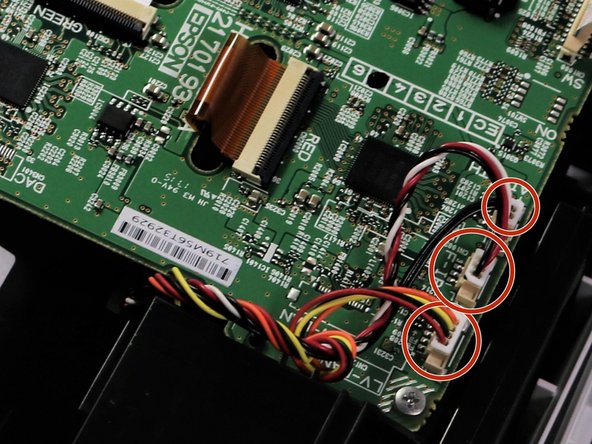
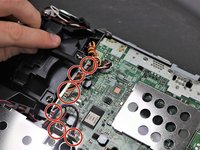
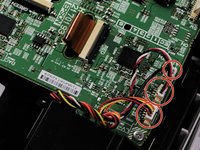
Using a spudger or a plastic opening tool, disconnect all of the wires connected to the motherboard.
-
-
-
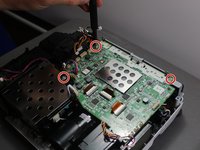
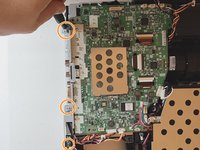
Using the Phillips #1 screwdriver, remove three 6 mm screws.
-
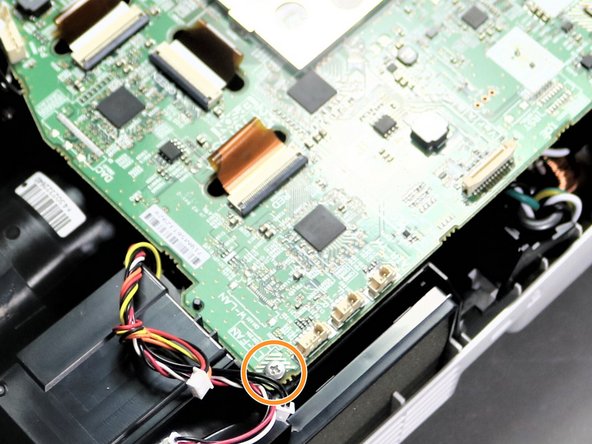
Using the same Phillips #1 screwdriver, remove a single 10 mm screw in bottom right corner of motherboard.
-
-
-
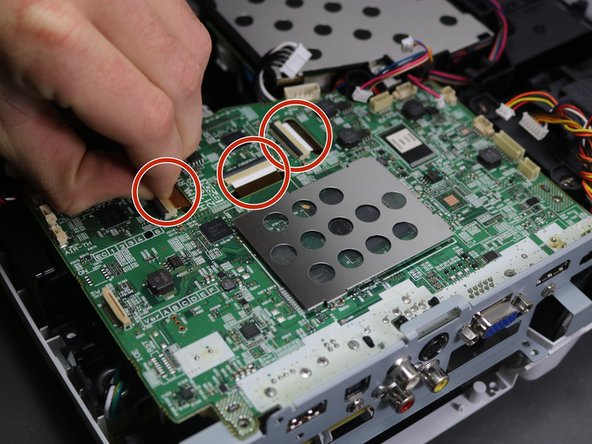
Using a spudger or your fingernails, lift up the black locking tabs and disconnect the three ribbon cables from the motherboard.
-
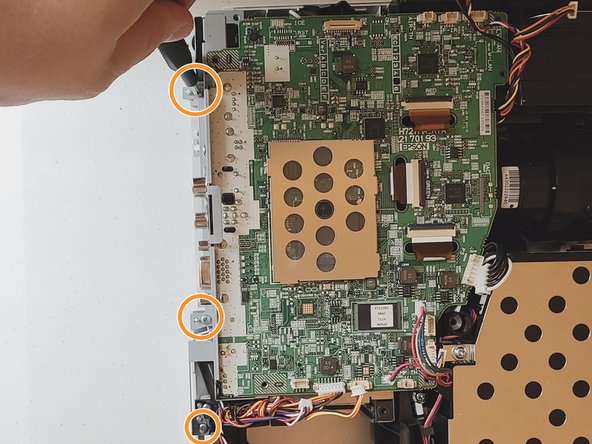
Using the Phillips #1 screwdriver, remove three 10 mm screws on the grey piece that is located on the side of the motherboard.
-
-








To reassemble your device, follow these instructions in reverse order.

Team

Clemson, Team 5-3, Hunter Fall 2021 Member of Clemson, Team 5-3, Hunter Fall 2021
CLEM-HUNTER-F21S5G3
5 Members
72 Guides authored
