
Epson Powerlite 410W Fan Replacement

Camryn Winterland and 3 other contributors
Last updated on May 11, 2022
Views: 758
View statistics:
- Past 24 Hours:
- 1
- Past 7 Days:
- 13
- Past 30 Days:
- 59
- All Time:
- 758
Comments: 0
No one has left comments on this guide. Will you be first?
Go to guide commentsCompleted: 1 2
1 person has marked this guide "completed." Will you be next?
2 people have marked this guide "completed." Including you — great job!
Favorites: 0 1
No one has favorited (and subscribed to) this guide. Will you be the first?
1 person has favorited (and subscribed to) this guide — and that's you!
Needs More Images
A few more images would make this guide's procedures crystal clear.
Introduction
Go to step 1 ↓If the fan in your Epson Powerlite 410W projector seems to be running very loudly, not working at all, or the temp light is flashing, you will most likely need to replace the fan. If you are unsure what is wrong with your device, please visit our troubleshooting page.
The fan is set in the projector below the lamp and lens. It helps to cool down the body of the projector when it is working hard so that it does not overheat. Before replacing the fan, make sure it cannot be fixed from just cleaning and re-greasing the fan.
What you need
Tools


-
-
-
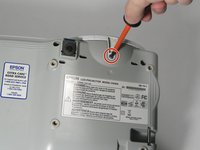
Remove eight screws from the bottom of the device using a Phillips #00 screwdriver.
-
-
-
Turn the projector so the power button is on top.
-
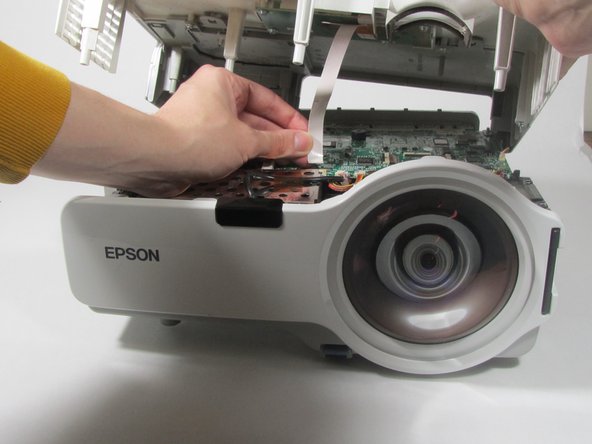
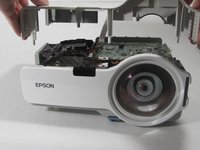
Gently pull up the cover until it pops off.
-
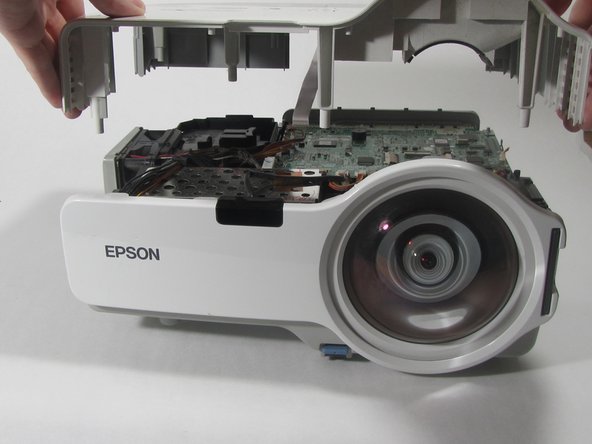
Disconnect the ribbon cable that attaches the cover to the motherboard.
-
Remove the cover and place to the side.
-
-
-
-
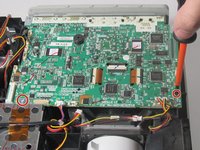
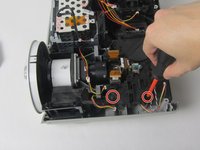
Remove the two screws holding down the motherboard using a Phillips #00 screwdriver.
-
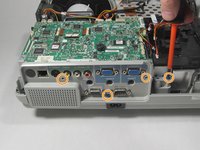
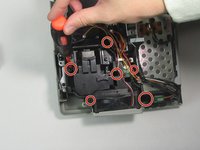
Remove the four screws holding down the I/O board using a Phillips #00 screwdriver.
-
-
-
-
Remove the seven cables that are running to the motherboard by pulling them out of their sockets.
-
-
Tool used on this step:Tweezers$4.99
-
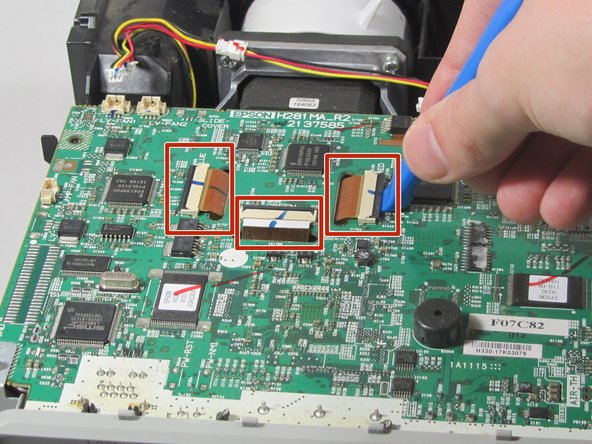
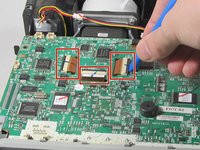
Using a plastic opening tool, gently pry up the black tabs holding in the ribbon cables on the motherboard.
-
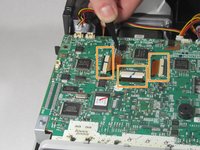
Using tweezers, gently pull the ribbon cables out of the sockets.
-
-
-
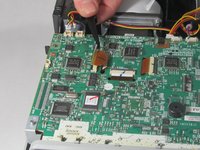
Gently pull the motherboard up and tilt it back, revealing the last cable attached to the motherboard. Disconnect this cable.
-
Remove the motherboard from the projector.
-
-
-
-
-
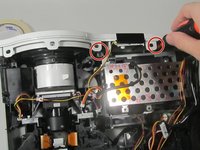
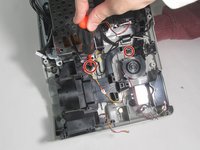
Remove the screws that are holding the front cover in place.
-
Remove the white front cover by pulling it away from the lens.
-
-
-
Remove the screws from the L-shaped lens assembly that you see under the motherboard.
-
Remove the lens assembly to gain access to the lamp.
-
-
-
Remove the screws holding the lamp in place.
-
Remove the lamp by gently pulling it out of the device.
-
-

 Ask FixBot













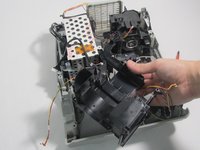


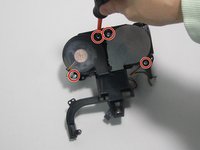
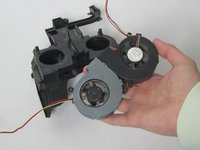
To reassemble your device, follow these instructions in reverse order.
Cancel: I did not complete this guide.
One other person completed this guide.

Team

Illinois Wesleyan University, Team 1-4, Bullock Spring 2022 Member of Illinois Wesleyan University, Team 1-4, Bullock Spring 2022
IWU-BULLOCK-S22S1G4
3 Members
60 Guides authored
