Free Shipping on Domestic Orders $75+

Epson PowerLite 83+ Power Supply Replacement

Views: 482

View statistics:

Past 24 Hours:
2
Past 7 Days:
9
Past 30 Days:
51
All Time:
482
Comments: 0

No one has left comments on this guide. Will you be first?

Go to guide comments
Completed: 0

No one has marked this guide "completed." Will you be the first?

Favorites: 0

No one has favorited (and subscribed to) this guide. Will you be the first?

Time Required: 35 minutes - 1 hour
Difficulty: Moderate
Epson PowerLite 83+ Power Supply Replacement

Introduction

Go to step 1 ↓

If you need to replace your Epson PowerLite 83+ projector's power supply, you can remove it using this guide. A faulty power supply may cause the projector to not show any status lights when attempting to power on the device.

Prior to beginning this repair, be sure to power off the projector and unplug it from the power adapter.

What you need

Tools

    1. Epson PowerLite 83+ Power Supply Replacement, Motherboard: step 1, image 1 of 3 Epson PowerLite 83+ Power Supply Replacement, Motherboard: step 1, image 2 of 3 Epson PowerLite 83+ Power Supply Replacement, Motherboard: step 1, image 3 of 3
      • Remove the eight 5mm Phillips #2 screws securing the projector's bottom cover.

      • A long shank Phillips #2 screwdriver is required to reach the screws.

      Ask FixBot

      Add Comment

    2. Epson PowerLite 83+ Power Supply Replacement: step 2, image 1 of 3 Epson PowerLite 83+ Power Supply Replacement: step 2, image 2 of 3 Epson PowerLite 83+ Power Supply Replacement: step 2, image 3 of 3
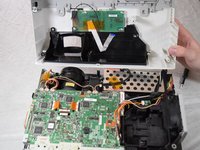
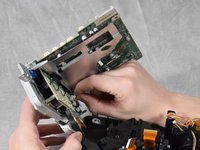
      • Flip the projector over and lift the top cover from the rear of the projector.

      • Two cables are connected at the front that prevent full removal.

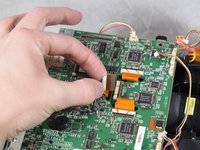
      • Disconnect the slide cover JST connector. Grip the connector and rock it back and forth while apply gentle pressure.

      Ask FixBot

      Add Comment

    3. Epson PowerLite 83+ Power Supply Replacement: step 3, image 1 of 2 Epson PowerLite 83+ Power Supply Replacement: step 3, image 2 of 2
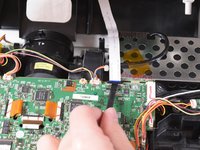
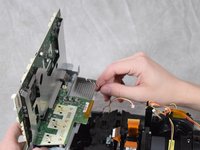
      • Using a spudger, lift the ribbon cable's locking tab along the length of the cable.

      • Remove the ribbon cable from the connector and place the projector's top cover aside.

      Ask FixBot

      Add Comment

    4. Epson PowerLite 83+ Power Supply Replacement: step 4, image 1 of 3 Epson PowerLite 83+ Power Supply Replacement: step 4, image 2 of 3 Epson PowerLite 83+ Power Supply Replacement: step 4, image 3 of 3
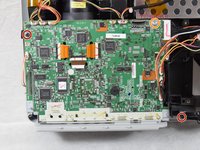
      • Remove the two 6 mm Phillips #2 screws.

      • Remove the single silver 5 mm Phillips #2 screw.

      Ask FixBot

      Add Comment

    5. Epson PowerLite 83+ Power Supply Replacement: step 5, image 1 of 3 Epson PowerLite 83+ Power Supply Replacement: step 5, image 2 of 3 Epson PowerLite 83+ Power Supply Replacement: step 5, image 3 of 3
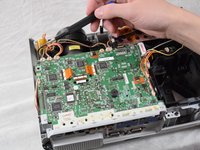
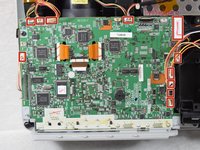
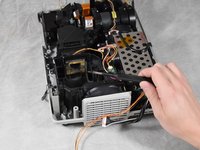
      • Using your fingernails or a spudger, remove the eleven JST connectors attached to the motherboard.

      Ask FixBot

      Add Comment

    6. Epson PowerLite 83+ Power Supply Replacement: step 6, image 1 of 2 Epson PowerLite 83+ Power Supply Replacement: step 6, image 2 of 2
      • Using a spudger, flip up the plastic locking tabs and gently remove the three ribbon cables from their connectors.

      Ask FixBot

      Add Comment

    7. Epson PowerLite 83+ Power Supply Replacement: step 7, image 1 of 2 Epson PowerLite 83+ Power Supply Replacement: step 7, image 2 of 2
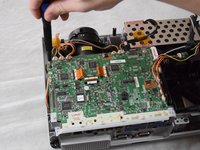
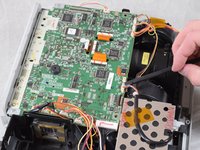
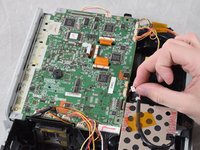
      • Ensure all JST connectors are clear of the motherboard and that the ribbon cables freely move in their motherboard cutouts.

      • Lift the motherboard from the front side of the projector to clear the ribbon cables.

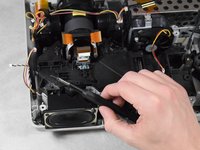
      • Disconnect the speaker's JST connector on the underside of the motherboard using your fingernails.

      • Remove the motherboard from the case.

      Ask FixBot

      Add Comment

    1. Epson PowerLite 83+ Power Supply Replacement, Projector Lens: step 8, image 1 of 3 Epson PowerLite 83+ Power Supply Replacement, Projector Lens: step 8, image 2 of 3 Epson PowerLite 83+ Power Supply Replacement, Projector Lens: step 8, image 3 of 3
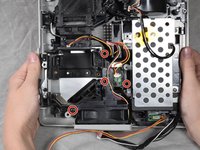
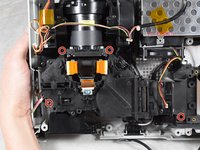
      • Remove the four 6 mm Phillips #2 screws securing the fan bracket.

      • Remove the fan bracket by pulling straight up and set it aside.

      Ask FixBot

      Add Comment

    2. Epson PowerLite 83+ Power Supply Replacement: step 9, image 1 of 3 Epson PowerLite 83+ Power Supply Replacement: step 9, image 2 of 3 Epson PowerLite 83+ Power Supply Replacement: step 9, image 3 of 3
      • Remove the four 6 mm Phillips #2 screws securing the projector lens.

      Ask FixBot

      Add Comment

    3. Epson PowerLite 83+ Power Supply Replacement: step 10, image 1 of 2 Epson PowerLite 83+ Power Supply Replacement: step 10, image 2 of 2
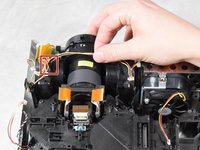
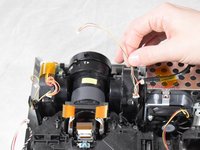
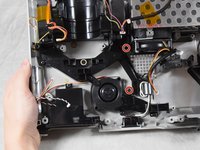
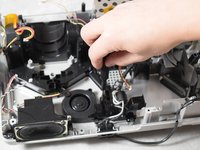
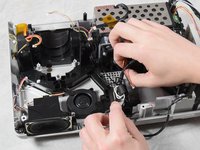
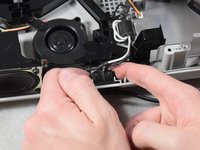
      • Unhook the JST connector wire from wire stay and move it aside.

      • Remove the projector lens from the base.

      Ask FixBot

      Add Comment

    1. Epson PowerLite 83+ Power Supply Replacement, Power Supply: step 11, image 1 of 3 Epson PowerLite 83+ Power Supply Replacement, Power Supply: step 11, image 2 of 3 Epson PowerLite 83+ Power Supply Replacement, Power Supply: step 11, image 3 of 3
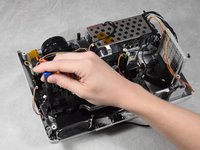
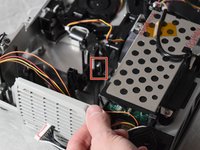
      • Remove the sensor using a spudger and lifting it from the bottom.

      Ask FixBot

      Add Comment

    2. Epson PowerLite 83+ Power Supply Replacement: step 12, image 1 of 2 Epson PowerLite 83+ Power Supply Replacement: step 12, image 2 of 2
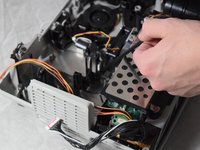
      • Remove the lamp's power plug by rocking towards the fan's vent and then pulling up.

      Ask FixBot

      Add Comment

    3. Epson PowerLite 83+ Power Supply Replacement: step 13, image 1 of 2 Epson PowerLite 83+ Power Supply Replacement: step 13, image 2 of 2
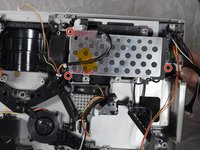
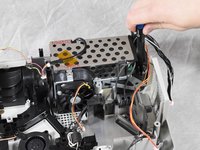
      • Remove the three 6 mm Phillips #2 screws securing the power supply.

      • The screw located by the power supply's fan is near a magnetic field. Reinserting this screw can be difficult.

      Ask FixBot

      Add Comment

    4. Epson PowerLite 83+ Power Supply Replacement: step 14, image 1 of 3 Epson PowerLite 83+ Power Supply Replacement: step 14, image 2 of 3 Epson PowerLite 83+ Power Supply Replacement: step 14, image 3 of 3
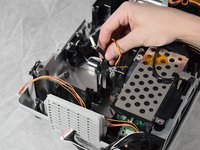
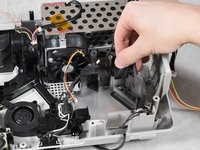
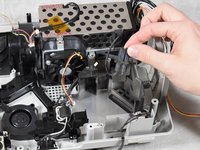
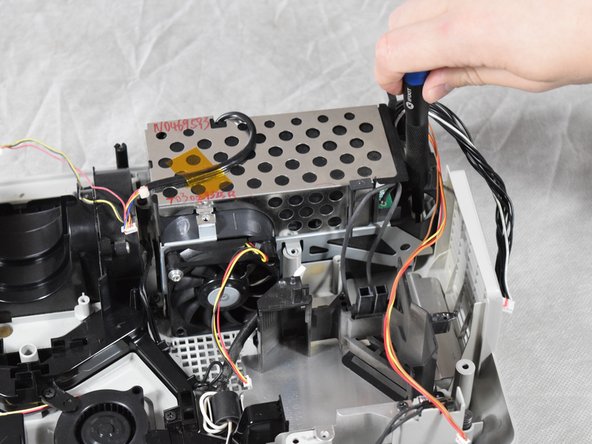
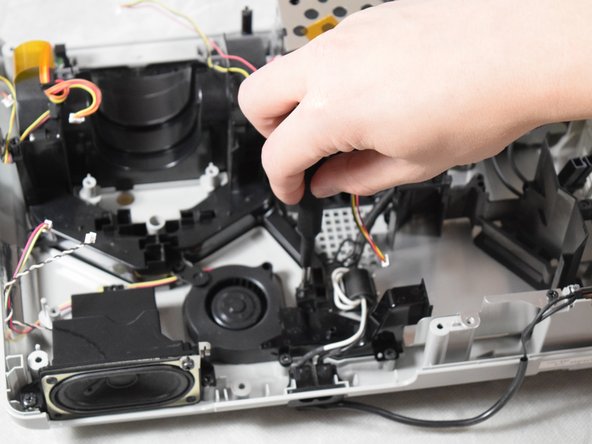
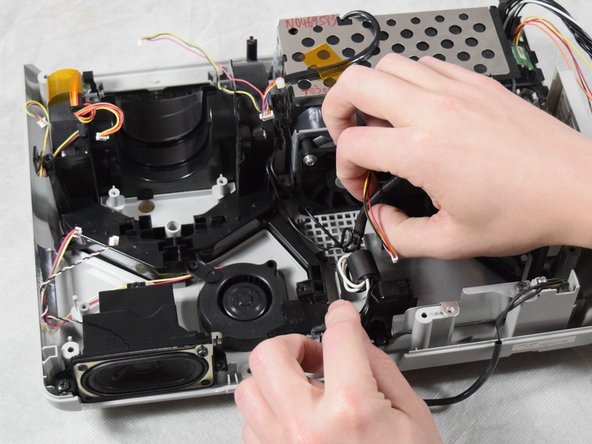
      • Remove the two 6 mm Phillips #2 screws securing the wire guide.

      • Remove the wires by gently lifting up the wire guide.

      Ask FixBot

      Add Comment

    5. Epson PowerLite 83+ Power Supply Replacement: step 15, image 1 of 2 Epson PowerLite 83+ Power Supply Replacement: step 15, image 2 of 2
      • Using your fingers, firmly press in the sides of the power plug while lifting up.

      • Remove the power supply.

      Ask FixBot

      Add Comment

Conclusion

To reassemble your device, follow these instructions in reverse order.

Cancel: I did not complete this guide.

Blake Davis

Member since: 02/22/22

181 Reputation

1 Guide authored

Team

Clemson, Team 2-4, Hunter Spring 2022 Member of Clemson, Team 2-4, Hunter Spring 2022

CLEM-HUNTER-S22S2G4

4 Members

72 Guides authored

0 Guide Comments

Add Comment

View Statistics:

Past 24 Hours: 2

Past 7 Days: 9

Past 30 Days: 51

All Time: 482