Introduction
This repair guide will teach you how to replace the charging port in the Ematic Genesis 2 tablet.
What you need
-
-
-
With your fingers, carefully pry off the back plastic casing. Starting at the corners is usually the easiest.
 Ask FixBot
-
-
-
Remove all four screws surrounding the battery with the Phillips head screwdriver.
-
Carefully remove the battery from the device using the Metal Spudger tool to gently separate the battery by wedging it between the device and the battery.
-
-
-
-
Remove both screws on either side of the audio jack using the Philips head screwdriver.
-
Detach audio jack from device.
-
-
-
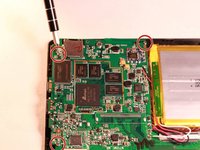
Remove the 3 screws surrounding the circuit board using the Philips head screwdriver.
-
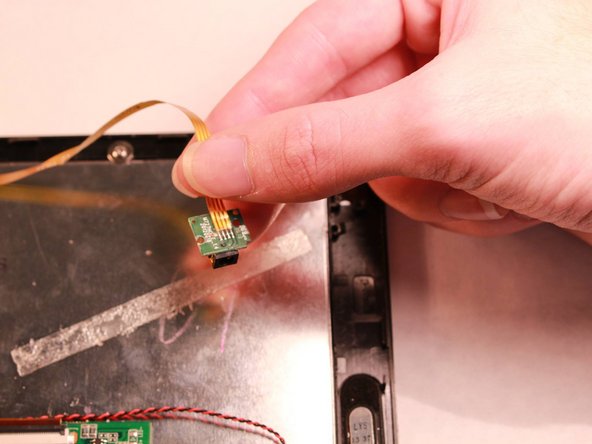
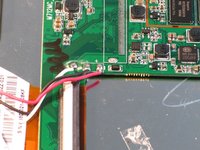
Carefully disconnect the circuit board from the device by detaching the copper flexible PCB ribbon cable.
-
-
Tool used on this step:Tweezers$4.99
-
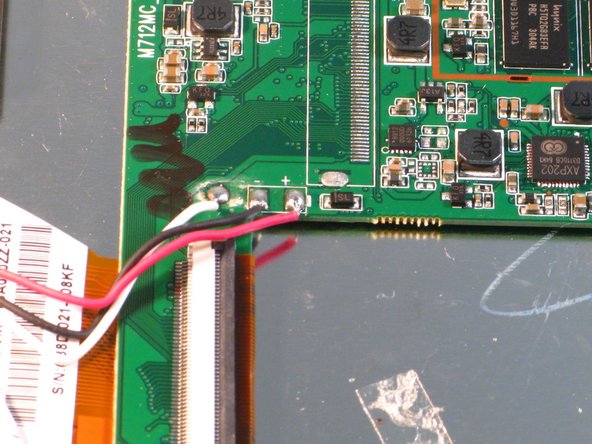
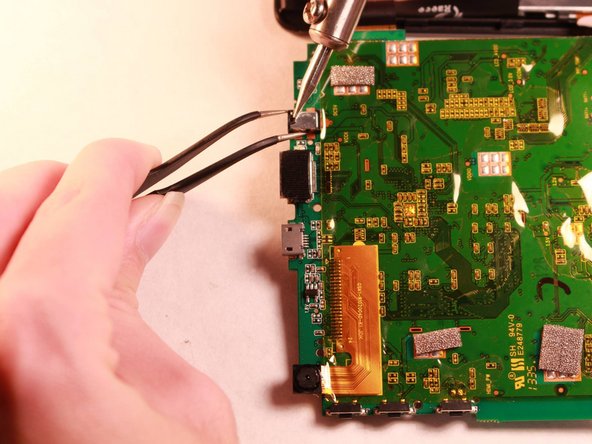
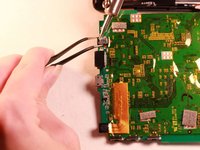
Use a soldering iron to heat the solder holding the charging port to the circuit board.
-
Remove the charging port from board using tweezers.
-
-





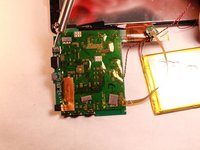

To reassemble your device, follow these instructions in reverse order.
Cancel: I did not complete this guide.
One other person completed this guide.

Team

Western Carolina University, Team 1-1, Virtue Fall 2015 Member of Western Carolina University, Team 1-1, Virtue Fall 2015
WCU-VIRTUE-F15S1G1
4 Members
48 Guides authored
