
Ematic Funtab FTABXXX Battery Replacement

Robert Zarobinski and 2 other contributors
Last updated on Nov 22, 2016
Views: 743
View statistics:
- Past 24 Hours:
- 4
- Past 7 Days:
- 25
- Past 30 Days:
- 102
- All Time:
- 743
Comments: 0
No one has left comments on this guide. Will you be first?
Go to guide commentsCompleted: 0 1
No one has marked this guide "completed." Will you be the first?
1 person has marked this guide "completed." It's you — great job!
Favorites: 0 1
No one has favorited (and subscribed to) this guide. Will you be the first?
1 person has favorited (and subscribed to) this guide — and that's you!
Slice and Dice
The steps in this guide should be split up and made into a series of prerequisite guides.
Introduction
Go to step 1 ↓Following our troubleshooting guide, you have diagnosed that you have a defective battery.
What you need
Tools


-
-
-
First, be sure to power off the device.
-
Carefully pry open the device. Note the plastic tabs in the image that hold the device together.
 Ask FixBot
-
-
-
-
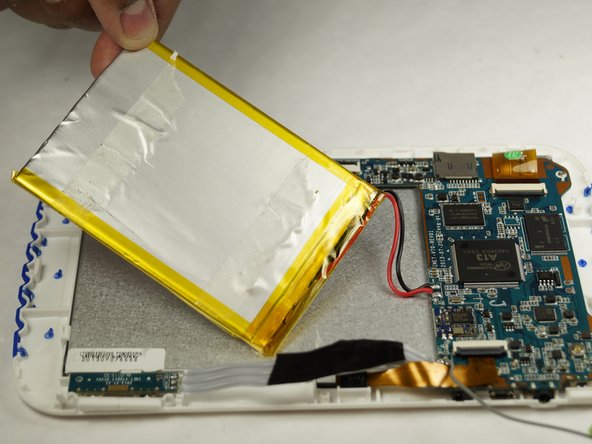
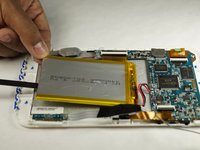
Carefully pry off the battery from the display screen. This will be slight difficult since the battery is held onto the back of the display by adhesive.
-
-
-
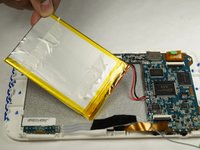
Locate the red and black wire that runs from the battery and to the motherboard. Note the location of the wires, and carefully remove the soldered wires.
-
-
-
Attach the new battery to the same location as the old battery via adhesive.
-
Then, carefully solder the red wire to the '+' symbol on the motherboard and the black wire to the '-' symbol.
-
-
-
Once the solder has cooled, snap the front and back bezels together. Be sure to charge the new battery.
-
-




To reassemble your device, follow these instructions in reverse order.

Team

USF Tampa, Team 6-3, Brown Winter 2015 Member of USF Tampa, Team 6-3, Brown Winter 2015
USFT-BROWN-W15S6G3
3 Members
60 Guides authored
