Free Shipping on Domestic Orders $75+

Ematic FunTab 3 Motherboard Replacement

What you need

  1. Ematic FunTab 3 Motherboard Replacement, Back Panel: step 1, image 1 of 3 Ematic FunTab 3 Motherboard Replacement, Back Panel: step 1, image 2 of 3 Ematic FunTab 3 Motherboard Replacement, Back Panel: step 1, image 3 of 3
    • Turn off the device before starting

    • To prevent damage, open the device on the side without the buttons.

    • Insert the hooked end of the plastic opening tool in the gap between the screen and the back panel on the edge of the device.

    • Slide the plastic opening tool down the long side of the device.

    • Insert tool again and slide it down the long slide of the case a second time.

    Ask FixBot

    Add Comment

  2. Ematic FunTab 3 Motherboard Replacement: step 2, image 1 of 1
    • Pull the back panel away from the screen.

    Ask FixBot

    Add Comment

  3. Ematic FunTab 3 Motherboard Replacement, Battery: step 3, image 1 of 1
    • Remove the black tape to reveal the wire ribbon connector.

    Ask FixBot

    Add Comment

  4. Ematic FunTab 3 Motherboard Replacement: step 4, image 1 of 3 Ematic FunTab 3 Motherboard Replacement: step 4, image 2 of 3 Ematic FunTab 3 Motherboard Replacement: step 4, image 3 of 3
    Tool used on this step:
    Tweezers
    $4.99
    Buy
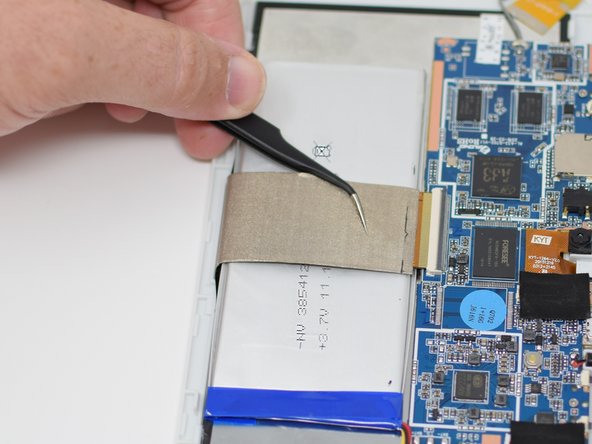
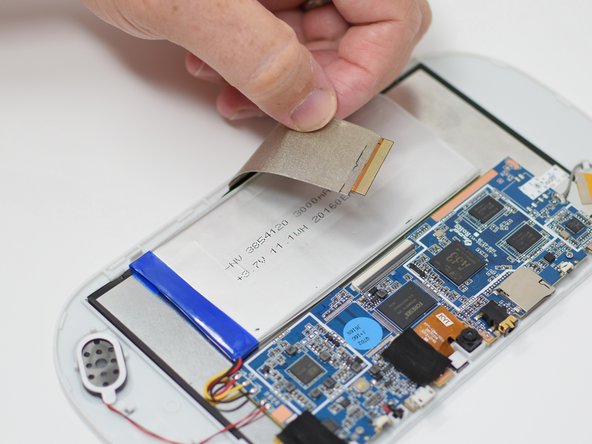
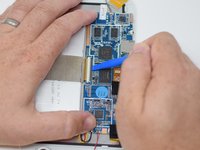
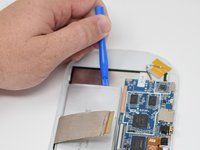
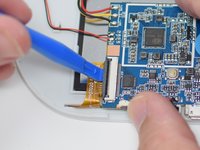
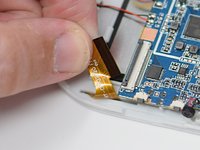
    • Flip up the black retaining tab using the plastic opening tool.

    • Pull out the large wire ribbon that crosses over the battery.

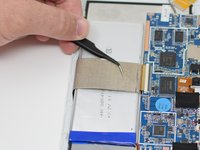
    • You may need tweezers to pull out the wire ribbon.

    Ask FixBot

    Add Comment

  5. Ematic FunTab 3 Motherboard Replacement: step 5, image 1 of 3 Ematic FunTab 3 Motherboard Replacement: step 5, image 2 of 3 Ematic FunTab 3 Motherboard Replacement: step 5, image 3 of 3
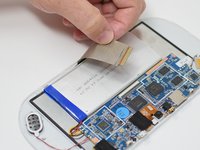
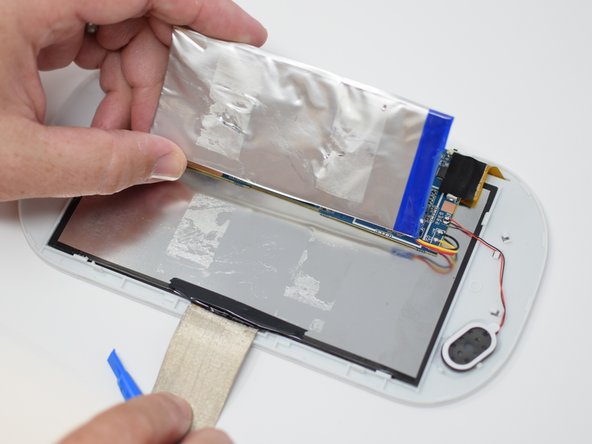
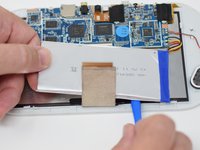
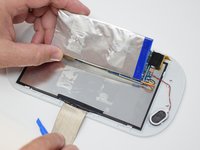
    • Insert the plastic opening tool under the battery.

    • Using the plastic opening tool, pry up the battery.

    • There is tape on the back of the battery. Some more force may be required to separate the battery from the back of the display.

    Ask FixBot

    Add Comment

  6. Ematic FunTab 3 Motherboard Replacement: step 6, image 1 of 2 Ematic FunTab 3 Motherboard Replacement: step 6, image 2 of 2
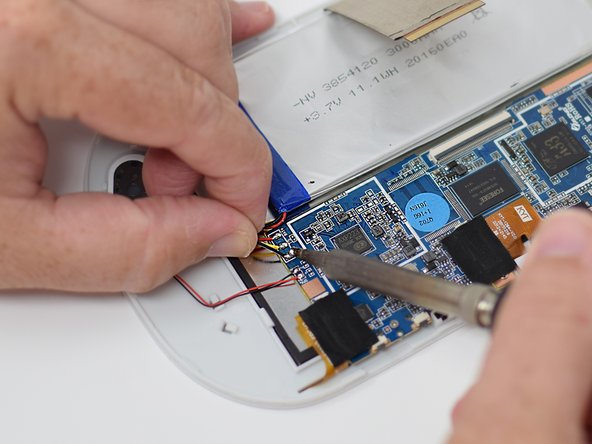
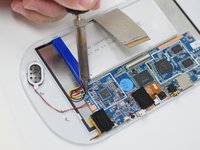
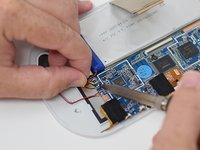
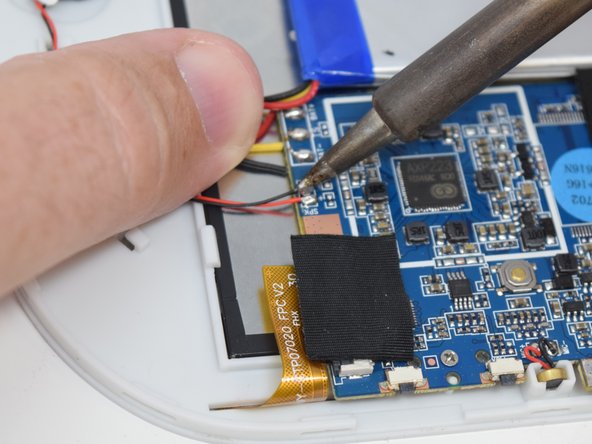
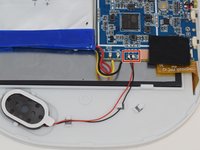
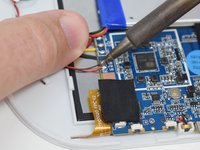
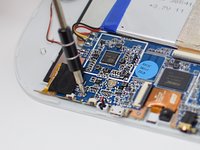
    • Remove the wires from the motherboard using a soldering iron tool. Here is a link on How To Solder and Desolder Connections.

    • After the connections are desoldered, remove the battery.

    • Close the black ribbon retaining tabs once ribbons are inserted during reassembly.

    Ask FixBot

    Add Comment

  7. Ematic FunTab 3 Motherboard Replacement, Speaker: step 7, image 1 of 2 Ematic FunTab 3 Motherboard Replacement, Speaker: step 7, image 2 of 2
    Ask FixBot

    Add Comment

  8. Ematic FunTab 3 Motherboard Replacement: step 8, image 1 of 3 Ematic FunTab 3 Motherboard Replacement: step 8, image 2 of 3 Ematic FunTab 3 Motherboard Replacement: step 8, image 3 of 3
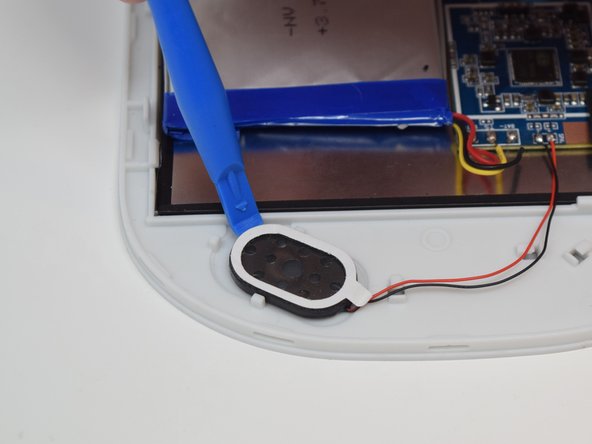
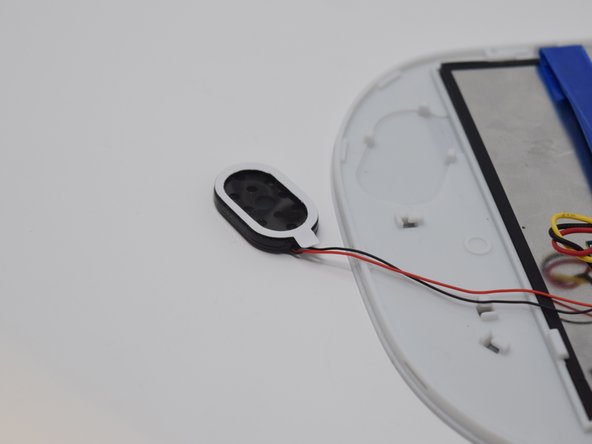
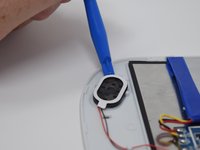
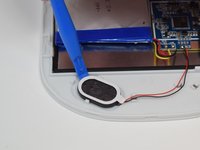
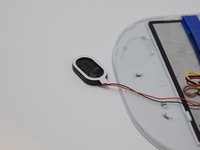
    • After the connections are desoldered, remove the speaker by prying it up using a plastic opening tool.

    • There is glue on the back of the speaker. Some more force may be required.

    Ask FixBot

    Add Comment

  9. Ematic FunTab 3 Motherboard Replacement, Camera: step 9, image 1 of 2 Ematic FunTab 3 Motherboard Replacement, Camera: step 9, image 2 of 2
    • Remove the black tape to reveal the wire ribbon connector.

    Ask FixBot

    Add Comment

  10. Ematic FunTab 3 Motherboard Replacement: step 10, image 1 of 1
    • Use the plastic opening tool to flip up the black retaining tab.

    Ask FixBot

    Add Comment

  11. Ematic FunTab 3 Motherboard Replacement: step 11, image 1 of 2 Ematic FunTab 3 Motherboard Replacement: step 11, image 2 of 2
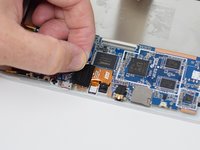
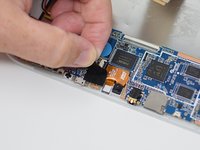
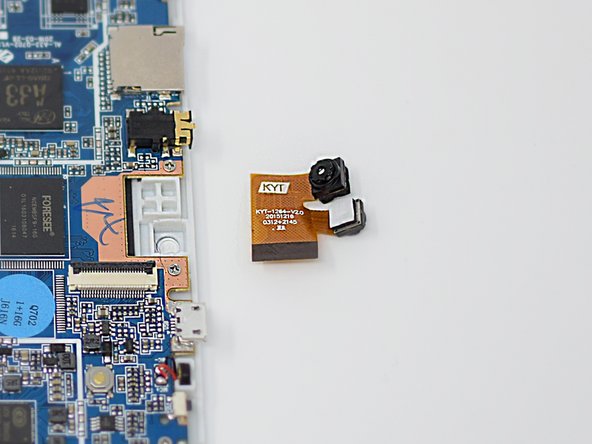
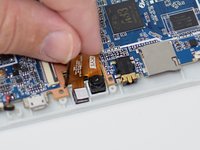
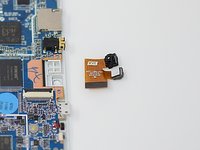
    • Pull out the wire ribbon connected to the camera.

    • The camera is held in place by glue, so extra force may be required.

    • Remove the camera from the device.

    • Close the black ribbon retaining tabs once ribbons are inserted during reassembly.

    Ask FixBot

    Add Comment

  12. Ematic FunTab 3 Motherboard Replacement, Motherboard: step 12, image 1 of 1
    • Remove the black tape to reveal the screen connector.

    Ask FixBot

    Add Comment

  13. Ematic FunTab 3 Motherboard Replacement: step 13, image 1 of 2 Ematic FunTab 3 Motherboard Replacement: step 13, image 2 of 2
    • Flip up the retaining tab using the plastic opening tool.

    • Pull out the screen wire ribbon to disconnect the screen and motherboard.

    Ask FixBot

    Add Comment

  14. Ematic FunTab 3 Motherboard Replacement: step 14, image 1 of 2 Ematic FunTab 3 Motherboard Replacement: step 14, image 2 of 2
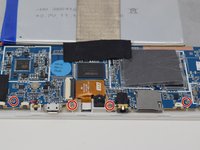
    • Using a PH 00 screwdriver, remove the four 4.5 mm screws that are holding the motherboard in place.

    Ask FixBot

    Add Comment

  15. Ematic FunTab 3 Motherboard Replacement: step 15, image 1 of 1
    • It is now safe to remove and replace the old motherboard with your new motherboard.

    • Close the black ribbon retaining tabs once ribbons are inserted during reassembly.

    Ask FixBot

    Add Comment

Conclusion

To reassemble your device, follow these instructions in reverse order.

Cancel: I did not complete this guide.

Amanda Davis

Member since: 07/11/18

581 Reputation

5 Guides authored

Team

UW Tacoma, Team S1-G5, Cardinal Summer 2018 Member of UW Tacoma, Team S1-G5, Cardinal Summer 2018

UWT-CARDINAL-SU18S1G5

4 Members

12 Guides authored

0 Guide Comments

Add Comment

View Statistics:

Past 24 Hours: 0

Past 7 Days: 18

Past 30 Days: 35

All Time: 607