
EasySMX X15 A,B,X,Y Buttons Replacement

Jhaylen Lozada and one other contributor
Last updated on Dec 18, 2024
Views: 1.1K
View statistics:
- Past 24 Hours:
- 2
- Past 7 Days:
- 12
- Past 30 Days:
- 70
- All Time:
- 1,079
Comments: 0
No one has left comments on this guide. Will you be first?
Go to guide commentsCompleted: 0 1
No one has marked this guide "completed." Will you be the first?
1 person has marked this guide "completed." It's you — great job!
Favorites: 0 1
No one has favorited (and subscribed to) this guide. Will you be the first?
1 person has favorited (and subscribed to) this guide — and that's you!
Action Shots
Be an action hero! This guide needs images that better demonstrate how to perform specific actions.
Needs More Images
A few more images would make this guide's procedures crystal clear.
Needs Better Images
Better photos will improve this guide. Help out by taking, editing, or uploading new ones!
Better Introduction
Improve this guide by completing or revising its introduction.
Introduction
Go to step 1 ↓Over time, the buttons on your EasySMX X15 controller may become less responsive or get stuck. Replacing the buttons is a relatively simple process that you can do at home with a few basic tools. This guide will walk you through how to replace the buttons.
Note: You don't need to remove the battery as shown in Step 3. However, it is important to disconnect the battery from the board before you move on.
What you need
Tools
-
Spudger4.9
-


-
-
-
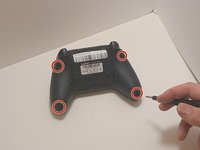
Use a Phillips #00 screwdriver to remove the four 9 mm screws from the bottom of the EasySMX X15.
-
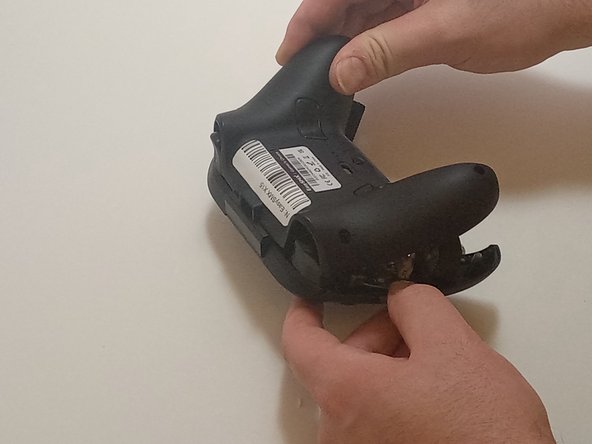
Use an opening tool to gently pry between the seams of the controller to separate the lower and upper casings.
 Ask FixBot
-
-
-
-
-
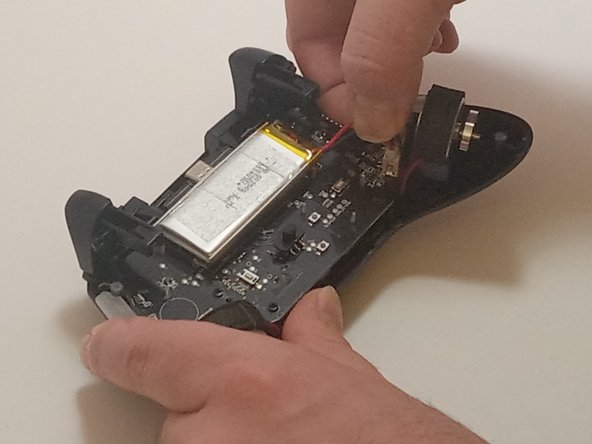
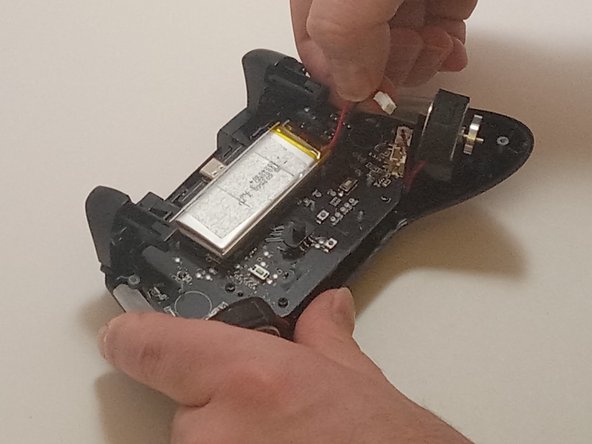
Push on alternating sides of the connector to disconnect the red battery cable from the board.
-
-
-
Use a spudger to pry the battery loose from the controller.
-
Remove the battery.
-
-
-
-
-
Disconnect the vibration motor cables from the connectors on the circuit board.
-
Use a Phillips #00 screwdriver to remove six, 6mm screws from the board.
-
-
-
-
Gently lift the board away from the upper casing, maneuvering it around the triggers by lifting it from the bottom, away from the upper casing.
-
-
-





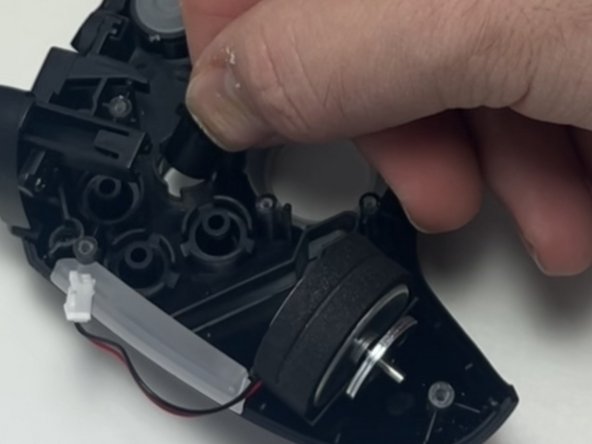
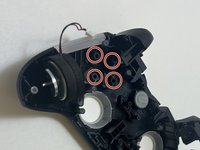
To reassemble your device, follow these instructions in reverse order

Team

Austin Community College, Team 7-3, Watkins Fall 2024 Member of Austin Community College, Team 7-3, Watkins Fall 2024
AUSTINCC-WATKINS-F24S7G3
3 Members
84 Guides authored
