
Dymo LabelManager 160 Charging Port Replacement

Andrew Ozga and 2 other contributors
Last updated on May 11, 2017
Views: 1.6K
View statistics:
- Past 24 Hours:
- 2
- Past 7 Days:
- 16
- Past 30 Days:
- 99
- All Time:
- 1,594
Comments: 0
No one has left comments on this guide. Will you be first?
Go to guide commentsCompleted: 1 2
1 person has marked this guide "completed." Will you be next?
2 people have marked this guide "completed." Including you — great job!
Favorites: 1 2
1 person has favorited (and subscribed to) this guide. Will you be next?
2 people have favorited (and subscribed to) this guide — including you!
Introduction
Go to step 1 ↓If your charging port has become unresponsive or loose, it may be time for replacement or adjustment. This guide provides step-by-step instructions on how to access and replace the charging port.
What you need
Tools


-
-
-
Remove the compartment cover to reveal the batteries. Remove the 6 old batteries.
-
-
-
-
To open the cartridge compartment, simply lift on the front of the device.
-
-
-
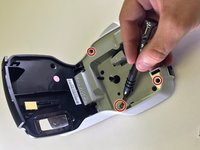
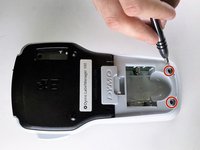
Using a Phillips #0 screwdriver, remove the four 1.3mm screws from the cartridge compartment and two 1.2mm screws from the battery compartment.
-
-
-
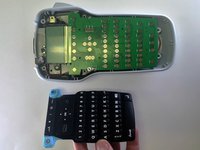
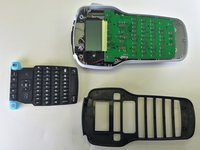
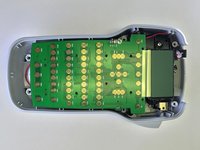
Using a spudger or other tool, lift and remove the front of the device. This should be done all around the device to ensure the two parts split correctly.
-
-
-
-
-
-
Use wire cutters or scissors to cut the wires attached to the charging port, and remove the charging port.
-
-
-
Solder the black wire to the bottom-most node of the new charging port. Solder the red wire to the uppermost node of the new charging port. See the following link for soldering tips: How To Solder and Desolder Connections
-
-

 Ask FixBot






To reassemble your device, follow these instructions in reverse order.
Cancel: I did not complete this guide.
One other person completed this guide.

Team

IUPUI, Team S3-G4, Harley Spring 2017 Member of IUPUI, Team S3-G4, Harley Spring 2017
IUPUI-HARLEY-S17S3G4
4 Members
12 Guides authored
