
DualShock 4 CUH-ZCT2 Rear Panel Replacement

Sam Omiotek and 3 other contributors
Last updated on Sep 2, 2025
Views: 6.9K
View statistics:
- Past 24 Hours:
- 1
- Past 7 Days:
- 27
- Past 30 Days:
- 168
- All Time:
- 6,877
Comments: 10
10 comments on steps.
Completed: 6 7
6 people have marked this guide "completed." Will you be next?
7 people have marked this guide "completed." Including you — great job!
Favorites: 1 2
1 person has favorited (and subscribed to) this guide. Will you be next?
2 people have favorited (and subscribed to) this guide — including you!
Introduction
Go to step 1 ↓Follow this guide to replace the rear panel on a Sony DualShock 4 CUH-ZCT2 PlayStation controller.
What you need
Parts

Tools


-
-
-
Use a Phillips screwdriver to remove the four 6.4 mm-long screws from the rear panel.
 Ask FixBot
-
-
-
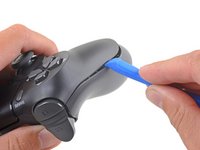
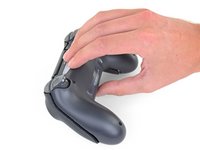
Insert an opening tool into the crease where the front and rear panel meet, starting from the outside edge of either handle.
-
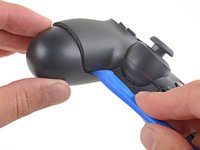
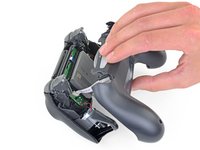
Gently pry the rear panel off of the front panel until they become partially separated.
-
-
-
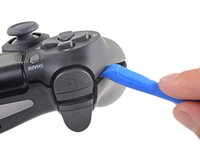
Use the opening tool to separate the panels by releasing the plastic clips around the perimeter of the controller.
-
-
-
Tool used on this step:Tweezers$4.99
-
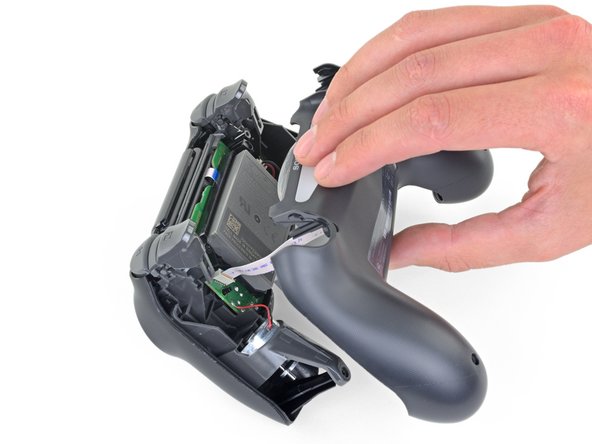
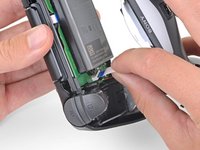
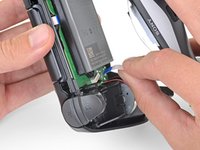
Use your fingers to gently pull the ribbon cable straight out of its connector on the motherboard.
-
-





To reassemble your device, follow the above steps in reverse order.
Repair didn’t go as planned? Check out our Answers community for troubleshooting help.
Cancel: I did not complete this guide.
6 other people completed this guide.

