
Dragon Touch Y88X Plus Battery Replacement

Bavly Aziz and 3 other contributors
Last updated on Jan 4, 2024
Views: 573
View statistics:
- Past 24 Hours:
- 1
- Past 7 Days:
- 21
- Past 30 Days:
- 74
- All Time:
- 573
Comments: 0
No one has left comments on this guide. Will you be first?
Go to guide commentsCompleted: 2 3
2 people have marked this guide "completed." Will you be next?
3 people have marked this guide "completed." Including you — great job!
Favorites: 0 1
No one has favorited (and subscribed to) this guide. Will you be the first?
1 person has favorited (and subscribed to) this guide — and that's you!
Introduction
Go to step 1 ↓If the battery in your Dragon Touch Y88X Plus tablet is having power issues, use this guide to replace it. This repair requires a soldering iron to remove the connectors of the battery. You may also want to use adhesive tape to further secure the battery after replacement. If you need any additional help with the process of soldering, you can refer to the How To Solder and Desolder Connections guide.
What you need
Tools


-
-
-
Remove the back case using a plastic opening tool or spudger.
-
Start at the corners and work your way around the perimeter of the tablet.
 Ask FixBot
-
-
-
Identify the tablet's battery. It is usually a flat, rectangular component connected to the motherboard.
-
Carefully peel the old battery from the adhesive using your iFixit pry tool.
-
-
-
-
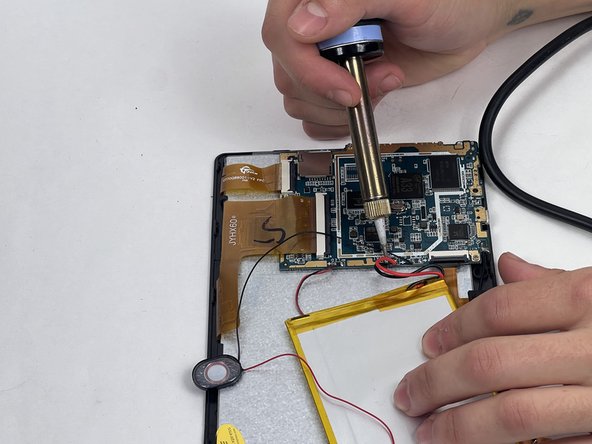
Use a soldering iron to disconnect each connector individually from the motherboard.
-
-



To reassemble your device, follow these instructions in reverse order.
Cancel: I did not complete this guide.
2 other people completed this guide.

Team

UMass Dartmouth, Team 1-4, Petersen Fall 2023 Member of UMass Dartmouth, Team 1-4, Petersen Fall 2023
UMASSD-PETERSEN-F23S1G4
4 Members
48 Guides authored
