Free Shipping on Domestic Orders $75+

Dragon Touch A1x Plus Cameras Replacement

Views: 552

View statistics:

Past 24 Hours:
1
Past 7 Days:
12
Past 30 Days:
52
All Time:
552
Comments: 0

No one has left comments on this guide. Will you be first?

Go to guide comments
Completed: 0

No one has marked this guide "completed." Will you be the first?

Favorites: 0

No one has favorited (and subscribed to) this guide. Will you be the first?

Time Required: 30 - 40 minutes
Difficulty: Difficult
Dragon Touch A1x Plus Cameras Replacement

Introduction

Go to step 1 ↓

This guide walks through the process of replacing the camera. For safety reasons, you must first follow instructions to remove the battery. After the battery is disconnected, you can follow the rest of the directions to safely remove the camera.

What you need

Tools

    1. Dragon Touch A1x Plus Cameras Replacement, Battery: step 1, image 1 of 1
      • Insert the plastic opening tool between the white back cover and black front over.

      Ask FixBot

      Add Comment

    2. Dragon Touch A1x Plus Cameras Replacement: step 2, image 1 of 2 Dragon Touch A1x Plus Cameras Replacement: step 2, image 2 of 2
      • Slide the plastic opening tool along the edgeof the device until back cover is detached and remove the cover.

      • You may need to pry the back cover off using the opening tool while moving it along the edge.

      Ask FixBot

      Add Comment

    3. Dragon Touch A1x Plus Cameras Replacement: step 3, image 1 of 1
      • Remove the yellow tape holding the battery to the device using your fingers or plastic opening tool if necessary.

      Ask FixBot

      Add Comment

    4. Dragon Touch A1x Plus Cameras Replacement: step 4, image 1 of 1
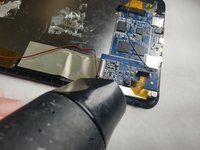
      • Use the hair dryer to melt the glue holding the battery to the device.

      • Be careful not to overheat the battery as it could cause the battery to combust.

      Ask FixBot

      Add Comment

    5. Dragon Touch A1x Plus Cameras Replacement: step 5, image 1 of 1
      Tool used on this step:
      Plastic Cards
      $2.99
      Buy
      • Insert the plastic card under the battery and use it to remove the battery from the device.

      • Be careful not to deform the battery.

      Ask FixBot

      Add Comment

    6. Dragon Touch A1x Plus Cameras Replacement: step 6, image 1 of 2 Dragon Touch A1x Plus Cameras Replacement: step 6, image 2 of 2
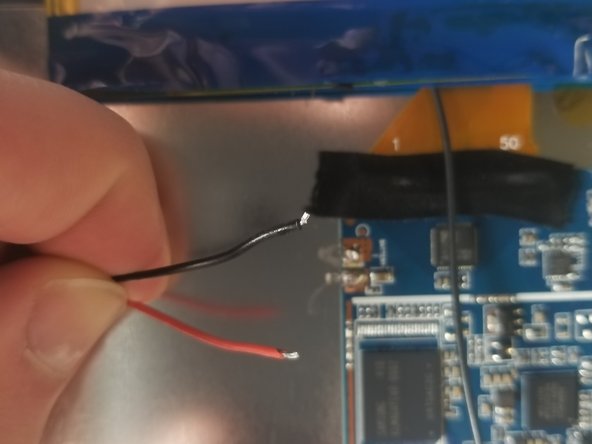
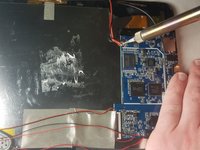
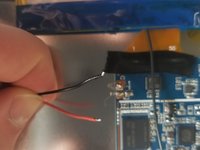
      • Desolder the red and black wires connecting the battery to the motherboard and remove the battery.

      Ask FixBot

      Add Comment

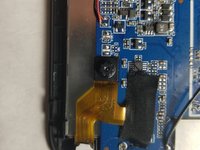
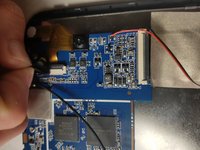
    1. Dragon Touch A1x Plus Cameras Replacement, Cameras: step 7, image 1 of 2 Dragon Touch A1x Plus Cameras Replacement, Cameras: step 7, image 2 of 2
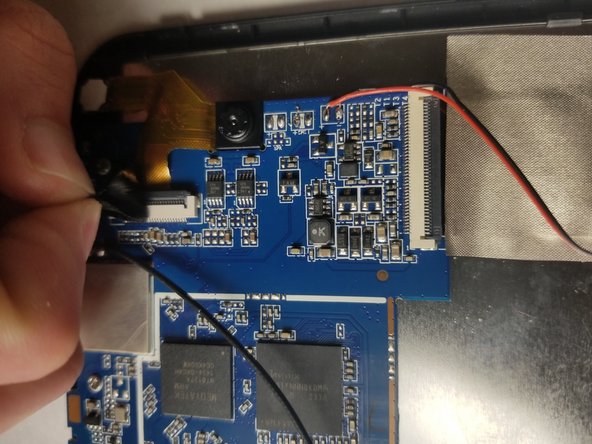
      • Remove black tape holding the cameras to the motherboard.

      Ask FixBot

      Add Comment

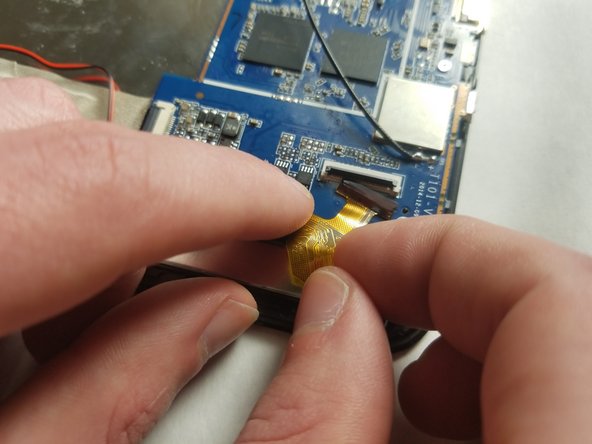
    2. Dragon Touch A1x Plus Cameras Replacement: step 8, image 1 of 2 Dragon Touch A1x Plus Cameras Replacement: step 8, image 2 of 2
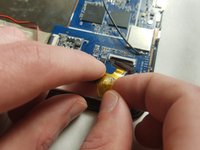
      • Use your fingernail to flip up the small locking flap on the ZIF connector.

      • Pull the ribbon cable from the ZIF connector.

      Ask FixBot

      Add Comment

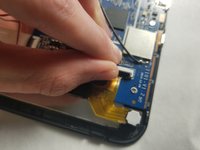
    3. Dragon Touch A1x Plus Cameras Replacement: step 9, image 1 of 1
      • Remove the front camera from the device using your fingers.

      Ask FixBot

      Add Comment

    4. Dragon Touch A1x Plus Cameras Replacement: step 10, image 1 of 2 Dragon Touch A1x Plus Cameras Replacement: step 10, image 2 of 2
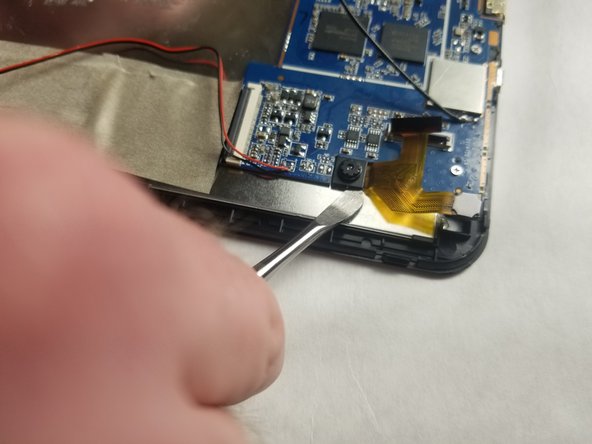
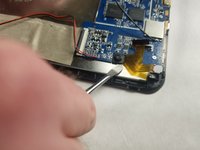
      • Melt the glue holding the rear camera in place using a hair dryer.

      • Insert the metal spludger under the rear camera and pry it free from the device.

      Ask FixBot

      Add Comment

Conclusion

To reassemble your device, follow these instructions in reverse order.

Cancel: I did not complete this guide.

Josh Null

Member since: 03/21/18

313 Reputation

3 Guides authored

Team

IUPUI, Team S5-G5, Baechle Spring 2018 Member of IUPUI, Team S5-G5, Baechle Spring 2018

IUPUI-BAECHLE-S18S5G5

3 Members

36 Guides authored

0 Guide Comments

Add Comment

View Statistics:

Past 24 Hours: 1

Past 7 Days: 12

Past 30 Days: 52

All Time: 552