Free Shipping on Domestic Orders $75+

Disassembling VTech MobiGo Touch Learning System Keyboard

Views: 2.6K

View statistics:

Past 24 Hours:
3
Past 7 Days:
22
Past 30 Days:
113
All Time:
2,643
Comments: 2

1 comment on steps, 1 guide comment.

Go to guide comments
Completed: 0

No one has marked this guide "completed." Will you be the first?

Favorites: 2

2 people have favorited (and subscribed to) this guide. Will you be next?

Time Required: 20 minutes
Difficulty: Moderate
Disassembling VTech MobiGo Touch Learning System Keyboard

Introduction

Go to step 1 ↓

This is a step by step guide to show how to replace the keyboard. Prior to this guide, you will need to refer to the Disassembling guide for the case.

What you need

Tools

    1. Disassembling VTech MobiGo Touch Learning System Keyboard, Case: step 1, image 1 of 1
      • Remove the battery covers and the four batteries.

      Ask FixBot

      Add Comment

    2. Disassembling VTech MobiGo Touch Learning System Keyboard: step 2, image 1 of 2 Disassembling VTech MobiGo Touch Learning System Keyboard: step 2, image 2 of 2
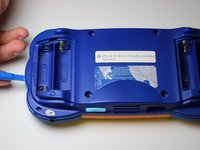
      • Remove the four plastic caps with a metal spudger to expose the 6.0 mm Philips JIS #0 case screws.

      • Remove the eight 6.0 mm JIS #0 case screws.

      Ask FixBot

      Add Comment

    3. Disassembling VTech MobiGo Touch Learning System Keyboard: step 3, image 1 of 2 Disassembling VTech MobiGo Touch Learning System Keyboard: step 3, image 2 of 2
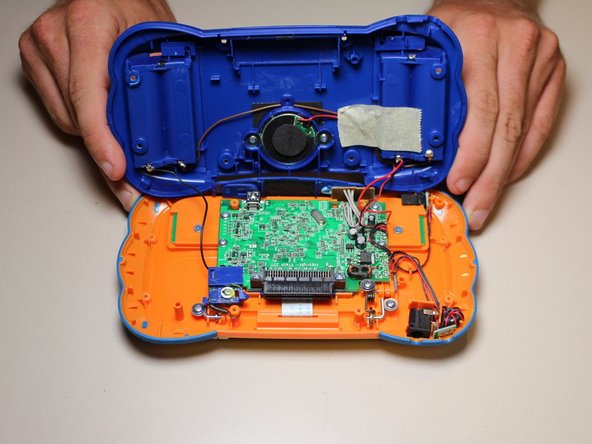
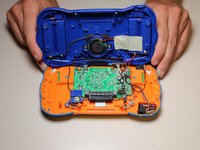
      • Using a plastic opening tool, separate the two pieces of the case carefully.

      Ask FixBot

      Add Comment

    1. Disassembling VTech MobiGo Touch Learning System Keyboard, Disassembling VTech MobiGo Touch Learning System Keyboard: step 4, image 1 of 2 Disassembling VTech MobiGo Touch Learning System Keyboard, Disassembling VTech MobiGo Touch Learning System Keyboard: step 4, image 2 of 2
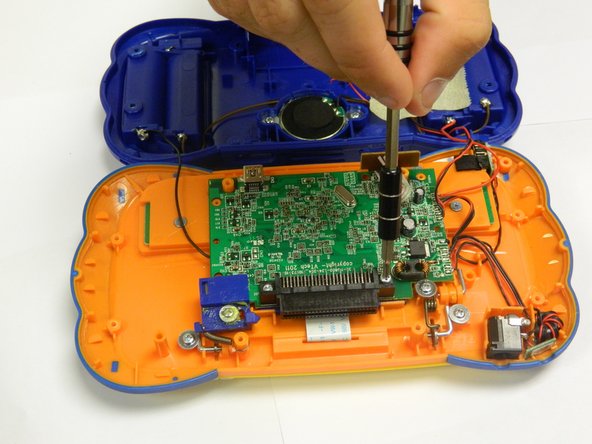
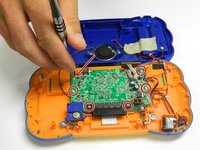
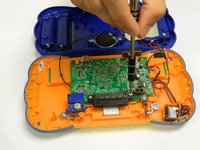
      • Remove the six 6.5 mm Philips J0 screws that are connected to the circuit board.

      • Use light pressure to prevent damage to the circuit board.

      Ask FixBot

      Add Comment

    2. Disassembling VTech MobiGo Touch Learning System Keyboard: step 5, image 1 of 1
      • Remove the 9.0 mm Philips J0 screw from the blue plastic cover.

      • Once the screw is removed, remove the blue plastic cover.

      Ask FixBot

      Add Comment

    3. Disassembling VTech MobiGo Touch Learning System Keyboard: step 6, image 1 of 2 Disassembling VTech MobiGo Touch Learning System Keyboard: step 6, image 2 of 2
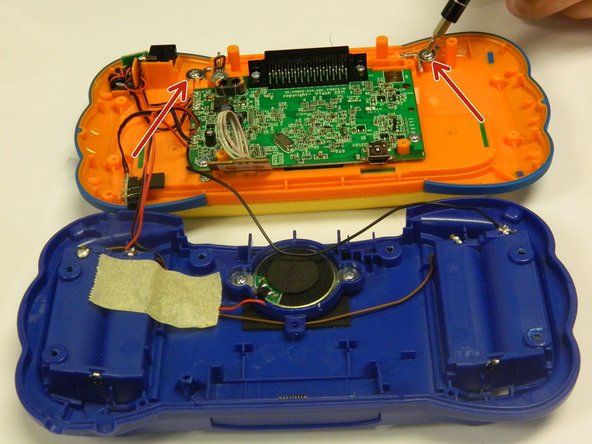
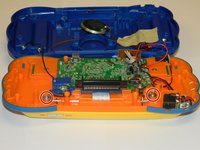
      • Remove the two 4.0 mm Philips J0 screws located on the orange case.

      • Use gentle force to prevent stripping of screws.

      Ask FixBot

      Add Comment

    4. Disassembling VTech MobiGo Touch Learning System Keyboard: step 7, image 1 of 3 Disassembling VTech MobiGo Touch Learning System Keyboard: step 7, image 2 of 3 Disassembling VTech MobiGo Touch Learning System Keyboard: step 7, image 3 of 3
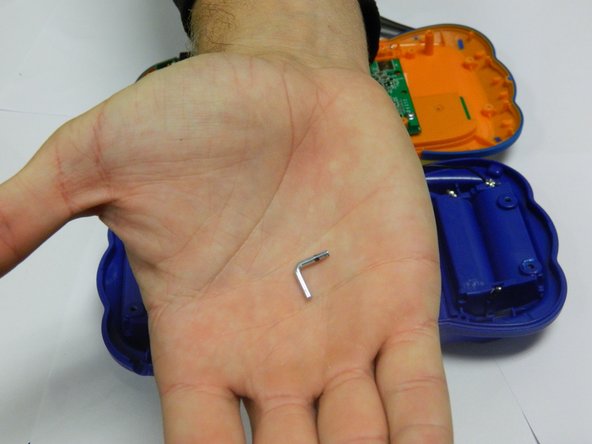
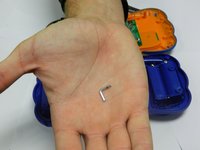
      • Remove the two "L" shaped brackets located on both sides of the device.

      • Use the magnetic mat to store these brackets.

      Ask FixBot

      Add Comment

    5. Disassembling VTech MobiGo Touch Learning System Keyboard: step 8, image 1 of 1
      • Locate the spring that was connected to the "L" shaped bracket and slowly remove it.

      Ask FixBot

      Add Comment

    6. Disassembling VTech MobiGo Touch Learning System Keyboard: step 9, image 1 of 2 Disassembling VTech MobiGo Touch Learning System Keyboard: step 9, image 2 of 2
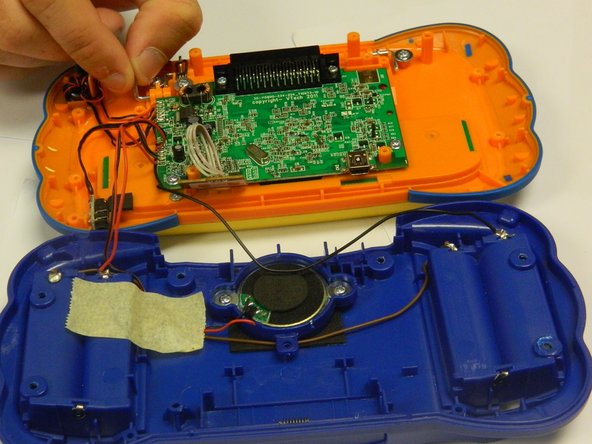
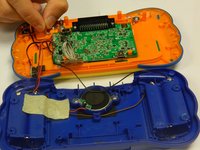
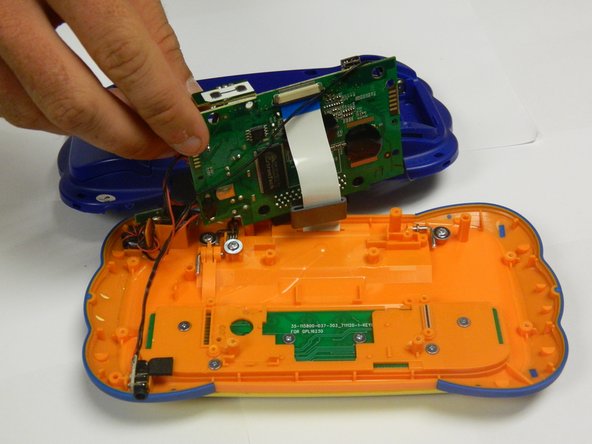
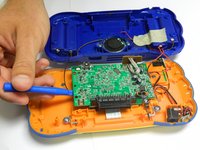
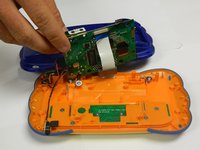
      • Gently lift the circuit board from the case using a plastic opening tool.

      • Make sure to use a plastic opening tool for this step.

      Ask FixBot

      Add Comment

    7. Disassembling VTech MobiGo Touch Learning System Keyboard: step 10, image 1 of 1
      • Remove the 3.5 mm Philips J0 screw located underneath the circuit board.

      • Keep the circuit board out of the way to avoid damaging it.

      Ask FixBot

      Add Comment

    8. Disassembling VTech MobiGo Touch Learning System Keyboard: step 11, image 1 of 1
      • Slowly remove the keyboard panel.

      • Use a spudger if necessary.

      • The keys will fall out once the keyboard panel is removed.

      • Remove all of the keys and set them aside with the keyboard panel.

      Ask FixBot

      Add Comment

    9. Disassembling VTech MobiGo Touch Learning System Keyboard: step 12, image 1 of 1
      • Gently remove the keyboard circuit board with a plastic opening tool.

      Ask FixBot

      Add Comment

Conclusion

To reassemble your device, follow these instructions in reverse order.

Cancel: I did not complete this guide.

RBansil

Member since: 08/27/15

221 Reputation

2 Guides authored

Team

USF Tampa, Team 8-3, Eyestone Fall 2015 Member of USF Tampa, Team 8-3, Eyestone Fall 2015

USFT-EYESTONE-F15S8G3

3 Members

72 Guides authored

1 Guide Comment

Was gifted a mobigo2 for my niece but it came without keyboard .. I was curious if you knew where I might find a replacement keyboard?

ROXXY - Reply Share

Add Comment

View Statistics:

Past 24 Hours: 3

Past 7 Days: 22

Past 30 Days: 113

All Time: 2,643