
Disassembling Qingping Air Monitor Lite CGDN1

rkuijer and 2 other contributors
Last updated on Apr 13, 2024
Views: 5.7K
View statistics:
- Past 24 Hours:
- 19
- Past 7 Days:
- 74
- Past 30 Days:
- 318
- All Time:
- 5,673
Comments: 5
5 guide comments.
Go to guide commentsCompleted: 5 6
5 people have marked this guide "completed." Will you be next?
6 people have marked this guide "completed." Including you — great job!
Favorites: 0 1
No one has favorited (and subscribed to) this guide. Will you be the first?
1 person has favorited (and subscribed to) this guide — and that's you!
Bullets!
Better coordination with markups and the color/type of bullets will help make this guide more clear!
Community-Contributed Guide
An awesome member of our community made this guide. It was not created by iFixit staff.
Introduction
Go to step 1 ↓After +/- 3 years of 24/7, the fan of the particle meter has worn out. The fan is making a terrible noise.
What you need
Tools


-
-
-
When removing the screen with the suction handle and a jimmy be very careful at the right side of the screen and don't damage the connection like I did (see red circle).
-
Carefully remove the screen towards the front. The screen is glued with some tape (see the orange marker).
-
Maybe use some heat to soften the clue.
-
I used a combination of a suction pad and Jimmy.
 Ask FixBot
-
-
-
2 Philips screws are holding the backing plane of the screen
-
-
-
Lift the small black ledge to remove the flat cable of the screen. Orange circle
-
-
-
Disconnect the flat cable of the touch sensor by lifting the little black ledge, see the orange circle.
-
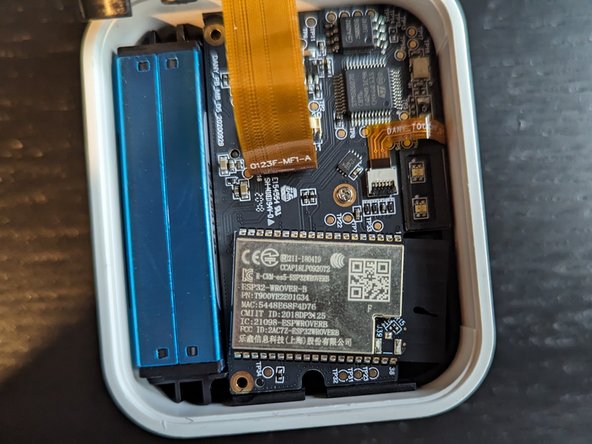
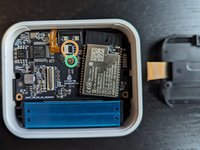
One screw holding the PCB, green circle
-
-
-
-
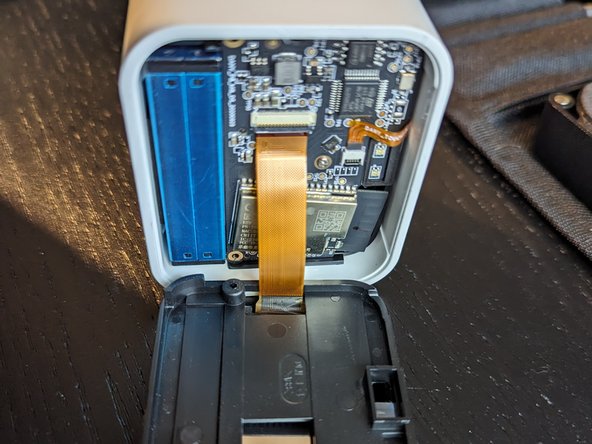
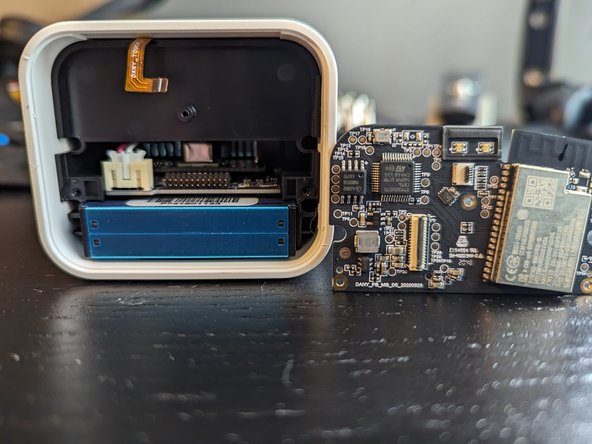
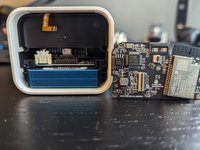
You can slide the complete inner parts to the front.
-
-
-
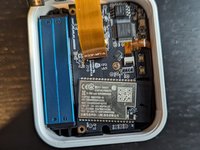
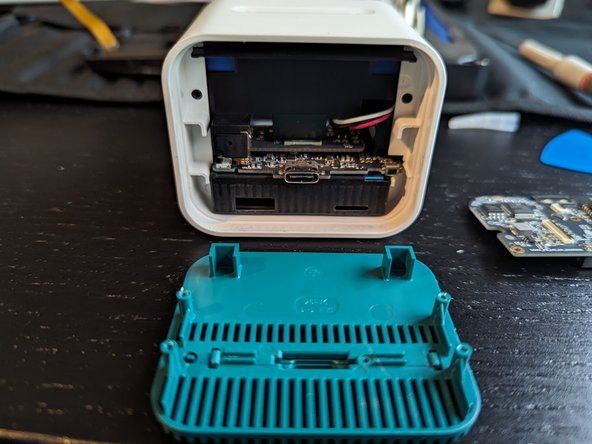
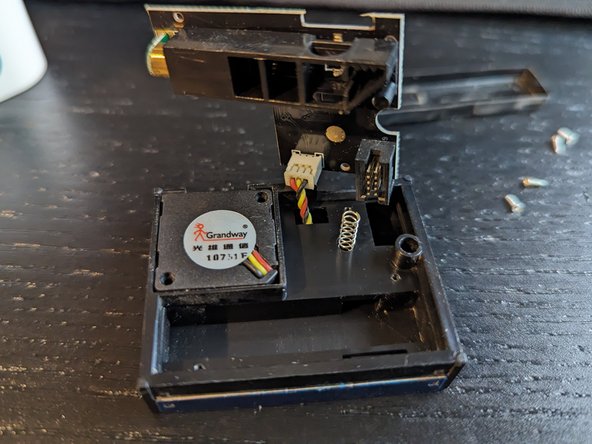
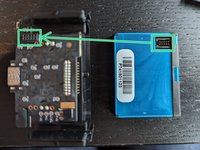
Sensor is held by the 10 pin connector
-
Don't let the springs jump away
-
By slightly bending the cover you can lift the cover from the sensor housing
-
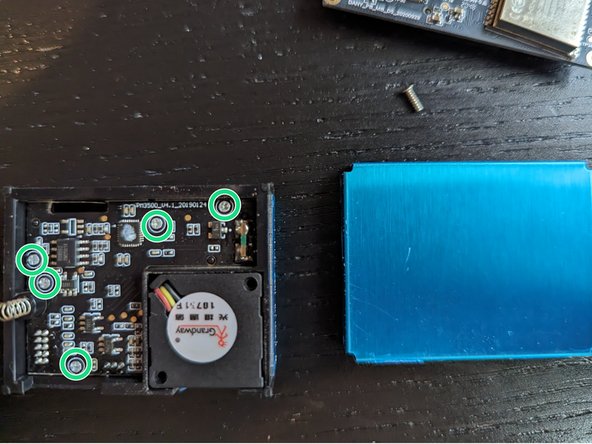
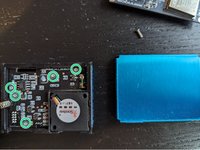
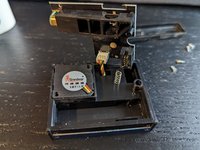
5 little philips screw hold the sesnor PCB in place. To access the fan connector you have to remove the pcb
-
-






To reassemble your device, follow these instructions in reverse order.
Cancel: I did not complete this guide.
5 other people completed this guide.

5 Guide Comments
Thank you for the guide! The part number for a replacement sensor appears to be PMS7003. There are some minor cosmetic differences but it appears to function correctly. I would suggest conducting a calibration routine / making sure the sensor is exposed to exterior air a few times over the next few days.
Do you know whether the Air Monitor works when removing the battery? My air monitor is constantly running hot (temperature shown is ~3 Degrees higher than room temperature and I suspect a bad battery to be the culprit. It also only holds a charge for few minutes after disconnecting from power. I'd like to remove it for peace of mind and also to be able to use the temperature sensor again.
Yes it works with disconnected battery.
What is the exact name of the battery type, so I can get a replacement?
My 1.5-year-old Qingping Air Monitor Lite works fine when plugged in to USB, but shuts off immediately when disconnected and it fails to turn on after holding the power button on the back of the unit, while disconnected from USB, which would turn it on a few months ago.
