Free Shipping on Domestic Orders $75+

Disassembling Insignia Flex 8 Circuit Board

What you need

  1. Disassembling Insignia Flex 8 Circuit Board, Circuit Board: step 1, image 1 of 1
    • Turn off the power to your tablet to avoid injury.

    • Position the tablet so that the screen is face down and the power button is located in the upper left hand corner.

    • Hold down the power button for five seconds until the tablet powers down.

    Ask FixBot

    Add Comment

  2. Disassembling Insignia Flex 8 Circuit Board: step 2, image 1 of 2 Disassembling Insignia Flex 8 Circuit Board: step 2, image 2 of 2
    • Remove the back casing from the screen by sliding a credit card or a similarly thin but firm object in between the casing and the screen.

    • You may need to use a spudger to initially create separation between the screen and the casing.

    • Run this object around the perimeter of the tablet until there is separation between the casing and the screen.

    • Remove the back casing and set aside.

    Ask FixBot

    Add Comment

  3. Disassembling Insignia Flex 8 Circuit Board: step 3, image 1 of 2 Disassembling Insignia Flex 8 Circuit Board: step 3, image 2 of 2
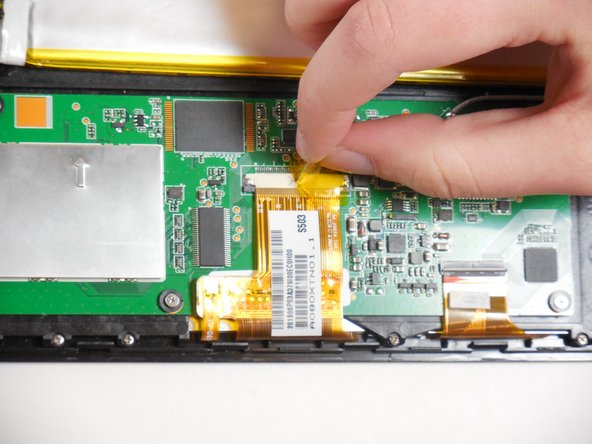
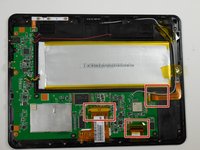
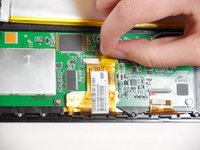
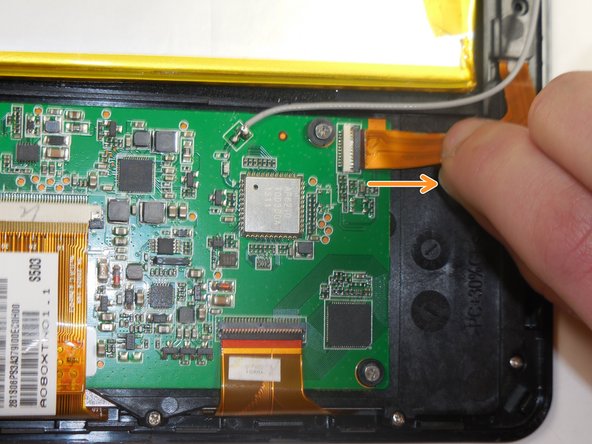
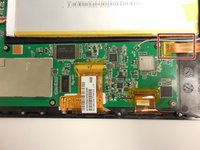
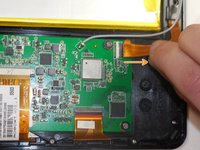
    • Peel tape off of ribbon connectors. Starting at the power button, work clockwise around the tablet.

    Ask FixBot

    Add Comment

  4. Disassembling Insignia Flex 8 Circuit Board: step 4, image 1 of 3 Disassembling Insignia Flex 8 Circuit Board: step 4, image 2 of 3 Disassembling Insignia Flex 8 Circuit Board: step 4, image 3 of 3
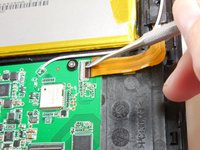
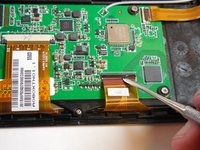
    • To remove the camera ribbon cable, lift the flap using a spudger.

    • Pull the ribbon directly back to release it.

    Ask FixBot

    Add Comment

  5. Disassembling Insignia Flex 8 Circuit Board: step 5, image 1 of 3 Disassembling Insignia Flex 8 Circuit Board: step 5, image 2 of 3 Disassembling Insignia Flex 8 Circuit Board: step 5, image 3 of 3
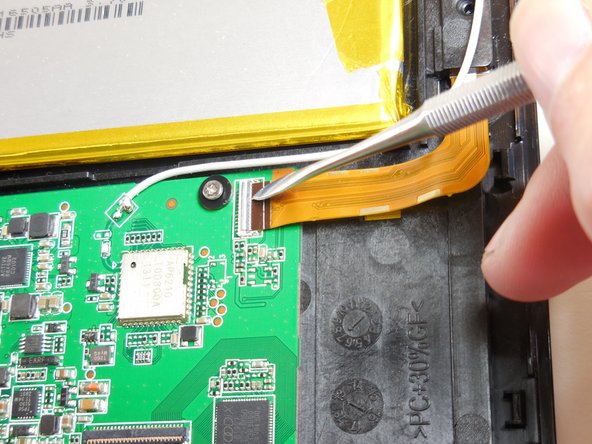
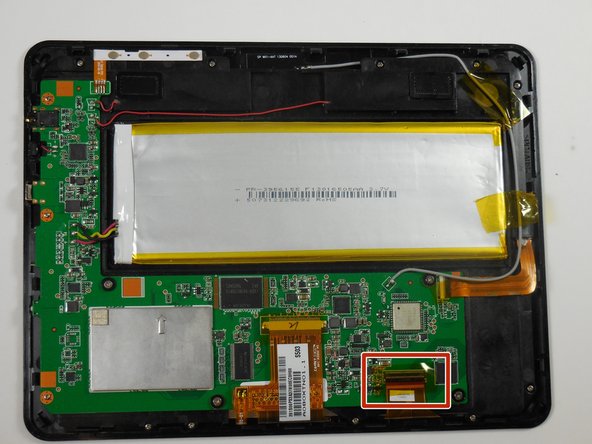
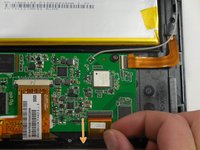
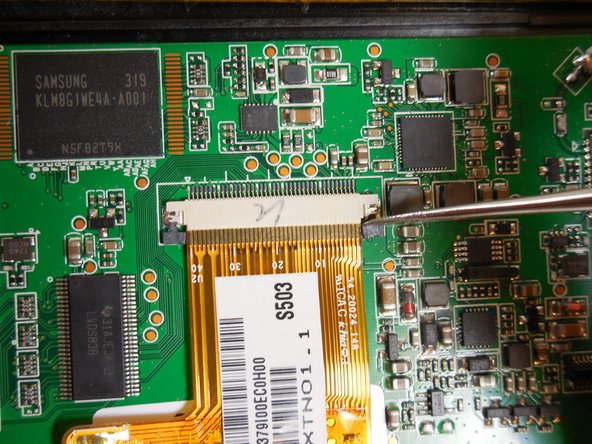
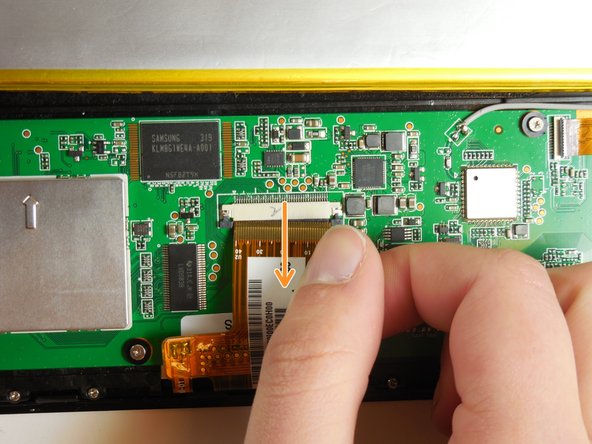
    • Remove the second ribbon cable by prying up the black flap using a spudger.

    • Pull the ribbon cable horizontally directly away from the battery.

    Ask FixBot

    Add Comment

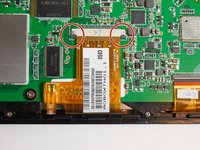
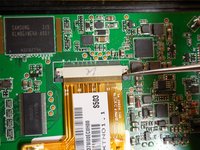
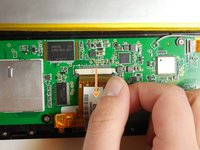
  6. Disassembling Insignia Flex 8 Circuit Board: step 6, image 1 of 3 Disassembling Insignia Flex 8 Circuit Board: step 6, image 2 of 3 Disassembling Insignia Flex 8 Circuit Board: step 6, image 3 of 3
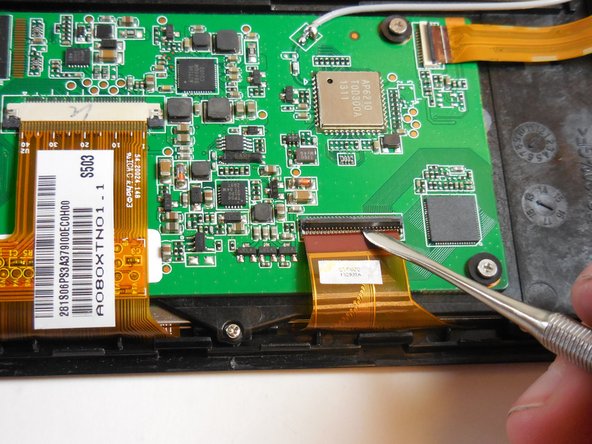
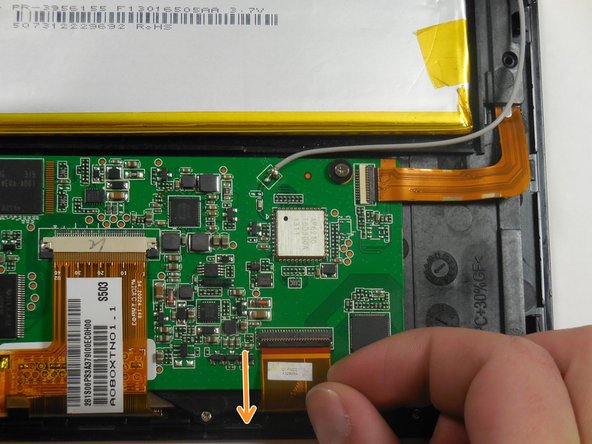
    • Remove the final ribbon cable by pulling back the two black tabs on either side of the ribbon cable.

    • Pull the ribbon horizontally directly away from the battery.

    Ask FixBot

    Add Comment

  7. Disassembling Insignia Flex 8 Circuit Board: step 7, image 1 of 2 Disassembling Insignia Flex 8 Circuit Board: step 7, image 2 of 2
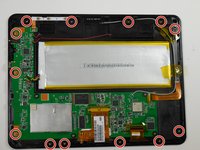
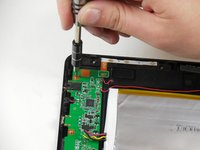
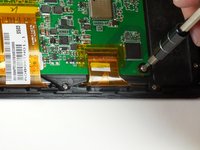
    • Unscrew the thirteen 4.75mm screws around the perimeter of the tablet using a PH 00 screwdriver.

    Ask FixBot

    Add Comment

  8. Disassembling Insignia Flex 8 Circuit Board: step 8, image 1 of 2 Disassembling Insignia Flex 8 Circuit Board: step 8, image 2 of 2
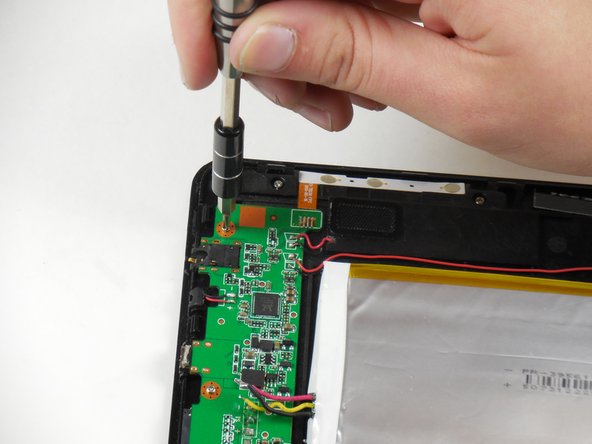
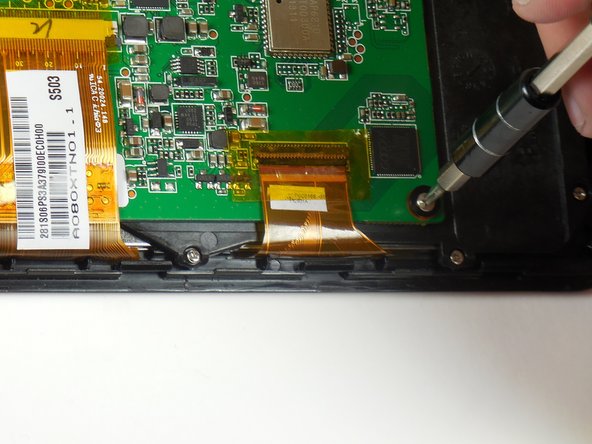
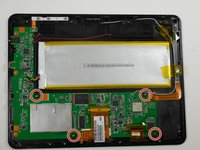
    • Unscrew the four 3.75mm screws and plastic washers using a PH 00 screwdriver.

    • Lift up the circuit board.

    Ask FixBot

    Add Comment

  9. Disassembling Insignia Flex 8 Circuit Board: step 9, image 1 of 1
    • Unscrew the final two screws that were underneath the circuit board.

    • These screws are near the charging port and USB adapter.

    • These screws are also 3.75mm and can be interchanged with the second set of screws only.

    Ask FixBot

    Add Comment

  10. Disassembling Insignia Flex 8 Circuit Board: step 10, image 1 of 1
    • Lift the circuit board and black internal mounting piece away from the screen.

    • Set the circuit board aside.

    • Be careful of the soldered antenna as you separate the pieces.

    • Be careful of the soldered ribbon that is connected to the power source. This ribbon is fragile.

    Ask FixBot

    Add Comment

Conclusion

To reassemble your device, follow these instructions in reverse order.

Cancel: I did not complete this guide.

2 other people completed this guide.

Tyler Tyrrell

Member since: 03/11/15

890 Reputation

4 Guides authored

Team

2 Guide Comments

Whwre can i buy the new screen

Emmanuel - Reply Share

I don’t see the ssd, and way to upgrade the internal sad had?

William Henderson - Reply Share

Add Comment

View Statistics:

Past 24 Hours: 3

Past 7 Days: 8

Past 30 Days: 40

All Time: 5,261