
Digitech XC- 5206 Buttons Replacement

Kassidy Wyckoff and 2 other contributors
Last updated on Dec 9, 2018
Views: 561
View statistics:
- Past 24 Hours:
- 0
- Past 7 Days:
- 10
- Past 30 Days:
- 71
- All Time:
- 561
Comments: 0
No one has left comments on this guide. Will you be first?
Go to guide commentsCompleted: 0 1
No one has marked this guide "completed." Will you be the first?
1 person has marked this guide "completed." It's you — great job!
Favorites: 0 1
No one has favorited (and subscribed to) this guide. Will you be the first?
1 person has favorited (and subscribed to) this guide — and that's you!
Introduction
Go to step 1 ↓This guide will help users to replace buttons on top of the Digitech XC-5206 speaker system, including: volume controls, power button, and Bluetooth button. Please refer to troubleshooting page before beginning replacement guide steps.
What you need
Tools
-
Spudger4.9


-
-
-
Remove front panel by forcefully placing the flat edge of the spudger in between panel and plastic. Angle spudger and use fingers to pry panel off.
 Ask FixBot
-
-
-
Unscrew all eight 14mm screws closest to the edges of the speaker by spinning a size PH2 screwdriver in a counterclockwise motion.
-
Dislodge face by holding speaker face down. Gently shake or tap front against table to fully remove face.
-
OR grab ahold of the silver tab to pull the speaker face out. This may require force.
-
-
-
Unscrew upper panel two 10 mm screws spinning a size PH2 screwdriver in a counterclockwise motion.
-
-
-
-
Remove circuit board by pulling straight upwards out of slot.
-
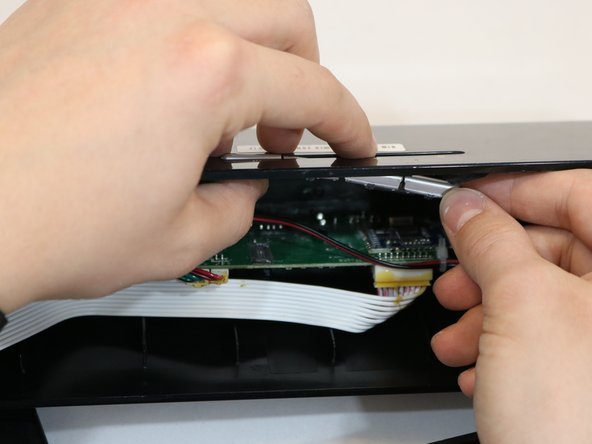
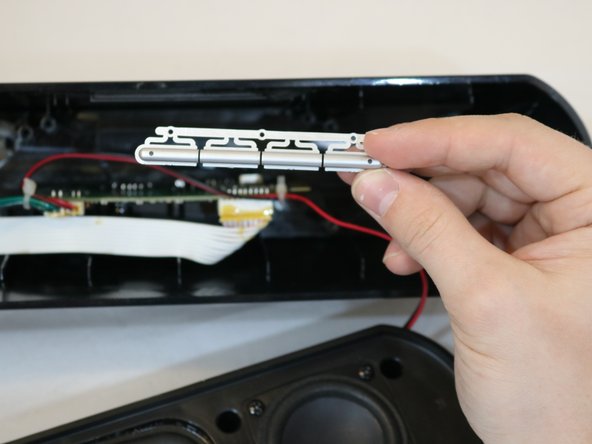
Remove plastic buttons by gently pushing buttons from top of speaker and using other hand to pull from bottom.
-
-


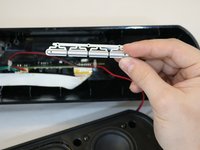
To reassemble your device, follow these instructions in reverse order.

Team

Eastern Washington University, Team S2-G4, Munoz Fall 2018 Member of Eastern Washington University, Team S2-G4, Munoz Fall 2018
EWU-MUNOZ-F18S2G4
4 Members
48 Guides authored
