Free Shipping on Domestic Orders $75+

Dell XPS M1330 Keyboard Replacement

What you need

    1. Dell XPS M1330 Keyboard Replacement, Battery: step 1, image 1 of 1
      • Flip the laptop on its back, so that the underside is facing up.

      Ask FixBot
      Add Comment

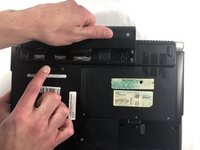
    2. Dell XPS M1330 Keyboard Replacement: step 2, image 1 of 1
      • Push and hold the slide button to the left and unlock the mechanism.

      Ask FixBot

      Add Comment

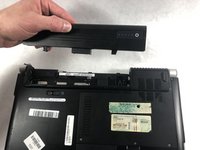
    3. Dell XPS M1330 Keyboard Replacement: step 3, image 1 of 2 Dell XPS M1330 Keyboard Replacement: step 3, image 2 of 2
      • Lift the computer up and slowly pull the battery straight out from the device.

      Ask FixBot

      Add Comment

    1. Dell XPS M1330 Keyboard Replacement, Hard Drive: step 4, image 1 of 1
      • Flip the laptop on its back, so that the underside is facing up

      Ask FixBot

      Add Comment

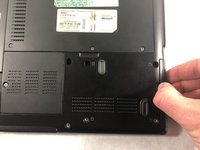
    2. Dell XPS M1330 Keyboard Replacement: step 5, image 1 of 1
      • Remove the four 3.0mm Phillips #1 screws securing the hard drive casing.

      Ask FixBot
      Add Comment

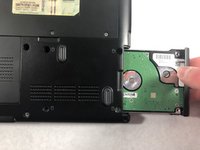
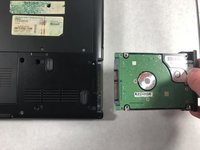
    3. Dell XPS M1330 Keyboard Replacement: step 6, image 1 of 3 Dell XPS M1330 Keyboard Replacement: step 6, image 2 of 3 Dell XPS M1330 Keyboard Replacement: step 6, image 3 of 3
      • Slide the hard drive away from the computer, slowly and carefully.

      Ask FixBot
      Add Comment

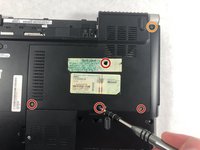
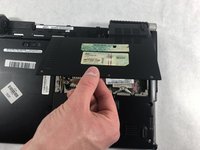
    1. Dell XPS M1330 Keyboard Replacement, Fan: step 7, image 1 of 2 Dell XPS M1330 Keyboard Replacement, Fan: step 7, image 2 of 2
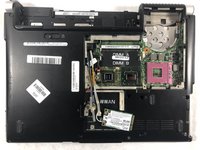
      • Remove the four 5.0mm screws with a Phillips #1 screwdriver.

      • Remove the one external 5.0mm screw with a Phillips #1 screwdriver.

      • Remove the fan cover.

      Ask FixBot
      Add Comment

    2. Dell XPS M1330 Keyboard Replacement: step 8, image 1 of 1
      • Remove the four 0.1mm screws using the Phillips #1 screwdriver.

      • Remove the one thicker 0.1 mm screw using the Phillips #1 screwdriver.

      Ask FixBot

      Add Comment

    3. Dell XPS M1330 Keyboard Replacement: step 9, image 1 of 1
      Tool used on this step:
      Tweezers
      $4.99
      Buy
      • Be sure to carefully remove the wires as they are fragile and can rip easily.

      • Remove the wire bay near the fan.

      • Use the long nosed tweezers to carefully handle the white plastic piece that holds the wires together.

      • Gently pull upward while moving your hand side to side so the plastic holder will detach.

      Ask FixBot
      Add Comment

    4. Dell XPS M1330 Keyboard Replacement: step 10, image 1 of 1
      • Gently remove the fan and its attachments from the bay.

      Ask FixBot
      Add Comment
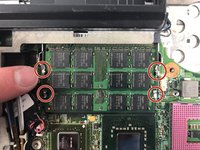
    1. Dell XPS M1330 Keyboard Replacement, CPU: step 11, image 1 of 1
      • Using the flathead screwdriver, turn the one screw counterclockwise to loosen the CPU, but do not remove the screw.

      Ask FixBot

      Add Comment

    2. Dell XPS M1330 Keyboard Replacement: step 12, image 1 of 1
      • Using the iFixit opening tool, prop up the CPU.

      Ask FixBot

      Add Comment

    3. Dell XPS M1330 Keyboard Replacement: step 13, image 1 of 1
      • Carefully lift the CPU away from its housing.

      Ask FixBot

      Add Comment

    1. Dell XPS M1330 Keyboard Replacement, Keyboard: step 14, image 1 of 1
      • Unscrew the 5.0mm Phillips #1 screw from the wireless door cover.

      • Pull straight up on the wireless door.

      Ask FixBot

      Add Comment

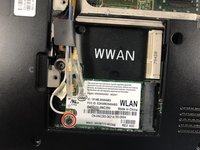
    2. Dell XPS M1330 Keyboard Replacement: step 15, image 1 of 2 Dell XPS M1330 Keyboard Replacement: step 15, image 2 of 2
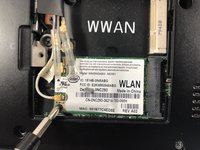
      • Unscrew the 3.0mm Phillips #1 screw from the wireless card.

      Ask FixBot

      Add Comment

    3. Dell XPS M1330 Keyboard Replacement: step 16, image 1 of 3 Dell XPS M1330 Keyboard Replacement: step 16, image 2 of 3 Dell XPS M1330 Keyboard Replacement: step 16, image 3 of 3
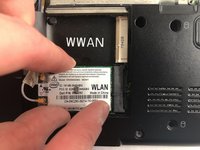
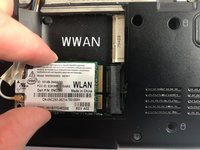
      • Slide the card to the left and up to remove it.

      Ask FixBot

      Add Comment

    4. Dell XPS M1330 Keyboard Replacement: step 17, image 1 of 3 Dell XPS M1330 Keyboard Replacement: step 17, image 2 of 3 Dell XPS M1330 Keyboard Replacement: step 17, image 3 of 3
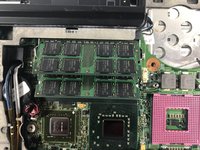
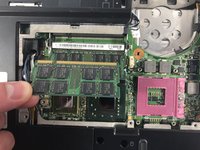
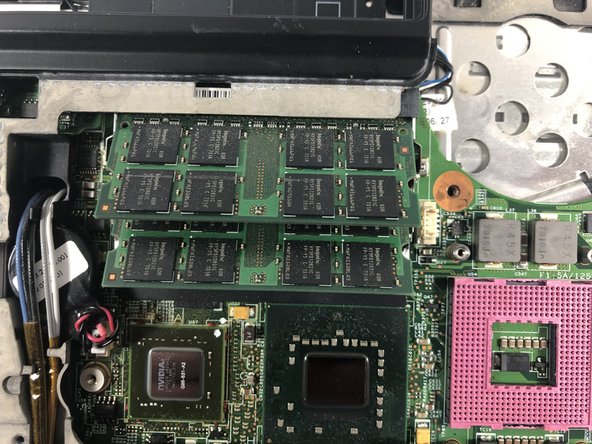
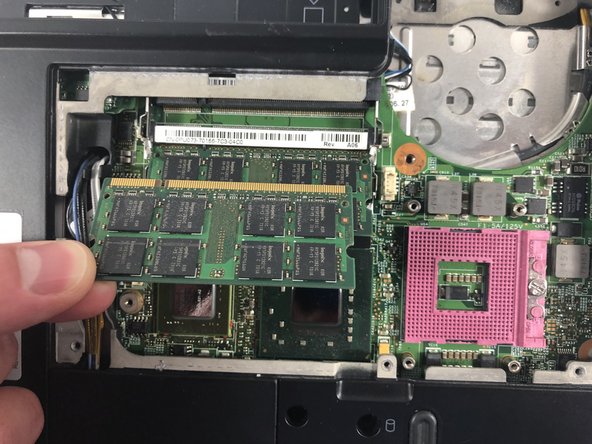
      • Separate the two clips on both sides of the memory sticks.

      • The memory stick will lift up.

      • Gently pull the memory stick up and out of its holder.

      • Repeat these same steps for the second memory stick below.

      Ask FixBot

      Add Comment

    5. Dell XPS M1330 Keyboard Replacement: step 18, image 1 of 1
      • Remove the two 2.5mm Phillips #1 screws in the battery housing port.

      Ask FixBot

      Add Comment

    6. Dell XPS M1330 Keyboard Replacement: step 19, image 1 of 1
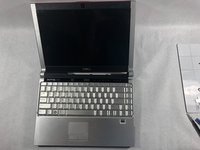
      • Flip the laptop back over so the cover is on top.

      Ask FixBot

      Add Comment

    7. Dell XPS M1330 Keyboard Replacement: step 20, image 1 of 2 Dell XPS M1330 Keyboard Replacement: step 20, image 2 of 2
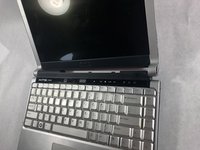
      • Carefully open the screen, so it is facing toward yourself.

      • Flatten out the screen as much as possible.

      Ask FixBot

      Add Comment

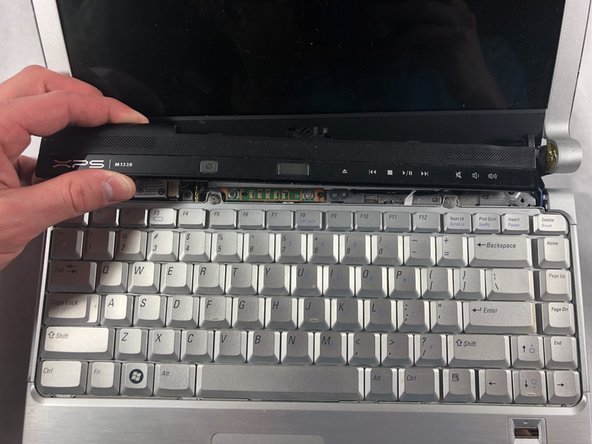
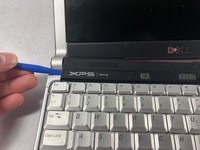
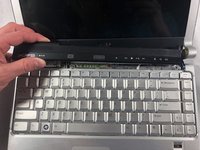
    8. Dell XPS M1330 Keyboard Replacement: step 21, image 1 of 2 Dell XPS M1330 Keyboard Replacement: step 21, image 2 of 2
      • Carefully lift the computer, so you can get a good grip by the hinges.

      • Carefully lift and remove the central control media button cover from the base.

      • This piece snaps out of its constraints. Be slow and controlled, so you don't break a snap. There is also a cable attached underneath.

      Ask FixBot

      Add Comment

    9. Dell XPS M1330 Keyboard Replacement: step 22, image 1 of 1
      • Use the Phillips #1 screwdriver to remove the two 3.0mm screws at the top of the keyboard.

      Ask FixBot

      Add Comment

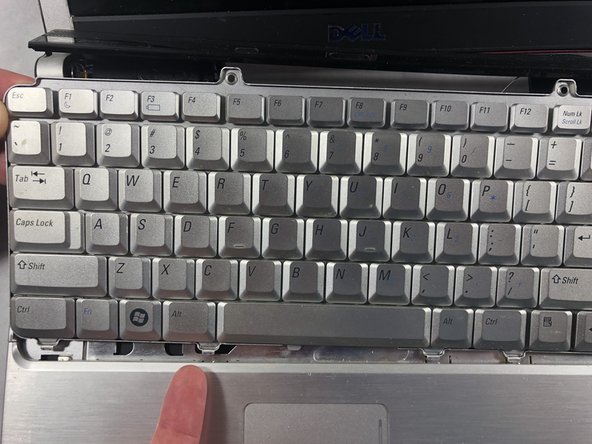
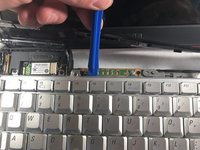
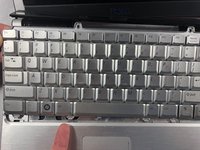
    10. Dell XPS M1330 Keyboard Replacement: step 23, image 1 of 2 Dell XPS M1330 Keyboard Replacement: step 23, image 2 of 2
      • When removing this piece lift slowly as there is a cord underneath that connects to the keyboard.

      • Carefully lift the keyboard up and toward the front screen.

      Ask FixBot

      Add Comment

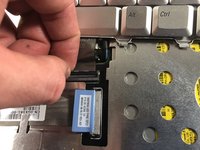
    11. Dell XPS M1330 Keyboard Replacement: step 24, image 1 of 2 Dell XPS M1330 Keyboard Replacement: step 24, image 2 of 2
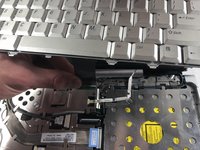
      • Lift the keyboard latch toward yourself.

      Ask FixBot

      Add Comment

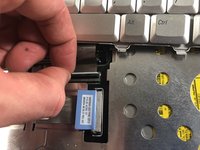
    12. Dell XPS M1330 Keyboard Replacement: step 25, image 1 of 2 Dell XPS M1330 Keyboard Replacement: step 25, image 2 of 2
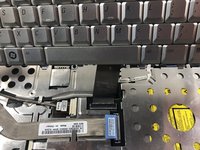
      • Gently pull the keyboard cable away from your body.

      • Detach the keyboard cable.

      Ask FixBot

      Add Comment

Conclusion

To reassemble your device, follow these instructions in reverse order.

Cancel: I did not complete this guide.

One other person completed this guide.

Kai Kapossy

Member since: 03/24/19

739 Reputation

5 Guides authored

Team

0 Guide Comments

Add Comment

View Statistics:

Past 24 Hours: 1

Past 7 Days: 7

Past 30 Days: 30

All Time: 1,080