What you need
-
-
-
Remove 8 T5 screws. Use an opening tool to pop open the plastic tabs that hold the aluminum and plastic halves of the shell together. Begin by inserting the tool at any point, then sliding it around the perimeter of the device to release all of the tabs. There are no tabs along the hinge side of the device.
 Ask FixBot
-
-
-
-
Place a finger through the plastic loop attached to the battery plug, and pull firmly away from the motherboard.
-
-
-
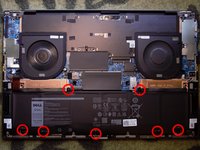
Unscrew the 7 PH1 screws retaining the battery.
-
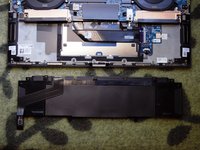
The battery can now be lifted from the chassis.
-
Reverse the steps to install the new battery.
-
-


To reassemble your device, follow these instructions in reverse order.
Cancel: I did not complete this guide.
One other person completed this guide.

1 Guide Comment
Is there anything to do on the software side to the battery replacement? Or is it plug and play?
