Free Shipping on Domestic Orders $75+

Dell XPS 18 Wireless WLAN Card Replacement

What you need

  1. Dell XPS 18 Wireless WLAN Card Replacement, Back Cover: step 1, image 1 of 1
    • Turn the device on its screen.

    • Remove the ten 4mm screws using a T8 Torx screwdriver.

    Ask FixBot

    Add Comment

  2. Dell XPS 18 Wireless WLAN Card Replacement: step 2, image 1 of 1
    • Gently flip out support feet located near the bottom of device.

    Ask FixBot

    Add Comment

  3. Dell XPS 18 Wireless WLAN Card Replacement: step 3, image 1 of 1
    • Gently lift the back cover off the device. The back cover should come off easily.

    Ask FixBot

    Add Comment

  4. Dell XPS 18 Wireless WLAN Card Replacement, Internal Cover: step 4, image 1 of 1
    • Use the opening tool's angled edge to lift the clasps securing the screen and motherboard cables.

    Ask FixBot

    Add Comment

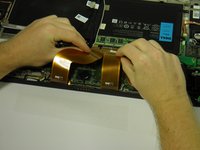
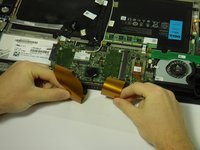
  5. Dell XPS 18 Wireless WLAN Card Replacement: step 5, image 1 of 2 Dell XPS 18 Wireless WLAN Card Replacement: step 5, image 2 of 2
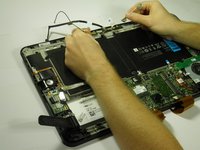
    • Disconnect the screen and copper colored motherboard cables and tuck them under the device to prevent future hassle.

    Ask FixBot

    Add Comment

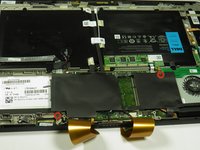
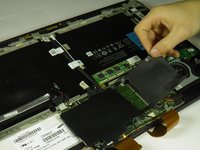
  6. Dell XPS 18 Wireless WLAN Card Replacement: step 6, image 1 of 2 Dell XPS 18 Wireless WLAN Card Replacement: step 6, image 2 of 2
    • Remove the two black 3mm screws from the internal cover with a Phillips 00 screwdriver.

    • Remove the internal cover.

    Ask FixBot

    Add Comment

  7. Dell XPS 18 Wireless WLAN Card Replacement, Touch Control Board: step 7, image 1 of 2 Dell XPS 18 Wireless WLAN Card Replacement, Touch Control Board: step 7, image 2 of 2
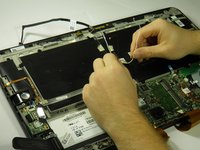
    • Disconnect the black camera cable and pull it back to prevent future hassle.

    Ask FixBot

    Add Comment

  8. Dell XPS 18 Wireless WLAN Card Replacement: step 8, image 1 of 2 Dell XPS 18 Wireless WLAN Card Replacement: step 8, image 2 of 2
    • Use the angled edge of the plastic opening tool to lift the clasp securing the touch control board cable.

    • Disconnect the silver and blue touch control board cable.

    Ask FixBot

    Add Comment

  9. Dell XPS 18 Wireless WLAN Card Replacement: step 9, image 1 of 2 Dell XPS 18 Wireless WLAN Card Replacement: step 9, image 2 of 2
    • Remove the two silver 3mm screws holding the touch control board in place with a Phillips 00 screwdriver.

    • Remove the touch control board.

    Ask FixBot

    Add Comment

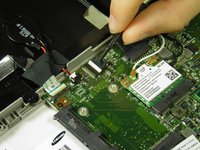
  10. Dell XPS 18 Wireless WLAN Card Replacement, Wireless WLAN Card Wires: step 10, image 1 of 1
    • Use the plastic opening tool's angled edge to remove the black and white wires connected to the wireless WLAN card.

    Ask FixBot

    Add Comment

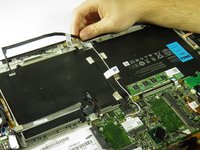
  11. Dell XPS 18 Wireless WLAN Card Replacement: step 11, image 1 of 2 Dell XPS 18 Wireless WLAN Card Replacement: step 11, image 2 of 2
    • Pull back the cables.

    Ask FixBot

    Add Comment

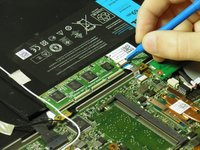
  12. Dell XPS 18 Wireless WLAN Card Replacement, Wireless WLAN Card: step 12, image 1 of 1
    • Remove the two silver 3mm screws with a Phillips 00 screwdriver.

    Ask FixBot

    Add Comment

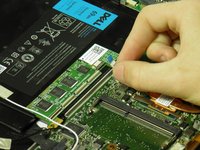
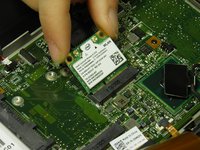
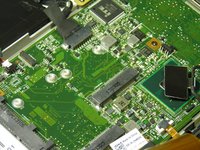
  13. Dell XPS 18 Wireless WLAN Card Replacement: step 13, image 1 of 2 Dell XPS 18 Wireless WLAN Card Replacement: step 13, image 2 of 2
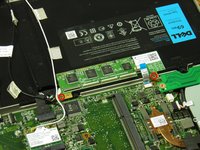
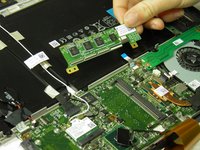
    • Angle the wireless WLAN card upward and remove it.

    Ask FixBot

    Add Comment

Conclusion

To reassemble your device, follow these instructions in reverse order.

Cancel: I did not complete this guide.

2 other people completed this guide.

Austin Weir

Member since: 01/31/15

1,308 Reputation

8 Guides authored

Team

Cal Poly, Team 6-29, Amido Winter 2015 Member of Cal Poly, Team 6-29, Amido Winter 2015

CPSU-AMIDO-W15S6G29

4 Members

16 Guides authored

0 Guide Comments

Add Comment

View Statistics:

Past 24 Hours: 3

Past 7 Days: 5

Past 30 Days: 26

All Time: 1,598