Free Shipping on Domestic Orders $75+

Dell XPS 17 L702X Battery Replacement

What you need

    1. Dell XPS 17 L702X Battery Replacement, Battery: step 1, image 1 of 1
      • Before you begin, be sure to turn off your laptop and unplug it from the outlet.

      • Flip over the laptop so that the bottom battery compartment faces upwards.

      Ask FixBot

      Add Comment

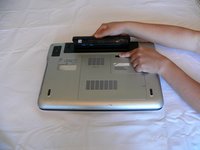
    2. Dell XPS 17 L702X Battery Replacement: step 2, image 1 of 2 Dell XPS 17 L702X Battery Replacement: step 2, image 2 of 2
      • Slide the tab below the battery to the left and hold the tab in place.

      Ask FixBot

      Add Comment

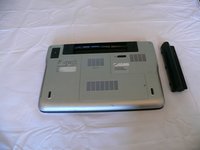
    3. Dell XPS 17 L702X Battery Replacement: step 3, image 1 of 2 Dell XPS 17 L702X Battery Replacement: step 3, image 2 of 2
      • While holding the tab, lift the battery out of its compartment.

      • Release the tab after removing the battery.

      Ask FixBot

      Add Comment

Conclusion

For optimal performance, after completing this guide, calibrate your newly installed battery.

Take your e-waste to an R2 or e-Stewards certified recycler.

Cancel: I did not complete this guide.

6 other people completed this guide.

Shin Sul

Member since: 10/02/15

550 Reputation

3 Guides authored

Team

CSU Fullerton, Team 2-6, Bruce Fall 2015 Member of CSU Fullerton, Team 2-6, Bruce Fall 2015

CSUF-BRUCE-F15S2G6

4 Members

84 Guides authored

0 Guide Comments

Add Comment

View Statistics:

Past 24 Hours: 1

Past 7 Days: 7

Past 30 Days: 49

All Time: 3,917