
Dell XPS 15 9570 Wireless Card Replacement

Margaret Combs and 5 other contributors
Last updated on Jan 5, 2024
Views: 3.9K
View statistics:
- Past 24 Hours:
- 1
- Past 7 Days:
- 27
- Past 30 Days:
- 106
- All Time:
- 3,863
Comments: 1
1 comment on steps.
Completed: 2 3
2 people have marked this guide "completed." Will you be next?
3 people have marked this guide "completed." Including you — great job!
Favorites: 0 1
No one has favorited (and subscribed to) this guide. Will you be the first?
1 person has favorited (and subscribed to) this guide — and that's you!
Introduction
Go to step 1 ↓Assuming you aren't using an Ethernet cable or don't have an Ethernet adapter, this guide demonstrates how you can easily install your new wireless card adapter for your Dell XPS 15 9570. The reason you need a wireless adapter is to allow your computer to have access to the internet. The guide provides clear instructions on how to disassemble the computer and provides a correct way to install your wireless card adapter. Something to keep in mind during this process is to be careful when unscrewing the back plate, as the back plate could break. Also, make sure not to lose any of the screws, or else the back plate won't go on correctly. When you get to the back of the computer, make sure not to mess with any wiring, and only focus on the wireless adapter.
What you need
Tools


-
-
-
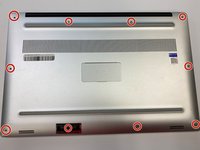
Flip the device over so the base cover of the computer is facing upwards.
 Ask FixBot
-
-
-
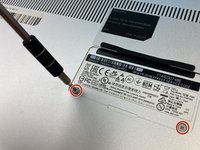
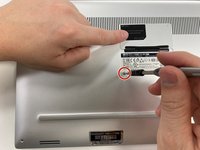
Flip open the system badge and with a Phillips #00 screwdriver, remove the two 8.5 mm screws.
-
-
-
-
-
-
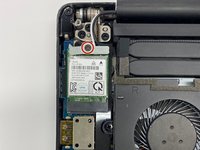
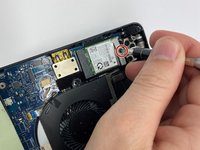
Using a Phillips #00 screwdriver, loosen the captive screw holding the wireless card bracket in place.
-
-
-
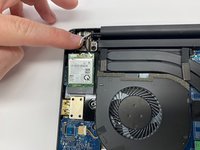
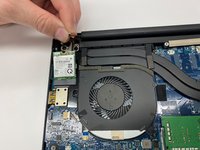
Using a spudger, disconnect the coaxial antenna cables from the Wi-Fi card by popping them gently off.
-
-









To reassemble your device, follow these instructions in reverse order.
Cancel: I did not complete this guide.
2 other people completed this guide.

Team

University of Alabama, Team 2-4, Bedsole Fall 2021 Member of University of Alabama, Team 2-4, Bedsole Fall 2021
UA-BEDSOLE-F21S2G4
3 Members
72 Guides authored
