
Dell XPS 15 9570 SSD Replacement

Baidullah Hazrat and 2 other contributors
Last updated on Aug 1, 2023
Views: 3.7K
View statistics:
- Past 24 Hours:
- 1
- Past 7 Days:
- 30
- Past 30 Days:
- 110
- All Time:
- 3,732
Comments: 1
1 comment on steps.
Completed: 0 1
No one has marked this guide "completed." Will you be the first?
1 person has marked this guide "completed." It's you — great job!
Favorites: 0 1
No one has favorited (and subscribed to) this guide. Will you be the first?
1 person has favorited (and subscribed to) this guide — and that's you!
Featured Student Guide
This guide has been the hard work of our awesome students and is found to be exceptionally cool by the iFixit staff.
Introduction
Go to step 1 ↓Use this guide to remove the SSD card in your Dell XPS 15 9570. An SSD, or solid state drive, is a type of computer storage device that uses electronic circuits to store and retrieve data. Unlike traditional hard disk drives (HDDs), SSDs have no moving parts, which makes them faster, quieter, more durable, and more energy-efficient. When an SSD stops working it may be impossible to store data into it. Before replacing an SSD, it's important to back up any important data that is stored on the drive. This is because replacing an SSD typically involves removing the old drive and installing a new one, which can result in the loss of any data stored on the old drive. Before continuing, ensure that your laptop is totally powered off and disconnected from any external power source.
What you need
Fix Kit
This kit contains all the parts and tools needed to complete this guide.

Parts


Tools


-
-
-
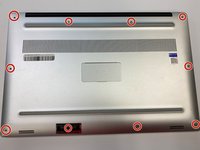
Flip the device over so the base cover of the computer is facing upwards.
 Ask FixBot
-
-
-
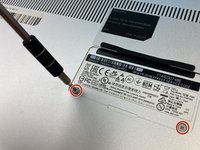
Flip open the system badge and with a Phillips #00 screwdriver, remove the two 8.5 mm screws.
-
-
-
-
-
-
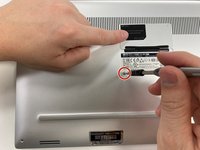
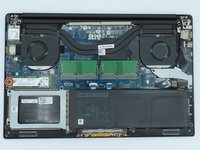
Use the Phillips #00 screwdriver to remove the 5.5 mm screw next to the SSD.
-
-






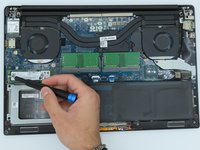


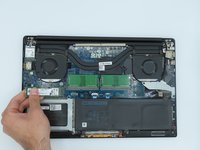
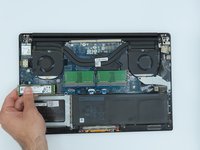
To reassemble your device, follow these instructions in reverse order.

Team

University of Kentucky, Team 1-1, Kaufmann Spring 2023 Member of University of Kentucky, Team 1-1, Kaufmann Spring 2023
UKY-KAUFMANN-S23S1G1
2 Members
24 Guides authored
